
Spotify with Siri: Playback, Setup, and Troubleshooting
Spotify documents Siri requests for music, podcasts, and playback controls. For its traditional Siri route, name the content and include Spotify. This guide explains that native voice workflow and its troubleshooting, while keeping Spotify's separate Apple Intelligence wording distinct from Apple Shortcuts evidence and this site's new Siri AI Beta classification.
Who can use this Spotify and Siri guide?
Start here if you want Siri to play identifiable Spotify audio or change playback, rather than build an automation. Spotify's official help separates traditional Siri from Siri with Apple Intelligence. Those columns describe different conditions; a requirement in one should not silently become a requirement in the other. The traditional column refers to supported Spotify app versions and languages supported by Siri. This guide does not supply an unsupported minimum version, subscription promise, or universal device list. Check the current official column that matches your setup before using its examples.
Choose one familiar song, album, artist, playlist, or podcast for your first request. As an editorial preparation step, locate it in Spotify and see whether it plays there. This gives you a useful comparison if Siri later selects something else. It does not certify your account or guarantee that every item is available. This article is based on documentation, not a device test; use the observable playback result to assess your own setup.
How do you request playback in Spotify?
For traditional Siri, Spotify tells you to append “on Spotify” to the request. Its documented English example is “Hey, Siri, play my Discover Weekly playlist on Spotify”. That quotation is an official example, not a command successfully executed by this guide. For a useful first check, activate Siri, identify the content you want, and explicitly name Spotify. Then check the app and title that actually start playing before issuing more instructions.
Spotify lists songs, albums, artists, playlists, and podcasts as playback targets. These categories help you make a request more specific: a playlist name tells Siri something different from an artist name. If your intended title is ambiguous, add the identifying detail you know and inspect the selection. That is a practical suggestion, not a documented guarantee about title matching. The English quotation should not be treated as a verified Spanish command. Use wording appropriate to your Siri language while keeping the app and intended content clear.
How should you check controls, permissions, and output?
Spotify also documents skipping tracks, playing or pausing, and changing volume. Separate those controls from choosing content when checking a problem. First establish which audio is playing; then try the individual control you need. If the wrong playlist is already active, a successful pause does not mean the original selection was correct. Likewise, a spoken response alone is less useful than checking the actual app, title, and playback state. These are suggested observation steps, not claims about guaranteed Siri confirmation screens.
Follow any permission or clarification prompt your device actually presents, and read what it authorizes before continuing. The cited Spotify help does not establish a universal Siri permission path or an identical confirmation sequence for every system. This guide therefore supplies no invented switch name and no instruction to disable confirmation. If a request needs further interaction, complete that interaction deliberately. Successful playback does not demonstrate permission for arbitrary library changes, unattended actions, or access to personal information in other apps.
What if Siri opens another app or will not resume audio?
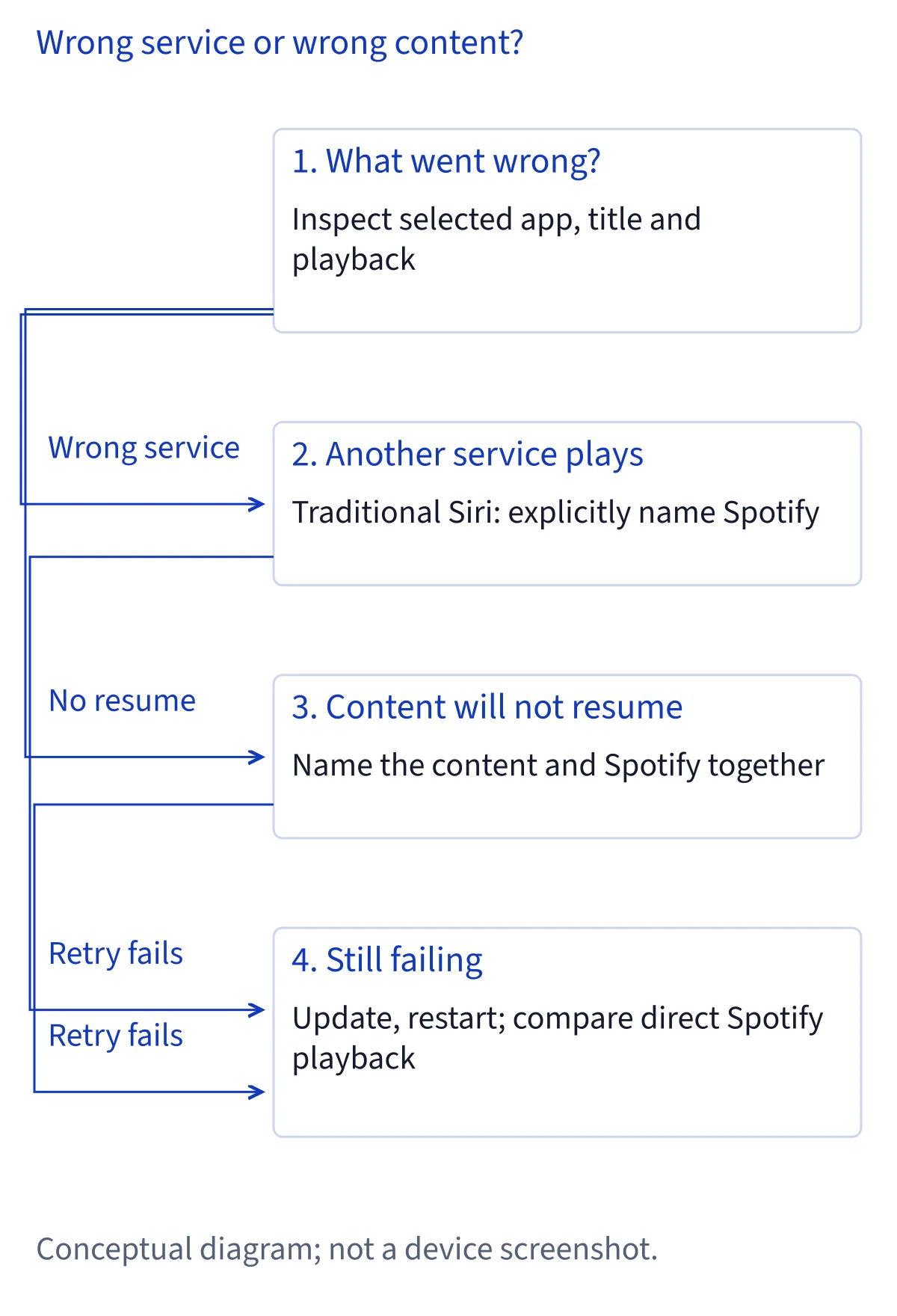
If another service starts playing, Spotify's documented branch is to include “on Spotify”. Repeat the request with the app named explicitly, then inspect the result. Spotify says Siri learns your preference as you use Spotify, but that statement should not become a promise that every future request will select it automatically. Keeping the app name in your request is a clearer diagnostic than relying on a preference you cannot observe from that request alone.
If the intended app opens but Siri does not resume what you were hearing, Spotify recommends naming the content. Its pattern is “Play [podcast name] on Spotify”; replace the bracketed text with the actual podcast title rather than speaking the brackets. This addresses content identification separately from app selection. Do not silently change both your target and your phrasing while comparing results: keeping the same title makes the next attempt more informative. Neither branch guarantees an exact episode position or recovery of an earlier listening session.
What if playback still fails after naming the app?
Spotify's troubleshooting advice includes updating Spotify and restarting the phone. Use those official steps when playback requests still fail, then try the same named content again. Record whether Siri selected Spotify, whether it selected the intended audio, and whether sound actually started. That small distinction makes a report more useful than saying only that Siri does not work. This is an editorial way to organize observations, not an additional vendor troubleshooting promise.
Try the same audio directly in Spotify as a comparison. If it also fails there, the problem is broader than the voice wording; follow the separate playback troubleshooting linked from Spotify's Siri article and inspect any message in the app. If direct playback works but the Siri request fails, retain that distinction when asking for help. Do not assume Siri bypasses ordinary content or account conditions. The cited page does not establish offline reliability, locked-screen behavior, or equal availability for every subscription, so those questions need their own evidence rather than repeated command changes.
What does Spotify's Apple Intelligence column establish?
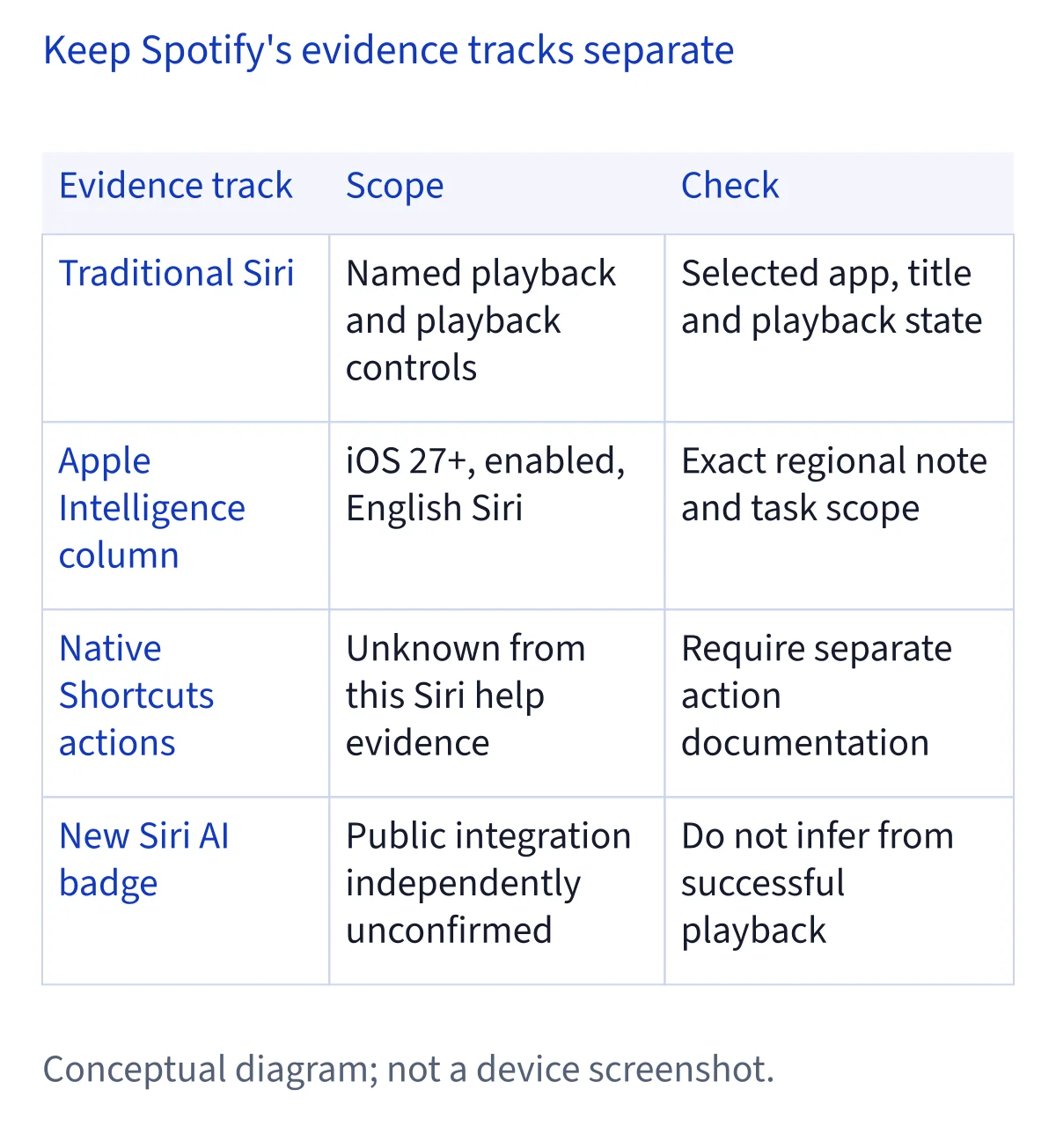
Spotify separately labels a column “Siri with Apple Intelligence”. In the previously reviewed source, that column lists iOS 27 or above, Apple Intelligence enabled, and English Siri, and includes a regional availability note. It also describes different invocation wording from the traditional column. Preserve those conditions together when reading it. The English-language condition belongs to that description; it should not be applied to all traditional Siri requests or turned into a promise of the newer experience in Spanish.
Before relying on that column for your own setup, confirm its current device and system requirements, exact region note, Siri language, enabled settings, and whether the particular task you need is covered. This guide does not invent the region list or reproduce an unverified eligibility matrix. Spotify's vendor wording is positive documentation in its own context. It is not, by itself, evidence that Spotify has joined this website's separately defined new Siri AI Beta, nor proof of public, non-beta availability required for a Siri AI verified directory badge.
How does native Siri playback differ from Shortcuts?
This workflow starts with a Siri request naming Spotify. It does not require you to create a shortcut in order to follow the documented playback instructions. However, that observation does not establish that Spotify supplies native actions in Apple's Shortcuts editor. A voice request, a share destination, and a documented Shortcuts action are different kinds of evidence. To write instructions for an automation, you would need the actual supported action and its parameters, rather than assuming an existing Siri phrase can be inserted into any workflow.
The distinction also matters for expectations. Playback documentation does not establish scheduled execution, unattended operation, or arbitrary library editing. Spotify's broader request list mentions activities beyond the playback tasks discussed here, but this guide does not expand those mentions into detailed procedures without the corresponding setup and limits. Use the narrow request that solves your listening problem. If your goal is an automation or a new Siri AI capability, consult the relevant documentation separately before deciding that a successful playback request proves it.
Sources and verification
Reviewed November 6, 2026, using Spotify's official Siri support article previously read in full. The quoted English playback example and troubleshooting branches come from that article. Checking the selected app, testing direct playback, and keeping a short record of results are editorial suggestions. No hardware test, confirmation sequence, native Shortcuts implementation, or new Siri AI integration is claimed. When reporting a failure, include the intended title, app selected, and result rather than personal listening history. If the source changes its Apple Intelligence conditions, review that column again before extending this guide's scope.
Common questions
Should I include on Spotify in a Siri request?
Yes for the traditional route documented by Spotify. Its example includes “on Spotify”, and its troubleshooting recommends naming the app if another service plays. The separate Apple Intelligence column describes different conditions and wording. Check the column that applies to your setup instead of mixing instructions from both.
What if Siri will not resume my podcast?
Spotify recommends naming the content and the app, illustrated by “Play [podcast name] on Spotify”. Replace the bracketed text with the actual title. Check what starts playing. Updating Spotify and restarting the phone are also official troubleshooting steps; exact episode position is not guaranteed by this guidance.
Does Spotify's Apple Intelligence wording verify the new Siri AI Beta?
No. It documents Spotify's separately described experience under its stated system, language, settings, and region conditions. It does not by itself establish participation in this site's new Siri AI Beta or satisfy the public, non-beta requirement for Siri AI verified. Those claims need evidence specific to that integration.
Does Siri playback prove Spotify has native Shortcuts actions?
No. The cited article establishes Siri voice playback and troubleshooting. It does not establish a native Shortcuts action or App Intents implementation. This guide therefore carries no app-directory status and makes no automation guarantee. The Spotify app candidate remains deferred for a directory classification supported by the required evidence.