
Siri AI vs Siri Classic: which experience fits your tasks?
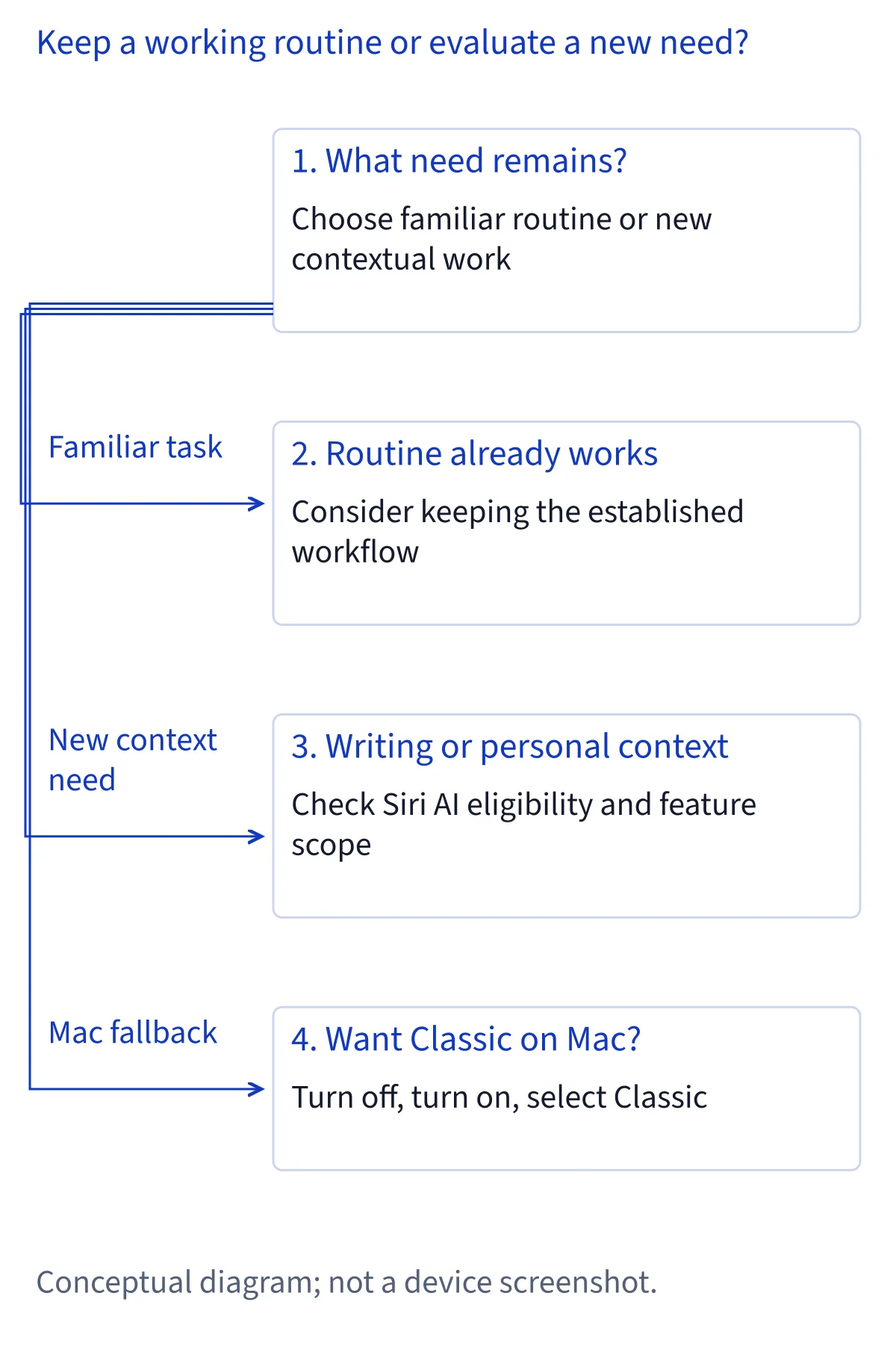
Choose Siri AI for documented personal context, onscreen help, writing and conversations that continue across devices. The earlier Siri remains relevant for established voice actions and shortcuts. Your decision depends on eligible hardware, availability, privacy preferences and whether those newer capabilities solve a task you actually have.
What Siri Classic means in this comparison
Siri Classic is the name Apple uses in its Mac guide for the previous version of Siri. That makes it a documented Mac choice, rather than a label for every assistant experience on every older Apple device. Here, the comparison separates that previous experience from Siri AI, the beta described in Apple's November 5 support article. This is a documentation-based review, not a device benchmark or a claim that either option completed a particular test.
The distinction matters because Siri already handled voice requests, app integrations and shortcuts before this beta. Apple's developer announcement explicitly acknowledges those existing integrations. Siri AI adds a different set of documented capabilities, including personal context, onscreen awareness and a dedicated conversation app. Evaluate those additions against your needs without assuming Classic has no intelligence, or that every unsupported phone offers identical behavior.
Everyday voice actions: start with what already works
If most of your requests involve a timer, music playback or a familiar home scene, the first question is whether your current Siri workflow already meets the need. Apple's HomePod guide documents alarms, timers, weather, music and scenes, illustrating the established Siri task category. Those HomePod examples do not establish Siri AI availability on HomePod, nor do they certify the same commands across every Mac or iPhone.
For a practical comparison, identify the actions you actually repeat and check their results on your own device. Confirm that the timer exists, the intended scene ran or the right media started. These are proposed checks, not reported findings. Siri AI's broader feature list alone does not establish faster execution or fewer errors for these tasks. A familiar, sufficient voice workflow can be a sound reason to keep your current setup while assessing the beta separately.
Research and writing: the clearest new decision point
Apple's Siri AI support article specifically documents broad world knowledge and Write with Siri. You can describe a writing need, request a draft, edit existing text or ask for feedback virtually anywhere you type. That makes Siri AI relevant when your goal is to develop an answer or shape a document, rather than simply trigger an established action. The earlier Siri can still provide relevant, current information through Search, according to Apple's privacy notice.
Choose between these approaches by the output you need. Finding a current reference and producing a usable draft are different tasks. For writing, review the wording, factual claims and intended audience before moving the result into your work. For research, inspect the underlying information before relying on it. Apple's capability descriptions do not provide comparative accuracy scores, response times or evidence that a generated answer eliminates the need for judgment.
Personal context: broader retrieval with meaningful boundaries
Siri AI is documented as understanding personal context across messages, emails, photos and other information. Apple's feature summary names Messages, Mail, Calendar, Notes and Reminders. This is a meaningful reason to consider the beta if your difficulty is remembering where information lives. It is not a promise that Siri can read every record in every installed app or bypass an app's restrictions.
The previous Siri experience also uses contextual information. Apple's general privacy notice describes contact relationships, accessory names, reminder labels and other data used to understand requests. The comparison is therefore about the new documented scope of personal context, rather than personalization suddenly appearing for the first time. Before relying on retrieval, check which app supplied the information and whether the original item supports the answer. Excluded apps, permissions and the integration an app actually exposes can affect the result.
Onscreen awareness and Visual Intelligence are specific additions
Apple describes Siri AI as able to answer questions about and act on what is onscreen. This changes how you can frame a request: the current material may supply context that you would otherwise have to explain. It does not establish unrestricted control over every interface. The supported app action and the information made available still matter when you move from asking a question to changing something.
Visual Intelligence adds another documented input route. Apple's support article names Siri mode in the iPhone Camera app, the screenshot gesture on iPhone and iPad, keyboard shortcuts on Mac, and looking at surroundings with Apple Vision Pro. Those entry points are platform-specific. They should not be copied into a universal instruction for Classic or for every Siri AI device. Consider these additions if understanding visible material is a recurring need, while retaining the original image or page for checking the response.
Conversation history changes how longer tasks can continue
The dedicated Siri app is another concrete distinction in Apple's Siri AI documentation. It keeps conversation history available across supported Apple devices using iCloud, so a conversation started on an iPhone can continue on a Mac or another eligible device. This is useful when a task extends beyond one brief exchange and you want to revisit the discussion rather than reconstruct it.
Apple's privacy notice says this Siri app history syncs with end-to-end encryption and cannot be read by Apple. It separately describes existing synchronization of Siri settings and Suggestions personalization. Do not confuse those older synchronization features with the newly documented conversation app. Also distinguish saved discussion from completed work: a conversation about an event or document does not itself prove the app item was created. Keep important drafts and decisions in their intended apps, and verify any resulting action there before treating the task as finished.
App actions: announced rollout versus existing integrations
Apple's November 3 developer announcement describes a rollout across Calendar, Files, Finder, Journal, Mail, Maps, Messages, Music, Notes, Photos, Preview, Reminders, Safari, Shortcuts and Weather. Its examples include finding a previously visited coffee shop and archiving files not opened for over a year. Archiving should not be rewritten as deletion, and the app list should not become a guarantee that every action exists on every platform.
Existing Siri integrations remain a separate evidence category. The same announcement acknowledges earlier support for directions, to-do lists, messages and audiobooks. For the new third-party App Intents work, Apple describes an OS 27.3 Developer Preview and future customer shipping. Preview participation does not automatically establish a public integration in the app you downloaded. Compare the specific action and release evidence, not just the presence of an app name beside Siri.
Shortcuts remain useful when you need a defined workflow
A shortcut gives you a workflow whose steps you can inspect, making it a useful reference when deciding whether a conversational request adds value. Apple's privacy notice recognizes shortcuts added through Siri and app integrations built for older Siri versions. The new developer announcement separately introduces skills that can combine several actions for complex Siri AI requests. These mechanisms should not be treated as interchangeable promises of identical behavior.
If you already depend on a shortcut, preserve its name, inputs and intended result before changing assistant settings. As a proposed check, run the important workflow and inspect the destination app afterward. When an action is unavailable through the assistant, completing it manually in the app remains a practical fallback. Do not assume that switching to Classic reproduces every new multi-action request, or that enabling Siri AI automatically gives an older shortcut access to more app data.
Hardware eligibility and expressive voices are separate gates
Siri AI requires an Apple Intelligence-capable device from Apple's supported list and the relevant OS 27 platform. That restriction applies to the new beta; it does not describe all capabilities of the earlier Siri on excluded hardware. On Mac, Apple lists M1 or later and MacBook Neo with A18 Pro. Intel Macs are outside that Siri AI list, but this comparison cannot assign them a complete Classic feature set from that fact alone.
Expressive voices impose a narrower requirement. Apple documents English-only pace and expressiveness controls using AFM Core Advanced, with a specific hardware subset. For Macs, that means M3 or later with at least 12 GB of unified memory. Eligibility for the assistant therefore does not guarantee these voice controls. Compare the documented voice options with your preferences without inferring superior sound quality, recognition accuracy or a measured advantage over the default voice.
Language, region and beta access can decide for you
Siri AI currently supports English, French, Japanese, Korean, Portuguese and Spanish, with the device and Siri set to the same supported language. Broader Apple Intelligence language availability does not expand this Siri AI list. Apple's developer announcement describes additional languages as forthcoming, so they should not determine a decision that depends on access today. The beta is also unavailable to users under 13.
Regional conditions can outweigh the feature comparison. Siri AI is unavailable on iOS, iPadOS and watchOS in the EU, while eligible Mac and Vision devices can use it with an EU Apple Account and matching supported languages. A mainland China Apple Account is currently unsupported. Eligible users may still encounter downloads or a variable waitlist. These conditions justify keeping an established workflow available, but they do not prove identical Classic availability or behavior in every language and region.
Processing and privacy: Classic does not mean entirely offline
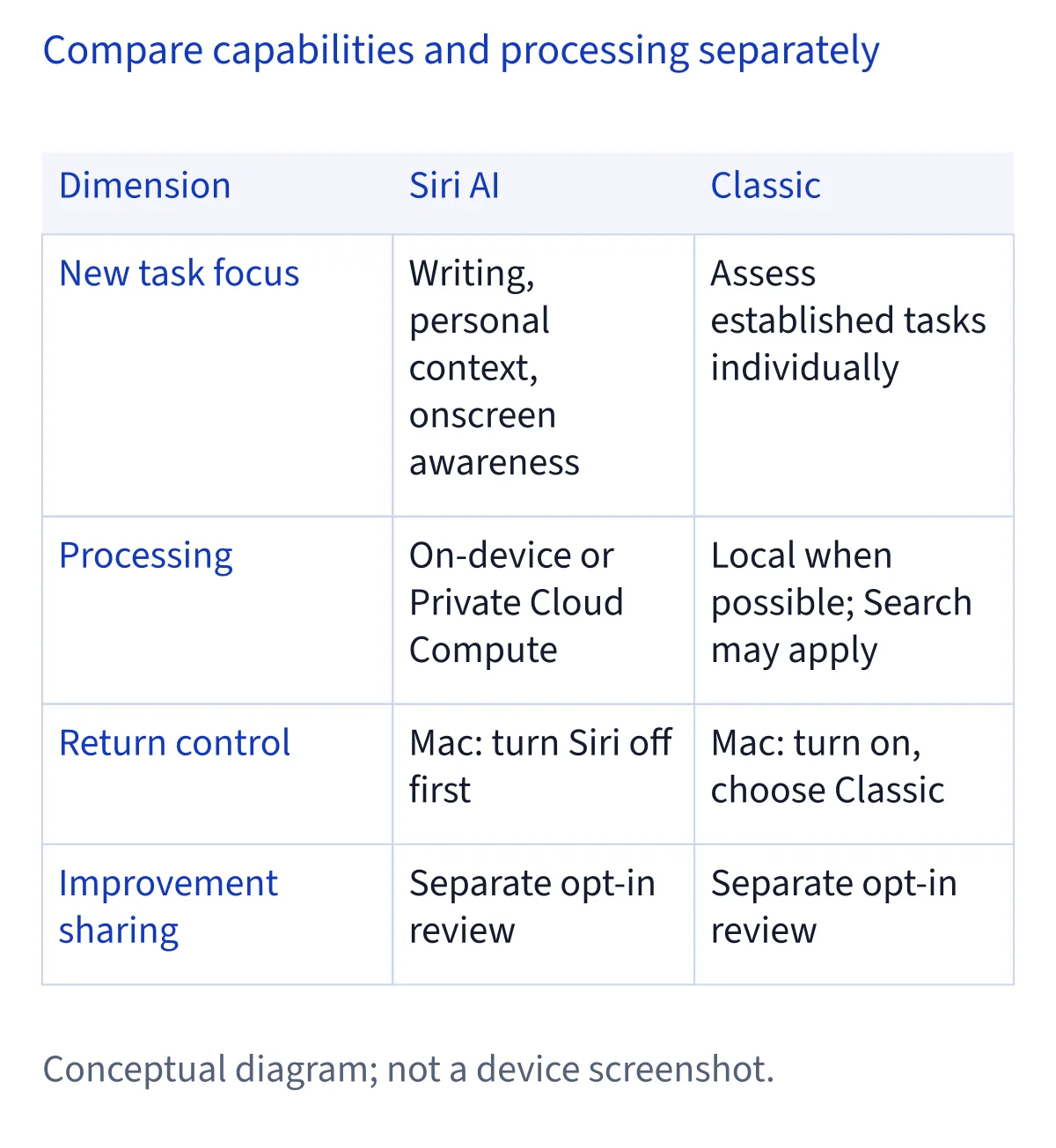
Apple's Siri, Dictation & Privacy notice provides the clearest processing distinction. With Siri AI enabled, requests may run on the device or go to Private Cloud Compute. Apple says data processed there is not stored or made accessible to Apple. That system can determine whether a response needs on-device processing, current web information or information from device apps. This is a description of that processing environment, not a blanket statement about every related data flow.
Without Siri AI enabled or available, requests do not go to Private Cloud Compute and are processed on-device whenever possible. They can still use Search, and requests may be sent to Apple for relevant, current responses. Connected devices may require additional server processing. Choosing Classic therefore changes the documented processing route, but does not establish that all requests stay offline or that no servers receive information.
Improvement sharing is a separate privacy decision
Enabling the assistant and opting into improvement sharing are separate choices. Apple's Improve Siri & Apple Intelligence notice says opting in may allow storage of interactions, including audio, transcripts, responses and links opened from world knowledge searches. Some data can be reviewed, with audio review restricted to Apple employees. Data may be retained for up to two years, while a small reviewed subset may be kept longer.
Apple describes rotating device-generated identifiers rather than association with your Apple Account, along with steps to remove personal details. Those protections do not mean no data is collected. Review the preference in Settings > Privacy & Security > Analytics & Improvements. Search has another control, Help Apple Improve Search, under Settings > Search. Apple's general notice also describes operational request data under default behavior. Do not treat disabling one improvement setting as proof that all processing or retention stops.
Switching back: the Mac sequence Apple actually documents
Apple's Mac guide gives a concrete return sequence: in Siri settings, click Turn Off Siri. To use the previous version after Siri AI, click Turn On Siri, then select Use Siri Classic. Those English labels are the documented controls; this comparison does not certify translated menu wording or extend that sequence to iPhone. Before switching, save any draft or information you need in the app where you intend to keep it.
The iPhone privacy notice documents turning Siri off through Settings > Siri > Turn Off Siri. That is an off procedure, not evidence of an equivalent Use Siri Classic return menu. Dictation has its own control under Settings > General > Keyboard > Enable Dictation. Apple says disabling both Siri and Dictation deletes the on-device transcripts used for personalization. Consider that consequence separately from changing the assistant version, and preserve your manual app workflow.
Make the choice around tasks, limits and review effort
Favor Siri AI when its documented additions address recurring work: retrieving personal information, asking about visible material, continuing a conversation across devices or developing a draft. Favor your established Siri workflow when familiar voice actions already satisfy your needs and the beta's additions do not justify changing it. On a supported Mac, the documented Classic option makes that a concrete settings choice. Elsewhere, check the actual controls rather than assuming the same return path.
Include usage limits in the decision. Apple says server-model features can have daily limits that vary by complexity, demand, policy and feature; it supplies no universal request allowance. Expanded paid access is described as future availability, not a current plan to recommend. Assess a representative task, check the original information and destination app, and decide whether the extra review fits your routine. Broader capability is useful only when it produces work you can confidently use.
Common questions
Can I return to Siri Classic after enabling Siri AI?
Apple documents that choice on Mac. In Siri settings, click Turn Off Siri, then click Turn On Siri and select Use Siri Classic. The supplied iPhone documentation describes turning Siri off, but does not establish the same return menu. Save important drafts in their destination apps before changing the assistant settings.
Is Siri Classic completely offline or more private by default?
Apple says requests without Siri AI do not go to Private Cloud Compute and are processed on-device whenever possible. They can still use Search and other server processing. Privacy also depends on improvement-sharing preferences, app interactions and request data. The documentation supports comparing those mechanisms, but not declaring a universal privacy winner.
Does Siri AI automatically gain access to every app and file?
No universal access is documented. Apple describes personal context, onscreen awareness and supported app actions, with controls for excluded apps. Existing Siri integrations and the new third-party Developer Preview represent different evidence. Check the specific app, action and release status before relying on retrieval or changes, and verify the result in the original app.
Do I need Siri AI just to keep using voice tasks or Dictation?
Earlier Siri already supports established voice tasks and integrations, so the new beta is not the starting point for all voice assistance. Exact capabilities still depend on the device and settings. Dictation has a separate enable control. Evaluate Siri AI for its added context, writing and conversation features rather than assuming ordinary speech input requires it.