
Turn off Siri AI or return to Siri Classic
To disable Siri on iPhone, Apple documents Settings > Siri > Turn Off Siri, followed by confirmation. Stopping voice activation, returning to Siri Classic on Mac, opting out of improvement sharing, and deleting local transcripts are separate choices. Start with your goal so you change the controls that actually address it.
Choose the outcome before changing a setting
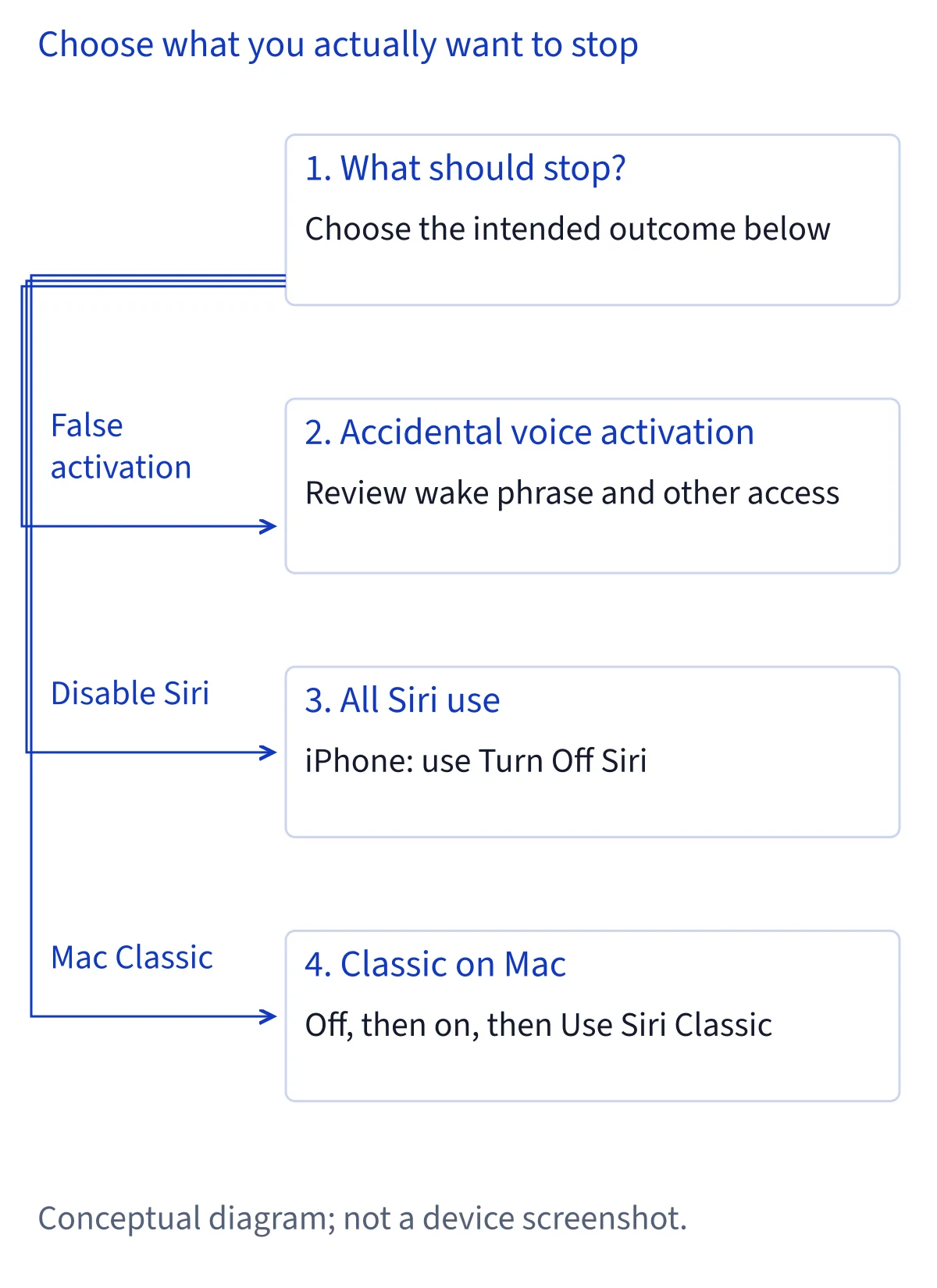
Turning off Siri AI can mean several different things. You might want to prevent voice activation while keeping deliberate access, stop using Siri altogether, return to the previous Siri experience on Mac, withdraw permission for improvement data collection, or remove locally stored transcripts. Apple's Siri, Dictation & Privacy notice documents separate controls for these purposes. Choose the outcome first; one switch should not be treated as a substitute for every other privacy or activation setting.
If accidental voice activation is the problem, begin with the activation controls rather than assuming you need to disable the assistant. If you want Siri unavailable, use the documented shutdown control. If your concern is data contributed for improvement, review Analytics & Improvements separately. For history, identify whether you mean local personalization transcripts or conversations saved in the Siri app. Apple's setup article describes iCloud conversation syncing, so the location and purpose of the information matter when deciding what to remove.
Make a short checklist before you switch Siri off
Before changing anything, note which device you are adjusting, its operating system, and the current Siri settings. As practical preparation, identify tasks you normally start through Siri, such as creating reminders or starting a shortcut, and decide how you will reach those functions directly. This is planning advice, not a claim that every workflow will fail when Siri is disabled. A shortcut's own actions and permissions need a separate assessment from its Siri activation method.
Also decide whether you need information from a saved conversation before making a change that deletes local transcripts. Apple's privacy notice explicitly connects turning off Siri with deleting transcripts stored on the device. Do not assume that turning it back on will recover deleted information. On a shared device, agree on the intended change with its other users. For a child's device, consider whether the objective is an ordinary setting change or an ongoing restriction through Screen Time; those are different management decisions.
Stop voice activation without confusing it with shutdown
Apple's iPhone user guide distinguishes speaking to Siri from activating it with a device button or connected headphones. Turning off a wake phrase therefore addresses one way of starting Siri, rather than establishing that all access is disabled. If your goal is fewer unintended activations, review the voice activation options in Siri settings and then check the other methods you use. Keep the available controls on your device as the reference rather than expecting identical wording on every system.
Apple's Improve Siri & Apple Intelligence notice also describes controls named Talk & Type to Siri, Off, Press Side Button for Siri, and Type to Siri. Those names help distinguish voice, button, and typed access; they should not be collapsed into a single concept of listening. Muting spoken replies is another separate choice: the iPhone guide describes response behavior independently of activation. After changing voice activation, inspect the remaining controls. If your actual requirement is no Siri access, continue with the documented Turn Off Siri procedure.
Disable Siri on iPhone and review Dictation separately
For iPhone, Apple's Siri, Dictation & Privacy notice gives this concrete procedure: open Settings > Siri > Turn Off Siri, then tap Turn Off Siri to confirm. This is the documented shutdown wording, rather than an inferred reversal of the Try Siri AI (Beta) setup button. Read any information presented by the device before confirming, especially if keeping local personalization information matters to you. Apple states that turning off Siri deletes Siri and Dictation request transcripts stored on the device.
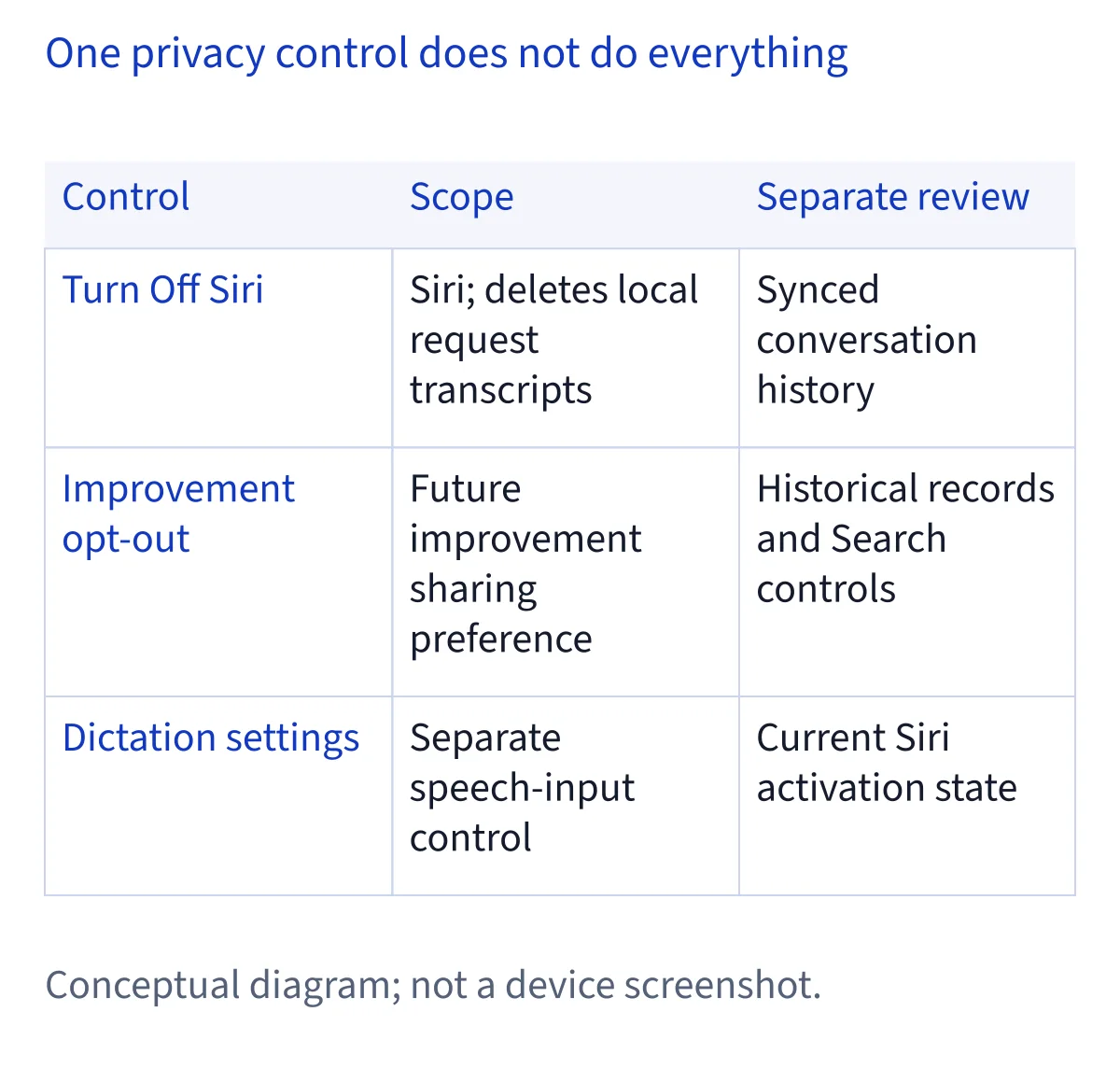
Dictation has its own control. The same notice directs you to Settings > General > Keyboard and then to turn off Enable Dictation. If your goal includes stopping keyboard dictation, review that setting explicitly rather than assuming Siri's shutdown also disables it. Apple additionally states that disabling both Siri and Dictation deletes locally stored transcripts used for personalization. Neither statement should be expanded into a promise that every conversation, server record, or third-party copy has been erased. Those categories require their own privacy assessment.
Return to Siri Classic using the documented Mac sequence
Apple's Mac user guide documents a specific route back to the previous version of Siri. In the Mac's Siri settings, click Turn Off Siri. Then click Turn On Siri and select Use Siri Classic. The order matters: the manual presents Classic as a choice when turning Siri back on after switching it off. Use this sequence when your goal is to keep Siri on Mac while leaving the Siri AI experience, rather than disabling the assistant indefinitely.
This evidence is specific to Mac. It does not establish that an iPhone presents the same Use Siri Classic choice, and the iPhone shutdown instructions should not be rewritten to imply it does. If your Mac does not show the documented choice, check its system version and the controls actually available before proceeding. Do not treat an absent option as a reason to change account region or install a different system. Returning to Classic also does not, by itself, establish that improvement sharing or every history category has been cleared.
Opt out of improvement sharing and review Search separately
To stop contributing through the improvement program, Apple's privacy notice directs you to Settings > Privacy & Security > Analytics & Improvements. Turn off the applicable control, named Improve Siri & Dictation or Improve Siri & Apple Intelligence. This permission is separate from whether Siri is available. Apple's improvement notice says opting in can allow storage and review of audio, transcripts, responses, and related request data, including use to improve or train Apple's language and foundation models.
Withdrawing that permission should not be described as retroactively erasing everything already collected. The improvement notice describes retention of up to two years, with a small reviewed subset potentially kept longer. Search also needs separate attention: Apple's Siri privacy notice documents Settings > Search > Help Apple Improve Search for controlling storage and improvement use of Search queries. It further explains that Siri searches can still be stored for Siri improvement when the Siri improvement option remains enabled. Review both controls when that distinction matters to your goal.
Distinguish local transcripts from synced conversation history
Apple's privacy notice says you can delete Siri and Dictation request transcripts stored on your device through Settings > Siri > Turn Off Siri. That is a specific statement about local transcripts. Apple's setup article separately describes conversation history in the Siri app syncing through iCloud, and its privacy notice says that syncing uses end-to-end encryption. Do not turn the local deletion instruction into an unsupported promise that every saved Siri app conversation disappears from all devices.
Before removing history, identify what you are looking at: a conversation in the Siri app, local personalization information, or data previously contributed through improvement sharing. Inspect the relevant controls and their confirmation text rather than assuming these stores have a common deletion command. Apple also documents Settings > your name > iCloud > Saved to iCloud > See All > Siri for stopping Siri personalization syncing. A syncing preference is not, by itself, evidence of deletion. If the interface does not explain the scope of removal, avoid making a broader conclusion.
Check family devices, connected devices, and app access
Review each relevant device instead of treating one iPhone setting as proof of a household-wide result. Apple's improvement notice says the opt-in preference selected when setting up an iPhone or iPad applies to new connected Apple devices or supported HomeKit accessories set up with it, and can later be changed for each device. Its Siri privacy notice also explains that connected-device requests can involve additional processing. Inspect those devices' Siri settings when your concern includes a Watch, HomePod, or shared accessory.
For a child's device, Apple's privacy notice documents Settings > Screen Time > Content & Privacy Restrictions > Other Features, with separate entries for Siri and Dictation. Use those restrictions when continued access control is the goal. For a narrower app concern, the notice documents Siri > Excluded Apps to prevent specified apps from contributing to personalization, supporting actions, or supplying cross-app suggestions. It separately documents Use with Siri controls for apps built for older Siri versions. These controls have different scopes and should be selected accordingly.
Verify the result and understand what re-enabling changes
After making your changes, reopen the relevant settings and compare them with your original goal. For voice activation, inspect that control and the remaining button or typed access methods. For shutdown, confirm Siri's displayed state. For improvement sharing, revisit Analytics & Improvements and, where relevant, the Search control. For privacy, check Dictation, app exclusions, and connected devices separately. These are recommended verification steps, not claims of a completed device test or proof that all historical records have been deleted.
To re-enable Siri, Apple's setup article documents Settings > Siri > Turn On Siri when it is off. It identifies Try Siri AI (Beta) as the entry for enabling Siri AI and says to follow the prompts for voice selection, enrollment, and privacy review. Availability still depends on the documented device, language, region, and age requirements; downloads can involve a waitlist during high demand. On Mac, retain the distinction between selecting Use Siri Classic and enabling Siri AI. Re-enabling access does not establish that deleted local transcripts will return.
Common questions
Does turning off voice activation completely disable Siri?
No. Apple's iPhone guide distinguishes voice activation from access through buttons and connected headphones. Typed access also has its own control in Apple's privacy documentation. If your goal is to disable Siri rather than only prevent wake-phrase activation, Apple's legal notice documents Settings > Siri > Turn Off Siri, followed by a confirmation.
Can I use the Mac's Siri Classic instructions on iPhone?
The supplied documentation supports that sequence specifically on Mac: Turn Off Siri, then Turn On Siri, then Use Siri Classic. It does not establish the same option on iPhone. Use the iPhone's documented shutdown control when disabling Siri there, and do not interpret the Mac manual as evidence of an identical iPhone fallback menu.
Will turning off Siri erase every copy of my history?
Apple states that turning off Siri deletes Siri and Dictation request transcripts stored on your device. That statement does not establish deletion of every Siri app conversation synced through iCloud or data previously collected for improvement. Identify the information you want removed and check the scope of the relevant control before treating the deletion as complete.
Can I keep Siri while opting out of improvement sharing?
Yes. Apple's privacy notice documents a separate improvement preference under Settings > Privacy & Security > Analytics & Improvements. Turn off Improve Siri & Dictation or Improve Siri & Apple Intelligence, as applicable. Review Help Apple Improve Search separately if Search query storage concerns you. Opting out does not establish retroactive deletion of previously collected data.