
Understand Siri AI daily usage limits
Siri AI has variable daily limits for features that use server models, but Apple publishes no universal request allowance or reset time. This guide explains how to identify a quota notice, separate it from setup or eligibility problems, and continue important tasks using suitable alternatives while access is restricted.
What Apple actually says about daily limits
Apple's Siri AI setup article, published November 5 and reviewed here as a November 6, 2026 documentation snapshot, says certain Apple Intelligence features that rely on server models have daily usage limits. Its examples include Siri AI, intelligent photo editing tools, Image Playground, and AFM 3 Cloud models in Shortcuts. Apple says limits can vary with the feature, request complexity, system demand, system policies, and other factors. These conditions describe variable access rather than a published number of conversations available to everyone.
Neither that article nor Apple's November 3 developer announcement provides a universal request allowance or a reset clock. They also do not explain whether the listed features share one allowance or use separate accounting. For planning purposes, treat those details as unspecified. A useful approach is to identify the feature involved and read the actual notice, rather than estimating an account balance from how many messages you remember sending.
Why counting requests does not establish your allowance
Request complexity is one of the variables named in Apple's setup article. However, Apple does not publish a formula that converts message length, attachments, app actions, or conversation turns into quota units. You therefore cannot reliably calculate remaining access by assigning your own cost to each request. The documentation also provides no basis for treating every Siri interaction as an identical server request, or for assuming that every unsuccessful attempt consumes a known amount.
As practical advice, make the objective clear before submitting a request and include the information needed to complete it. This can reduce avoidable clarification, but it is not a documented way to earn more quota. Split work when separate outcomes need separate review, rather than combining unrelated tasks merely to influence a counter. For important work, keep the original material accessible in its app and save useful results as you go. These habits protect continuity without depending on an unpublished accounting model.
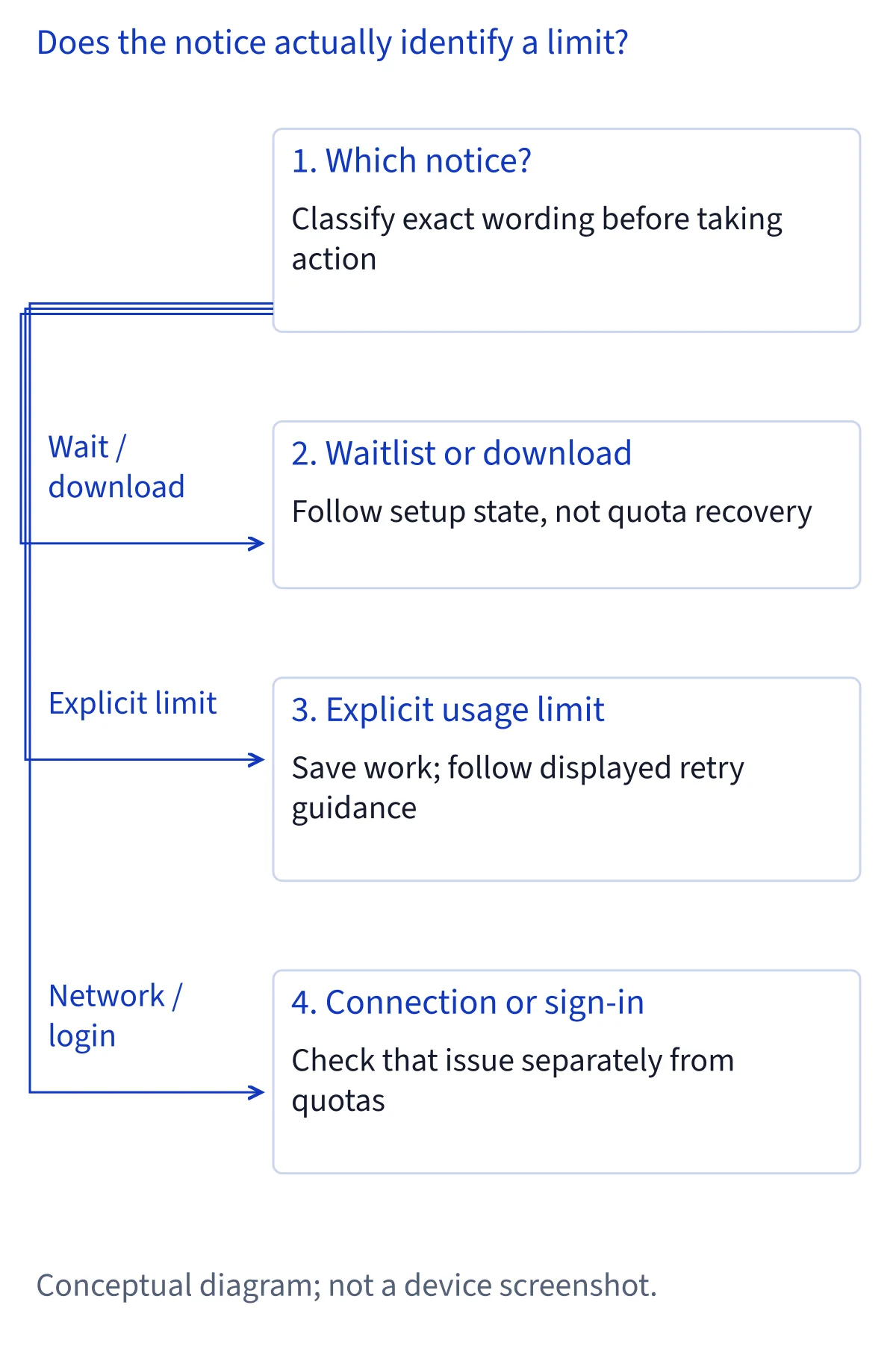
Separate a quota notice from a waitlist or download
Apple's setup article describes a distinct activation sequence: open Settings, choose Siri, and select Try Siri AI (Beta). If Siri is disabled, the article says to select Turn On Siri first. After the voice, enrollment, and privacy steps, Siri AI begins downloading automatically. During high demand, Apple says you might first enter a waitlist, with variable waiting times. That is a setup condition, not evidence that you have exhausted a daily allowance.
Start diagnosis by noting whether setup has finished and whether the message actually mentions usage limits. A download status points toward installation progress; a waitlist message points toward access awaiting activation. A notice explicitly restricting further server use is a different category. Do not substitute an assumed quota reset for an unfinished download. As general troubleshooting advice, retain the displayed status and check the setup instructions before changing settings. Apple publishes no fixed waitlist duration in the supplied article, so a promised completion time would be unjustified.
Check connectivity, account access, and eligibility separately
A connection failure or sign-in request does not, by itself, identify a daily limit. As a diagnostic recommendation, check whether ordinary internet access works, whether the device requests account authentication, and whether the displayed error names a quota. Complete legitimate authentication prompts through the device's normal settings. Avoid repeated account changes or security changes intended to make an unexplained error disappear; they do not establish its cause.
Eligibility is another separate question. Apple's setup article requires an eligible device, supported software, matching supported device and Siri languages, and an eligible Apple Account region. It says Siri AI is unavailable to users under 13, unavailable on iOS, iPadOS, and watchOS in the EU, and currently does not work with a mainland China Apple Account region. The article describes different EU conditions for Mac and Vision Pro. Waiting for a daily allowance to renew does not resolve an eligibility restriction. Check the relevant platform requirements rather than interpreting every unavailable feature as quota exhaustion.
Record the notice before choosing a recovery step
When access stops, record the exact wording of the notice, its date and time with time zone, the device model, and the operating system version and build if available. Also note the feature used and whether the request involved Siri, an image tool, or a cloud model inside Shortcuts. This is recommended troubleshooting information, not an Apple-published quota formula. Preserve any retry instruction shown on the device without turning it into a general rule for every account.
Describe the task at a level that helps diagnosis without exposing its private contents. For example, you can say that a request involved an existing note rather than copying the note into a public discussion. If you capture a screenshot, review it for names, addresses, and account details before sharing. Comparing the exact notice and software version is more useful than a report that Siri simply stopped working. It also helps distinguish a repeated quota notice from a different error that appears later.
Recover access without guessing a reset or bypass
If the notice explicitly identifies a usage limit, follow any retry guidance it provides and move urgent work to another suitable method. Apple's setup article and developer announcement do not establish midnight, a rolling 24-hour window, or a particular time zone as the reset rule. Waiting until a guessed hour is therefore a planning assumption, not a documented recovery instruction. Repeated submissions also provide no reliable measure of the remaining restriction.
A practical recovery plan is to preserve unfinished work, complete time-sensitive actions directly, and try the affected feature again when the displayed guidance permits. If the problem persists, contact Apple Support with the notice and version information already collected. Reinstalling software, switching accounts, changing regions, or moving between devices should not be presented as verified quota remedies. The sources do not document those methods as ways to renew an allowance. Diagnose any new authentication or connectivity error separately rather than assuming it has the same cause as the original restriction.
Choose ordinary apps or Siri Classic for a suitable task
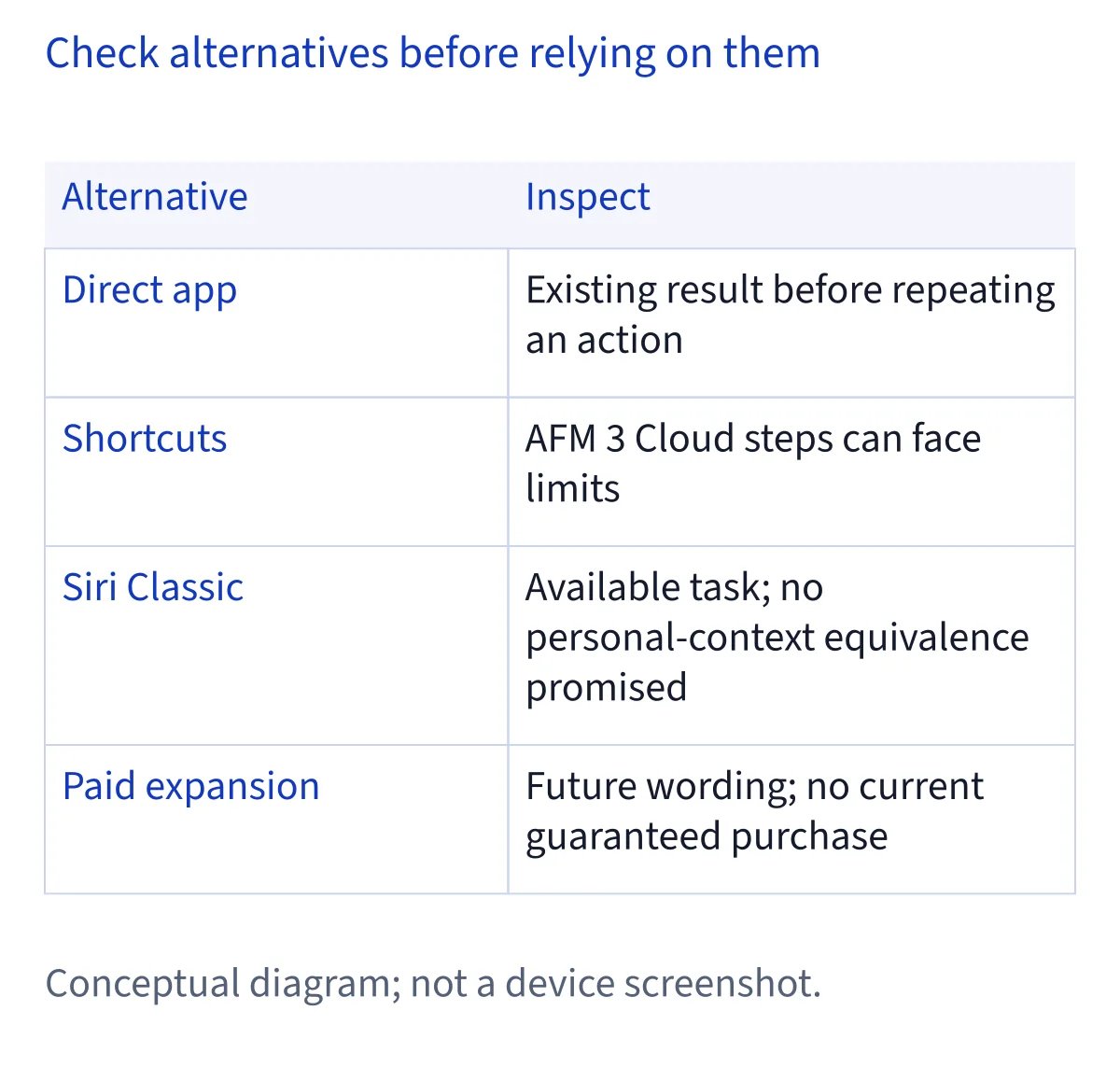
For an urgent action, an ordinary app can be the clearest alternative when you can perform the task directly. As practical advice, open the relevant app, inspect the current information, make the change, and verify the saved result. This is especially useful when a deadline matters more than maintaining a conversational workflow. Check whether an earlier request already completed before repeating an action, particularly when duplication could create an extra event or send another message.
Siri Classic may suit a familiar task if the device offers it and the task is supported there, but the supplied Apple sources do not establish a specific return menu or guarantee equivalent capabilities. Do not assume it can replace personal-context reasoning or every announced Siri AI action. Apple's developer announcement describes an ongoing rollout across Apple apps, not universal action coverage. For reminders or alerts, verify the saved item, permissions, and delivery settings; neither these sources nor the existence of an alternative workflow guarantees offline notification delivery.
Inspect Shortcuts before using it as an alternative
Shortcuts is not automatically independent of server-model limits. Apple's setup article explicitly includes AFM 3 Cloud models in Shortcuts among the features subject to daily restrictions. A workflow that calls such a model therefore cannot be assumed to continue merely because it starts in Shortcuts rather than the Siri app. Apple's developer announcement also lists Shortcuts among apps receiving new capabilities, but that does not prove that every action operates locally or avoids a quota.
As a planning recommendation, inspect each action in an existing shortcut and identify which steps need a cloud model, an internet connection, an external service, or permission to access app data. A straightforward workflow using documented app actions may suit a repeatable task when conversational reasoning is unnecessary. Keep a manual route available for critical steps. Before relying on the result, check that the intended item was actually created or updated. A successful launch is not proof that every later step or notification completed, especially if network access changes during execution.
Treat paid expanded access as a future announcement
Apple's setup article and November 3 developer announcement both say expanded access to the affected features will be available for a fee in the future. In this November 6 documentation snapshot, that statement does not specify a current plan, a price, a launch date, or an additional request allowance. It also does not establish that an existing iCloud+ subscription increases Siri AI quota. Do not purchase storage on the assumption that it will remove a server-model restriction.
The setup article separately describes iCloud synchronization of Siri conversation history. That storage-related statement is not evidence of a paid usage entitlement. If expanded access later becomes available, compare the actual terms for included features, limits, regions, and account requirements before deciding whether it fits your work. For now, plan around documented availability and a practical fallback for deadlines. Apple's developer announcement also says more terms and usage-policy details will follow for developer experiences; it should not be read as a current consumer pricing offer.
Common questions
How many Siri AI requests can I make each day?
Apple does not publish a universal daily request count in its setup article or November 3 developer announcement. It says limits for server-model features vary with the feature, request complexity, system demand, system policies, and other factors. Counting conversation turns therefore does not establish your remaining allowance, and the documentation does not explain whether different features share one quota.
Does the Siri AI daily limit reset at midnight?
The supplied Apple documentation does not specify midnight, a reset time zone, or a rolling 24-hour period. Follow any retry instructions in the actual notice rather than assuming a schedule. If access remains restricted, keep the error wording and software version for support, and complete urgent tasks directly in an appropriate app.
Does iCloud+ currently give me a higher Siri AI allowance?
The reviewed Apple sources do not establish an iCloud+ quota benefit. They announce future paid expanded access without specifying a current price, plan, or additional allowance. The setup article's separate description of iCloud conversation-history synchronization does not establish a usage entitlement. Check explicit access terms before buying a subscription for this purpose.
Can Shortcuts or Siri Classic keep my work moving during a limit?
Possibly, depending on the task and available capabilities. Apple explicitly includes AFM 3 Cloud models in Shortcuts within daily-limit coverage, so inspect the workflow's dependencies. Siri Classic is an option only where available and suitable; the supplied sources do not verify a switch-back menu. For deadlines, use a direct app workflow and verify the saved result and notification settings.