
Siri AI vs Gemini: choose by workflow
Choose Siri AI or Gemini by the information and actions your daily tasks require. Apple's assistant integrates with eligible Apple systems; Gemini connects supported services through account permissions. This comparison uses documentation reviewed November 6, 2026, to explain platform differences, privacy controls and practical selection criteria.
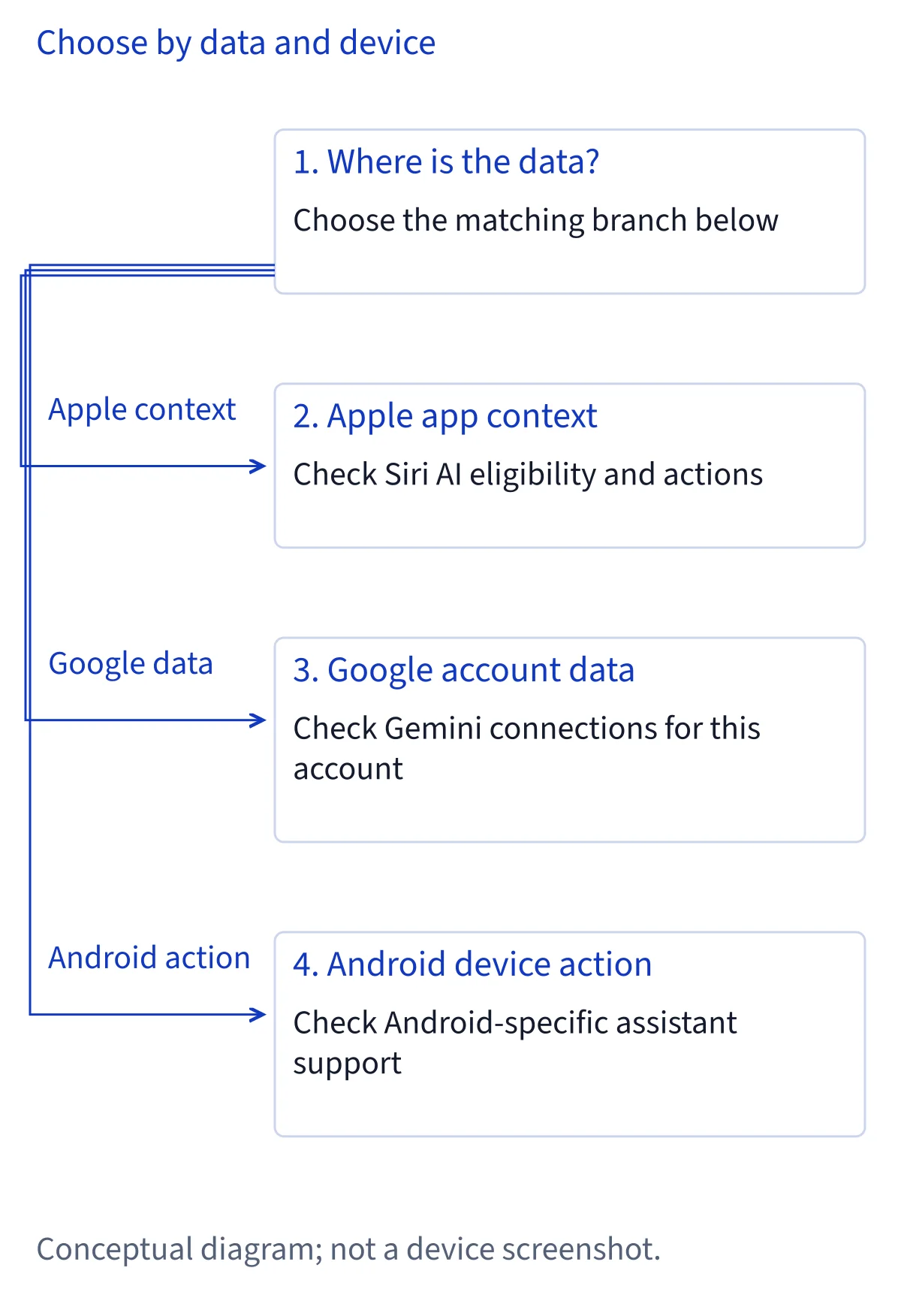
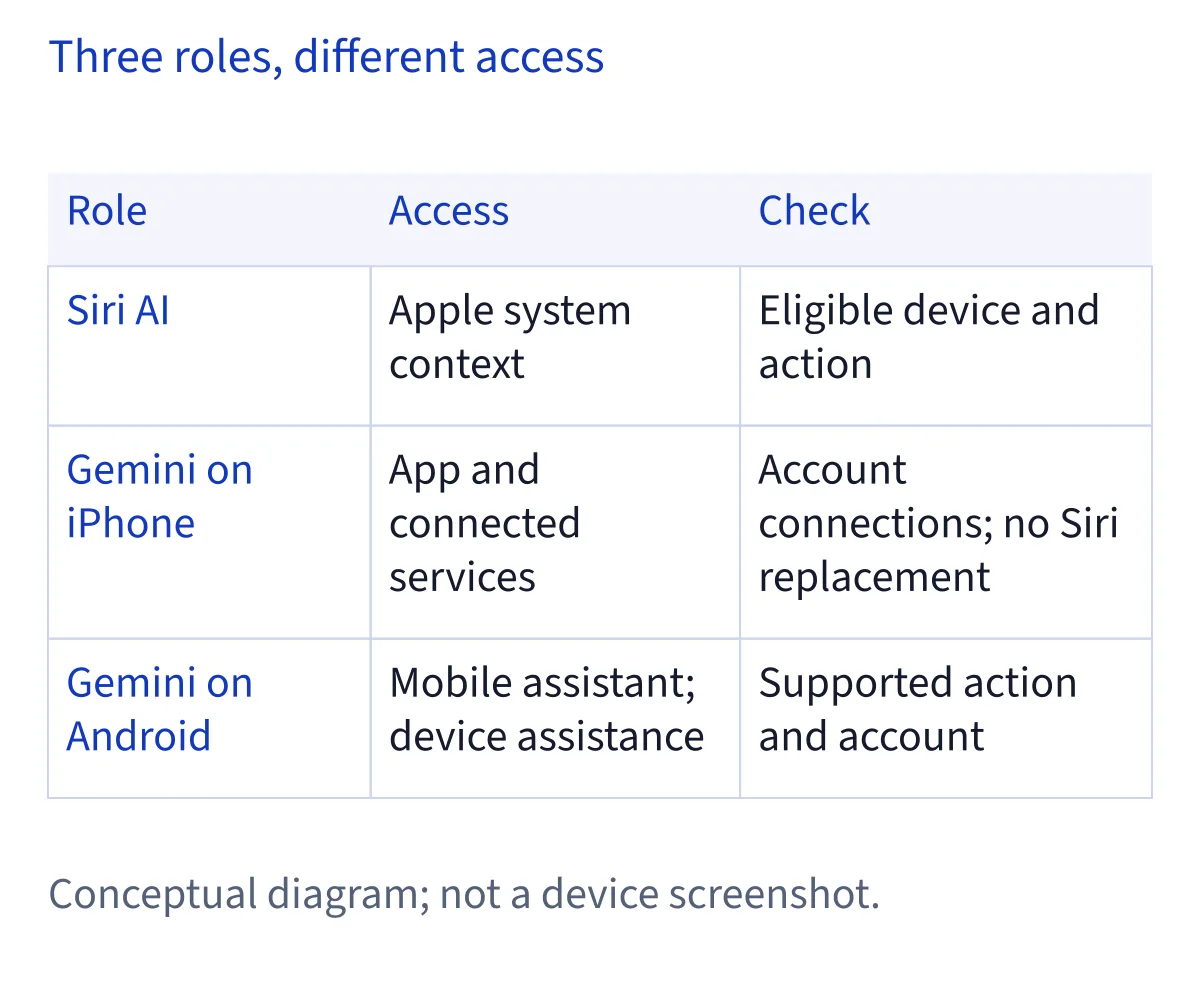
Compare an operating system integration with an assistant service
Siri AI and Gemini overlap in conversation, writing and information retrieval, but their integration models differ. Apple's setup article describes Siri AI as a beta integrated with supported Apple operating systems, with personal context, onscreen awareness and app actions. Google's mobile app guide describes Gemini as an assistant available through mobile apps, with additional device assistant behavior on Android. Those descriptions support a comparison of access and tasks, rather than a universal winner.
Start by separating three needs: answering a question, finding information held in an account, and changing something in an application. A useful answer does not establish permission to read private email, and finding an event does not establish permission to create another one. For a documentation-based decision, identify which layer your task actually requires. Then compare the relevant platform, connected service and supported action. This prevents a broad feature description from becoming an unsupported promise about every application on your device.
On iPhone, Gemini does not become the system Siri replacement
Using Gemini on an iPhone gives you access to the Gemini application and its supported services; it does not give that application Siri's operating system integration. Google's mobile capabilities guide explicitly assigns some assistant behaviors, including asking about the screen through Hey Google, to Android. Do not transfer those statements to iOS. Likewise, Google's Connected Apps article makes availability dependent on the device and the Gemini application being used.
For an iPhone decision, distinguish a conversation inside Gemini from a system request made through Siri AI. If your priority is information in supported Google services, inspect the connections available in Gemini for your account. If your priority is Apple app context or systemwide actions, consult Apple's documentation for the exact device and feature. Keeping both applications can be a reasonable choice: the deciding question is where the necessary information and authorized action are available. Installing Gemini alone does not demonstrate support for an iPhone alarm, message or settings change.
Android changes Gemini's role and available actions
Android is a different comparison because Gemini can serve as the mobile assistant. Google's mobile guide documents Hey Google and Voice Match in supported circumstances, while explaining that Google Assistant helps with some familiar quick voice actions. Google's Connected Apps article also describes Android calls and messages through supported applications, plus alarms and settings through Device assistance. These are platform-specific capabilities, with language, account and availability conditions.
For an Android workflow, identify the default communication application and the device action you need before choosing an assistant arrangement. Google's documentation says Device assistance, Phone, Messages and WhatsApp remain available on Android when Keep Activity is off, while other connected access is restricted. That exception matters if your priority is basic phone control with reduced saved activity. It does not establish that every communication feature works in every country or on a supervised account. Siri AI, by contrast, should be evaluated within Apple's listed supported platforms, rather than assumed to provide an equivalent Android assistant.
Check device, language and region eligibility before setup
Apple's setup article lists eligible hardware and requires matching supported device and Siri languages. Its current language list includes English, French, Japanese, Korean, Portuguese and Spanish. It also states that Siri AI is unavailable on iOS, iPadOS and watchOS in the European Union, while eligible Mac and Vision Pro configurations have a different regional position. An Apple Account region of mainland China currently prevents Siri AI from working. Spanish language support therefore does not imply availability on an iPhone in Spain.
Google's mobile and Connected Apps documentation likewise makes availability conditional, but those conditions must be checked against Google's own service rather than copied from Apple. Before considering migration, record your exact device, operating system, account category, country and required language. For Siri AI, Apple's documented starting point is Settings, Siri, then Try Siri AI (Beta); a download or variable waitlist may follow. Treat consumer setup guidance and Apple's separate 27.3 third-party developer preview announcement as different documentation scopes.
For Gmail and Calendar, follow the account holding the data
Google's mobile guide documents finding and summarizing information from Gmail or Google Drive. Its Connected Apps article also describes email summaries and creating Google Calendar events, subject to available connections and supported actions. That makes Gemini relevant when the information you need is already held in those Google services. It does not mean every Gemini account has identical access, or that a summary automatically becomes a calendar entry.
A documentation-based planning walkthrough should separate retrieval from creation. First, confirm the intended Google account and whether the required service appears in Connected Apps. Next, read its supported and unsupported actions. For an email-to-calendar task, your practical review should check the original message, the proposed date, time zone, guests and target calendar before treating the task as complete. This is recommended verification, not a report of a successful test. Apple's documentation of Mail and Calendar actions does not, by itself, establish identical access to every Gmail feature or every Google Calendar operation.
For Apple personal context, distinguish finding from acting
Apple's setup article describes personal context across Messages, Mail, Calendar, Notes, Reminders and more, alongside questions about onscreen information. Apple's November 3 developer announcement lists an action rollout across fifteen Apple applications, including Files, Finder, Photos and Safari. These statements support consideration of Siri AI for information distributed across an eligible Apple environment. They do not establish an unrestricted ability to inspect or modify everything stored there.
For a personal organization workflow, identify the source application and the intended outcome separately. Finding a reference in a message, opening related material and changing a reminder are different capabilities. Check which action Apple documents and whether that application exists on the platform you use; Finder should not be treated as an iPhone application. Apple's privacy notice also describes Excluded Apps controls. If you exclude an application, account for that decision when evaluating contextual usefulness. A narrower permitted information set can be an intentional privacy choice, even when it makes a proposed workflow less comprehensive.
Verify connected app scope instead of counting integrations
Google's Connected Apps guide directs users to Customize and Connectors, where an application's details can list supported actions, unsupported actions and example prompts. It says the available selection reflects the account type and Gemini application currently in use. Some connections can work automatically, and users can disconnect them. The useful comparison is therefore the exact operation available to your account, rather than a headline count of partner applications.
Apple's November 3 announcement describes third-party App Intents integration as a developer preview for the 27.3 betas, with customer delivery discussed separately. An application supporting traditional Siri or Shortcuts should not automatically be labeled publicly integrated with the new Siri AI capabilities. For either ecosystem, ask whether the evidence covers reading content, creating an item, modifying an existing item or combining actions. A sensible selection process also checks the vendor's own documentation. A familiar application name in a directory is a starting point for that review, not proof of every action you want.
Separate voice conversation, Live sharing and onscreen awareness
Voice input, an ongoing conversation and access to a camera or screen are separate features. Google's mobile guide documents text, voice, photographs and camera input, and links to Gemini Live guidance. Its Connected Apps article says some connected applications are available in Live chats, rather than promising every connection. The activity management article also explicitly addresses Live audio, transcripts, shared video and screenshares. These sources support discussing Live while keeping its connected scope conditional.
Apple's setup article separately documents onscreen awareness, Visual Intelligence and conversation history synchronized through the Siri app. It limits customizable expressive voices to English and a narrower hardware list than basic Siri AI eligibility. For a visual assistance decision, specify whether you need to discuss a photograph, share a screen or act on visible information. Then review the exact supported mode and permissions. Avoid treating similar conversational presentation as identical access. Before sharing a screen, a prudent step is to remove unrelated personal or workplace material from view.
Gemini connections and Keep Activity
Permission choices affect both usefulness and data exposure. Google's Connected Apps documentation requires signing in and checking Keep Activity. With that setting off, connected applications are unavailable on the web, iOS and smartwatches; Android retains the specified Device assistance and communication exceptions. Turning off saved activity is consequently a workflow decision as well as a records preference. The same article says users can connect or disconnect applications in the connection settings.
Siri app exclusions and permission decisions
Apple's Siri and Dictation privacy notice describes Excluded Apps as a way to stop selected applications contributing to personalization, actions and suggestions across applications. It separately describes location and speech recognition controls. For either product, choose access around a defined task rather than enabling everything in anticipation of future use. Review the signed-in account, the data source and the requested device permission independently. If the task fails after access is restricted, consult the documented requirement before granting broader access. This approach is practical guidance, not a guarantee that every permission problem has the same cause.
Compare retained records, not blanket privacy slogans
Google's activity article says personal-account activity is stored when Keep Activity is on, with an eighteen-month default auto-delete period and options for three months, thirty-six months or no automatic deletion. With Keep Activity off, conversations remain associated with the account for up to seventy-two hours to provide the service and process feedback. Live materials can be included in saved activity. A separate setting for using audio and Live recordings to improve services is off by default.
Apple's privacy notice says Private Cloud Compute does not retain the data processed there, while Siri app conversation history can synchronize through iCloud using end-to-end encryption. The same notice describes other records: Search requests may be stored, and certain request-related data may be retained for up to two years. Improvement participation introduces additional collection. These are different processing categories. Evaluate conversation history, operational records, improvement settings and third-party transfers separately; neither a cloud-processing statement nor a history switch describes the complete privacy picture.
Treat work and school accounts as a separate decision
Google's personal-account Connected Apps guide explicitly directs work and school users to separate guidance. Its activity article says Google Workspace administrators control activity settings for those users, who may be unable to change retention or see how long chats are retained. A personal account configuration therefore cannot establish what a managed account permits. Google's consumer AI plans page also distinguishes personal subscriptions from Google Workspace arrangements.
For a workplace decision, start with the organization's approved account and data handling requirements. Ask the administrator which Gemini connections, retention settings and services apply before placing business information in a personal assistant conversation. On Apple devices, system integration likewise does not establish organizational authorization to process work content. Check the applicable device and account policy instead of assuming that information visible in Mail or Calendar is approved for every assistant workflow. This is governance advice rather than a claim about a specific employer's configuration. Keep personal subscription benefits separate from institutional access when estimating whether a proposed workflow is available.
Compare paid access after checking the task
Pricing should follow capability checks. Google's AI plans page describes subscription tiers and region-dependent benefits, but a plan name alone does not establish every connection, mobile action or workplace entitlement. Consult the current offer for your country and account before subscribing. Apple's setup article says some server-model features have variable daily limits and that expanded access will be available for a fee in the future. That wording does not establish a currently sold Siri AI allowance or unlimited access through iCloud+.
Walk through one recurring task before deciding
For a final documentation-based walkthrough, select one recurring task and identify its source, destination, device, account and permission requirements. Consult the corresponding action documentation, then decide whether the necessary access fits your privacy and budget preferences. For Google-held email information, inspect Gemini's eligible connections; for supported Apple app context, inspect Siri AI eligibility and actions. If neither documents the required operation, retain a manual step or a separately documented shortcut. This decision method makes no claim about comparative speed, accuracy or successful completion.
Common questions
Does installing Gemini replace Siri AI on an iPhone?
No. Gemini on iPhone provides its application experience and eligible connected services, not Siri's operating system integration. Google's mobile guide assigns certain device assistant capabilities specifically to Android. Choose according to the operation you need, and check iOS connection availability separately rather than assuming an Android feature works on iPhone.
Can Gemini use Gmail and Google Calendar with Keep Activity off?
Google's Connected Apps guide says connections are unavailable on the web, iOS and smartwatches when Keep Activity is off. Android retains exceptions for Device assistance, Phone, Messages and WhatsApp; Gmail and Calendar are not listed among them. Review this tradeoff before choosing activity settings for an email or scheduling workflow.
Does either assistant keep no records when history is disabled?
Do not equate a history control with zero retention. Google documents up to seventy-two hours of account-associated conversations when Keep Activity is off. Apple distinguishes nonretained Private Cloud Compute processing from synchronized Siri history, stored Search requests and other request-related records. Consult each category and its controls in the respective privacy documentation.
Does support for Spanish make Siri AI available on an iPhone in Spain?
No. Apple's setup article lists Spanish as supported but separately states that Siri AI is unavailable on iOS, iPadOS and watchOS in the European Union. Eligible Mac and Vision Pro configurations have different conditions. Language, platform, hardware and Apple Account eligibility must all be considered; language support alone is insufficient.