
Visual Intelligence with Siri: Camera, Mac and Vision
Visual Intelligence with Siri has different entry points: Siri mode in iPhone Camera for physical objects, screenshots for displayed content, keyboard shortcuts on Mac, and looking at surroundings or windows on Vision Pro. Choose the path that matches your subject, ask a focused question, and review any suggested action before using it.
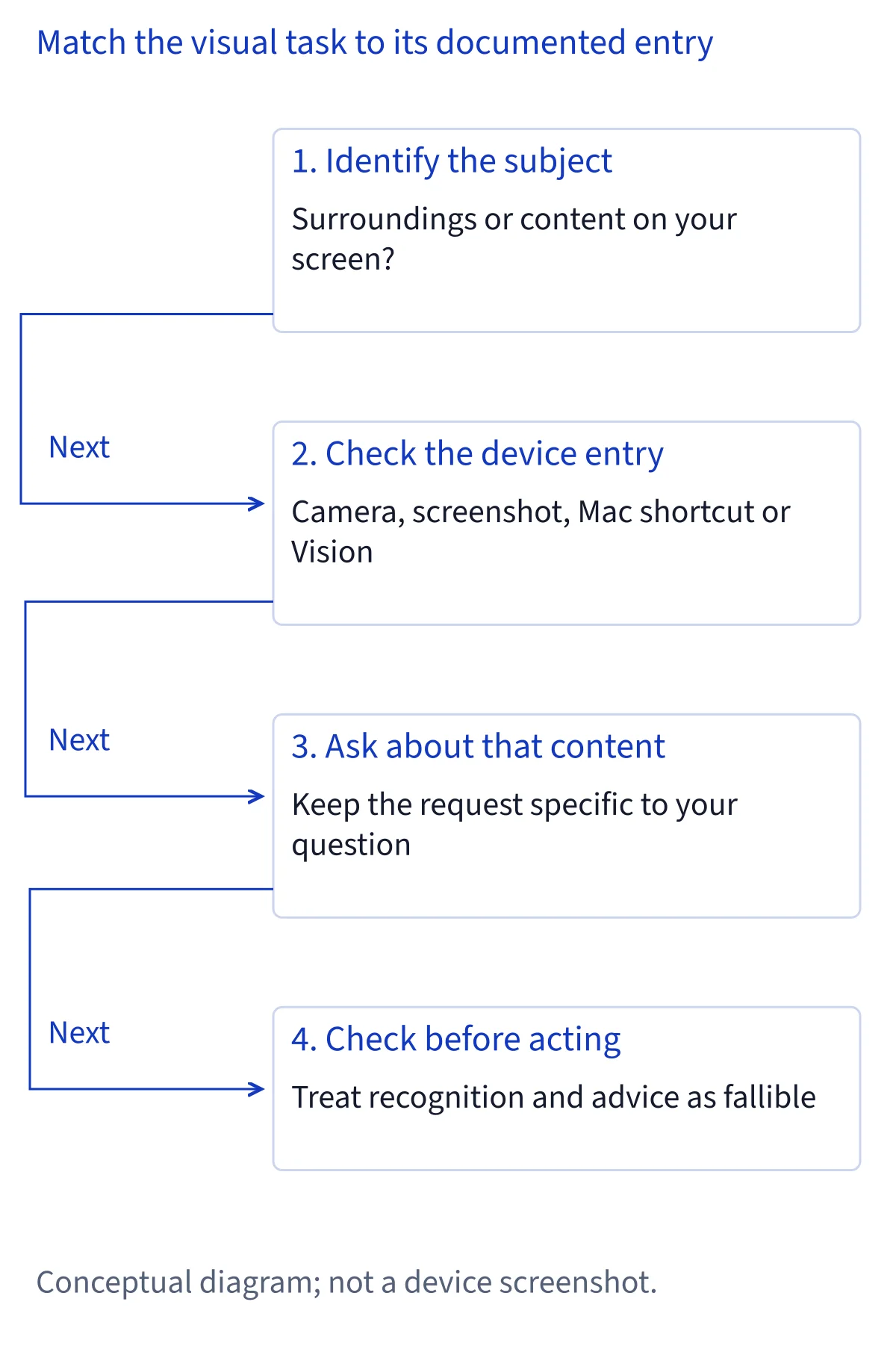
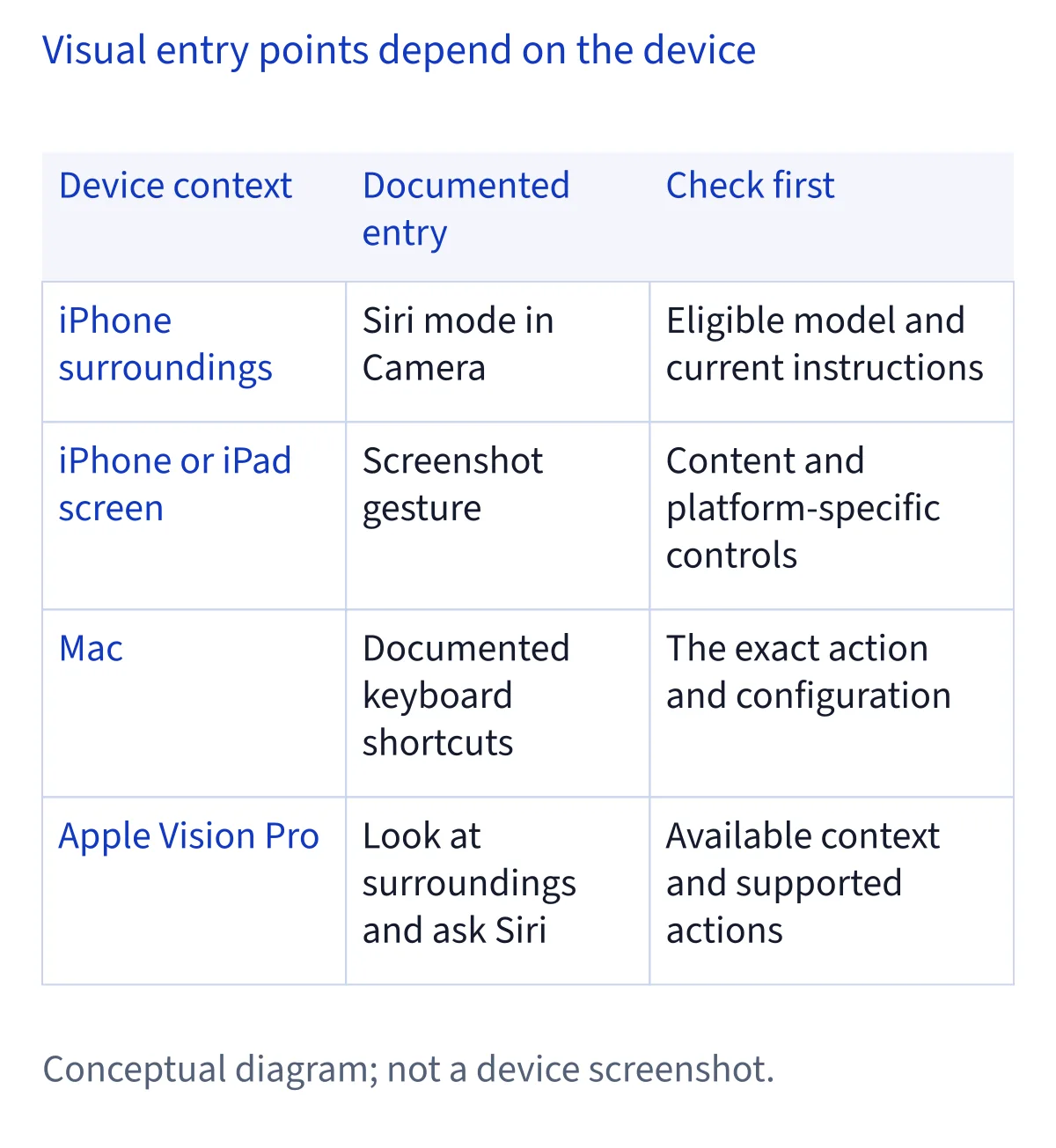
Choose the right visual entry point for your task
First decide whether the subject is in front of you or already on a display. On iPhone, Siri mode in Camera is the documented route for physical surroundings. A screenshot gives Siri a captured view of something displayed in an app. On Mac, the documented shortcuts select a window or a screen region. Vision Pro uses what you look at in your surroundings or in a window. These are distinct ways to supply visual context, not identical camera features on every device.
Apple's support overview also names the screenshot gesture on iPad, but this guide's detailed button sequence is verified for iPhone only. All Siri AI routes require eligible hardware, software, languages and region settings. Apple's older or separate Apple Intelligence Visual Intelligence instructions do not automatically establish the newer Siri AI controls. Check eligibility and identify your actual service before trying to match a tutorial to your screen.
Open Siri mode in iPhone Camera
With Siri AI enabled, Apple's camera overview says to open Camera and tap Siri. The dedicated Siri-mode article also documents clicking and holding Camera Control on supported iPhones, then tapping Siri to switch modes. Camera Control is a hardware-dependent entry point; it is not a requirement to pretend every eligible iPhone has that button. Use the Camera app route when following the instructions here without Camera Control.
Point the camera at the object or scene you want to ask about. The Siri button provides quick information, while Ask lets you pose a specific question. The guide illustrates identifying a cricket ball and asking what you could make from a group of ingredients. These are examples of visual questions, not a promise that every object will be identified accurately. Keep the relevant object clear in the frame and check whether the answer actually refers to it before continuing.
Separate identification, image search and suggested actions
Use a question when you want an explanation and Search when you want similar images from the internet. Similar-looking results are leads for further checking, not proof of an exact product model, material or origin. Apple's Siri-mode guide explicitly separates quick information, specific questions, internet image search and actions that appear for the frame. Choose based on the result you need rather than treating every visual response as the same task.
Actions are conditional. The camera guide gives a bill-splitting example, but says to tap an action if one appears and then follow its onscreen instructions. It does not establish that the example appears for every account or region. Read the actual action and its next screen before proceeding. For more explanation, swipe down on Siri's answer to continue the conversation. This lets you ask about the identified subject without immediately choosing a transactional suggestion.
Use a screenshot and narrow it to the relevant content
On iPhone, quickly press and release the side button and volume up button together. In the Siri AI screenshot workflow, drag the rectangle's corners if you want to enclose only the area you are asking about. This is useful when a page contains several photos or when surrounding text would make your question ambiguous. It is a documented way to focus the screenshot, not a claim about automatic redaction or private-data filtering.
At the bottom, use Ask for a specific question, Search for similar images, or an action if one appears. Apple's recipe example offers Look up nutrition when available. Check the selected area and the action wording before continuing. This workflow captures displayed material; Camera mode addresses physical surroundings. You can also activate Siri to ask about the current iPhone screen, but that separate onscreen-awareness route does not replace the screenshot selection steps described here.
Select a Mac window or screen region with the documented shortcuts
Apple's macOS 27 Siri AI guide specifies Command-Shift-Space bar to select a window. To select part of the screen, it specifies Command-Shift-6, then clicking and holding the mouse or trackpad to select the portion. These are the shortcuts in that Siri AI article; do not substitute a familiar screenshot shortcut from another macOS tutorial and assume it opens the same tools. Choose the smallest window or region that contains the subject you need.
Enter your question in the Ask Siri field that appears. You can also click Image Search for similar internet images or click an offered action. The guide again makes actions conditional, using a recipe nutrition lookup as its example. This is a screen-content workflow, not a documented method of using the Mac camera to scan physical objects. Review hardware and region eligibility independently of your iPhone, especially if the two devices expose different controls.
Ask about surroundings or windows on Vision Pro
With Siri AI enabled on Vision Pro, look at the subject and ask Siri what it is or request more information. Apple's visionOS 27 guide covers both physical surroundings, such as a plant, place or book, and content in windows, including a show or a Safari webpage. You do not need to translate the iPhone Camera-mode procedure into a made-up visionOS Camera menu. Looking and asking is the documented starting point.
Siri presents information with links for further reading. Continue talking to ask follow-up questions. If the response includes a button or control, you can tap it to take the offered action. The guide also documents controls to enlarge or close the response. Follow the links to verify details before relying on an identification. Distinguish a question about a physical book from a question about a webpage in a window when deciding what you want Siri to explain.
Check the visual answer before acting on it
A visual answer is useful when it helps you investigate the right subject. Check that first: a photo may contain several objects, a screenshot may include unrelated captions, and a window may display more than one document. If the response addresses the wrong item, adjust the frame or selected area and ask a more specific question. This is our review advice, not a guarantee that any phrasing fixes recognition.
Then verify the consequence separately. A similar image does not prove an item's identity, and an interpretation of a recipe is not a confirmed nutrition label. Check original text, manufacturer information or the linked source as appropriate to your task. Where an action appears, review the destination, subject and details shown by the next screen. The manuals describe opportunities to take action; they do not promise that a visual suggestion has already checked every fact needed for your decision.
Resolve missing tools without mixing services or privacy claims
If the tool you expected is missing, first check which workflow is open: ordinary Camera, Siri mode, a screenshot or a Siri conversation can expose different controls. Actions depend on the content and may simply not appear. Next review Siri AI setup, platform eligibility and any notice about limits. Apple also documents Screen Time restrictions on Siri features and accessible content; an absent button alone does not establish the exact cause.
Keep service boundaries clear. The separate baseline camera article describes an optional ChatGPT extension and says image search is subject to the search provider's terms and privacy policies. That does not make ChatGPT mandatory for the Siri AI procedures above. The Siri AI guides do not support saying that all images stay on device, that cloud processing retains nothing, or that Siri can inspect all private content. Choose what you frame or select deliberately and consult the relevant service's privacy information.
Common questions
Do I need Camera Control to use Siri mode on iPhone?
No. Apple's camera overview documents opening Camera and tapping Siri when Siri AI is enabled. Camera Control is another entry point on supported iPhones. Do not assume an eligible iPhone has that hardware button, and do not confuse the optional hardware shortcut with the requirements for Siri AI itself.
Which Mac shortcuts open the documented Siri AI visual selection?
The macOS 27 guide specifies Command-Shift-Space bar for a window and Command-Shift-6 followed by clicking and holding to select part of the screen. Enter a question in the Ask Siri field that appears. These instructions come from that guide, not from a test on a Mac or a generic screenshot tutorial.
Does Vision Pro require taking an iPhone-style screenshot first?
The visionOS 27 guide starts with looking at something in your surroundings or in a window, then asking Siri about it. It does not require the iPhone screenshot sequence. Continue with follow-up questions or use a button in the response if one appears, and check linked information before relying on the answer.
Why is the suggested action missing from my visual result?
Apple describes visual actions conditionally: use an action if it appears. The available content and workflow matter, and the examples are not a guaranteed menu for every image. Check the selected subject, Siri AI setup and any displayed restriction or usage notice before drawing conclusions about the cause.