
Write with Siri: Draft, Edit and Review Your Changes
Write with Siri can draft new text, proofread, rewrite, summarize and give feedback when Siri AI is enabled. On iPhone, select text or activate Siri; on Mac, select text or start a Siri conversation. Review the result against your original before using it, especially names, figures and commitments.
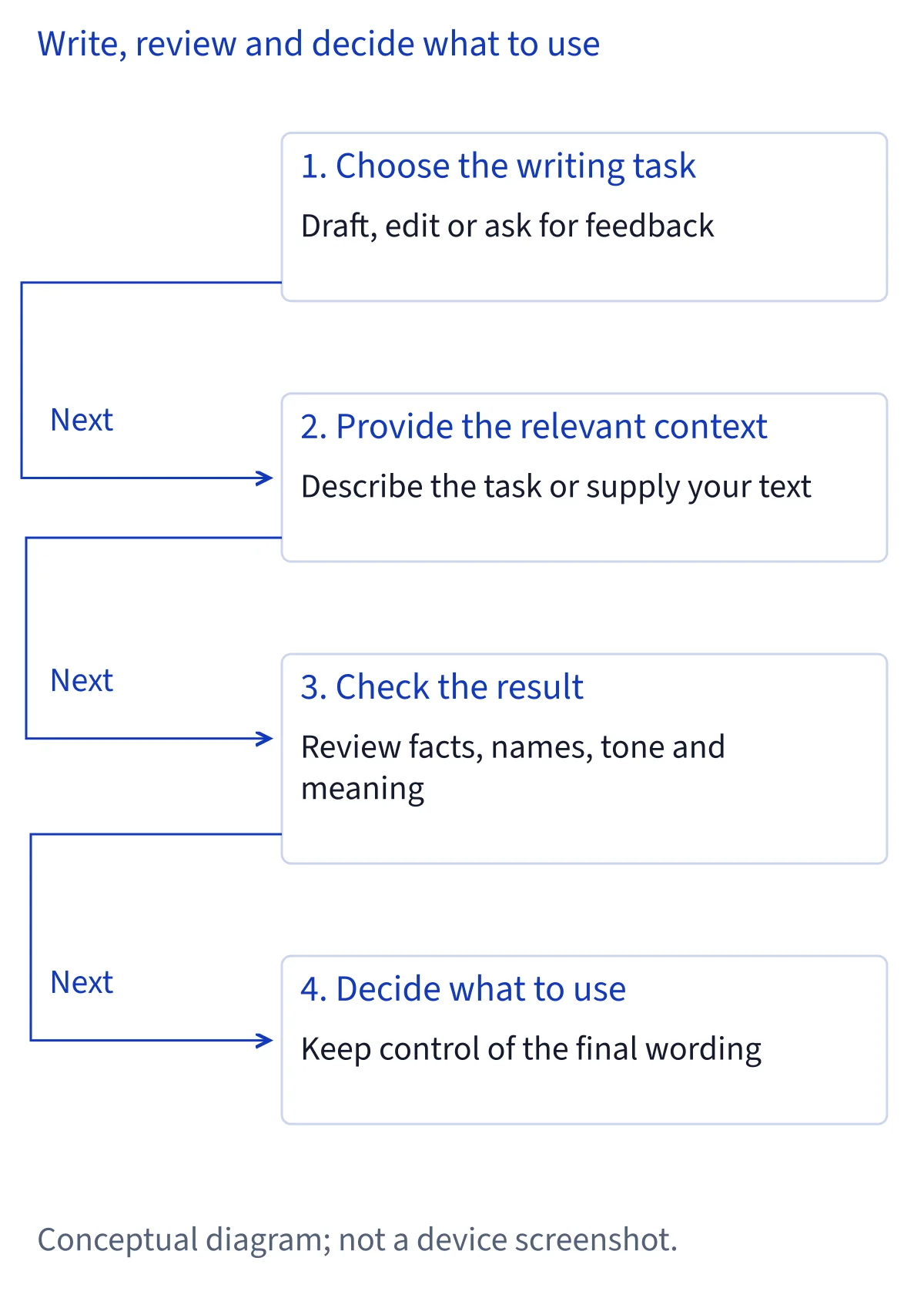
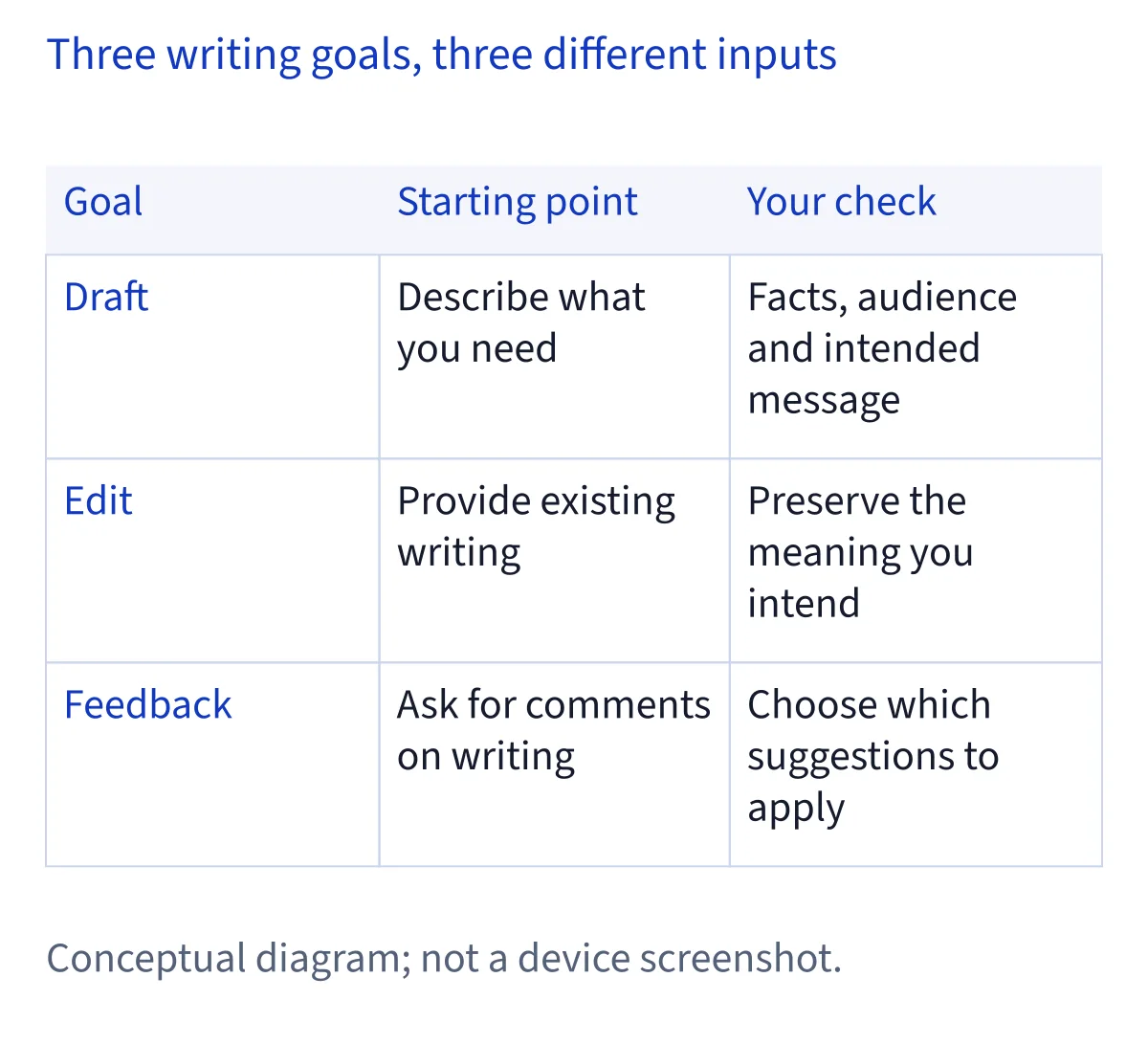
Check whether this is Write with Siri or Writing Tools
This guide covers Apple's Write with Siri instructions for iOS 27 and macOS 27, read on November 8, 2026. The feature belongs to Siri AI, which remains beta. Apple's manuals point people without Siri AI to Writing Tools instead. A Writing Tools menu on an older system does not establish that the Siri AI workflow is enabled. Start by identifying which service you actually have.
Apple requires an eligible device, matching supported device and Siri languages, and an eligible account region. The current Siri AI language list includes English, French, Japanese, Korean, Portuguese and Spanish. EU availability differs by platform: Apple's support page excludes iOS, iPadOS and watchOS there while allowing qualifying Mac and Vision Pro configurations. Check compatibility before diagnosing an absent writing control. These requirements establish access; they do not guarantee that every text field exposes the same editing options.
Start with the text you actually want to change
On iPhone, Apple documents two starting points: select the text you want to refine and use the writing control shown in its guide, or activate Siri and describe the task. After selection, you can describe a change or choose an offered option such as Proofread or Rewrite. The online article represents the selection control with an unlabeled icon, so use Apple's illustrated instructions to recognize it rather than looking for a menu name invented here.
On Mac, select the text, move the pointer over the Siri AI icon, or click Write with Siri when it appears. Then choose an option or describe what you want. Activating Siri and describing the task is also documented. Select a paragraph when only that paragraph needs attention. This is an editing recommendation: it makes the scope of your request clear and leaves you less material to compare afterward.
Draft something new with a usable brief
To create new text, activate Siri and describe what you need. Apple's examples include a story explaining evaporation to a four-year-old and a day-by-day itinerary for a three-day New York trip. They demonstrate composition from a description; they are not evidence that a generated itinerary has checked opening hours, booked tickets or confirmed travel arrangements. Treat the answer as a draft whose factual details still need checking.
For your own task, prepare the audience, purpose, facts to include and desired length before asking. This is our suggested briefing method, not an Apple-tested command. A reply to a customer should begin with the actual issue and the remedy you are authorized to offer. A missing delivery date should stay missing until you confirm it. Review the draft for invented details before polishing tone; correcting a confident but unsupported promise matters more than making a sentence sound friendlier.
Proofread without losing the original meaning
Use the offered Proofread option on selected iPhone text, or describe a proofreading task to Siri. Apple's writing guides explicitly include proofreading. Choose that task when the content is already right and you mainly want errors corrected. Before starting, keep a copy of wording that must remain exact, such as a quotation, product identifier or agreed customer statement. Keeping that reference is a practical precaution, not a documented automatic backup feature.
Afterward, read complete sentences rather than checking spelling alone. Negation, time and responsibility are easy places for an edit to alter meaning: cannot is different from can, an estimate is different from a deadline, and a suggestion is different from an approval. Compare those details with your reference. If a correction changes what you meant, keep your original wording for that passage or explain the intended meaning in a follow-up. A cleaner sentence still needs to say the right thing.
Rewrite structure, then compare both versions
Choose Rewrite when you want a broader change to expression or organization. Apple's example is turning notes from a cooking class into a tidy, step-by-step recipe. That is a useful distinction from proofreading: you are asking for a different presentation of the same material. Identify the information that must survive the rewrite, such as ingredient quantities, ordering constraints, exceptions or qualifications, and check that list against the result.
The iPhone manual specifically documents a comparison control after choosing Rewrite, allowing you to compare the original and current versions. Its icon has no textual label in the retrieved article; consult the source illustration rather than assuming it is called Compare or Undo in your interface. The Mac article read for this guide does not document that same control. On Mac, retain your own reference copy for review. Neither article establishes a universal restore command or a complete revision history for every app.
Ask for feedback before requesting another rewrite
Siri can give feedback on writing, and Apple's example asks how the text sounds. Use feedback when you want to understand a problem before changing the draft. Decide whether you need help with clarity, tone, organization or a reader's likely questions. Those are suggested review goals, not separate buttons promised by Apple. A specific goal gives you a more useful way to judge whether the response addresses your concern.
Keep the distinction between commentary and replacement text clear in your request. First evaluate the observations, then decide what to revise. You may agree that a paragraph is confusing while rejecting a proposed phrase that overstates your position. On iPhone, Apple says to swipe down on Siri's answer to start a conversation and refine the work. On Mac, continue the Siri conversation with follow-up questions. Work on one issue at a time so that you can tell which revision helped.
Summarize notes without dropping decisions or caveats
Summarization is explicitly included in both writing manuals. Apple's example condenses meeting notes into key points. Start from the notes you actually want summarized and decide what the shorter version must preserve. For a meeting, that might be decisions, unresolved questions, assigned owners and dates. These are our suggested checks for a useful summary, not a guarantee that Siri will extract every item correctly.
Compare the summary with the source before sharing it. An idea discussed in a meeting is not necessarily an approved decision; a person mentioned in a note is not necessarily its owner. Check whether the shorter version kept those distinctions. If a paragraph is missing a crucial exception, ask for refinement in the ongoing conversation or restore it yourself. Keep the original notes available to recipients when appropriate. A concise summary helps people navigate the record, but it should not silently become a different record.
Finish the edit and handle missing or restricted access
Before using a result, check the intended recipient, facts, tone and any remaining instructions to yourself. The writing manuals do not establish that generating a draft also sends a message or publishes a document. Handle the final use deliberately in the destination app. If you need another revision, specify the remaining problem rather than repeatedly requesting a general improvement; keep the last acceptable version available for comparison.
If an entry point is absent, return to eligibility and setup before assuming a writing failure. Apple also documents Screen Time controls over which Siri features and content can be accessed, and warns that usage limits may apply. These statements do not identify the cause of every disabled control. Follow the actual notice shown. Neither writing article requires setting up ChatGPT, and neither supports a blanket claim that every request stays on device or that Siri may read arbitrary private material.
Common questions
Is Write with Siri the same as Writing Tools?
Apple's iOS 27 and macOS 27 writing guides describe Write with Siri as a Siri AI feature and direct users without Siri AI to Writing Tools. The names should not be treated as interchangeable evidence of access. Check the service and system you are using before following its editing instructions.
How can I check whether a rewrite changed my meaning?
On iPhone, Apple's guide documents a control after Rewrite for comparing the original and current versions. Check names, figures, negation, conditions and commitments against the original. The Mac article does not document that same comparison control; retain a reference copy rather than assuming identical controls exist on both platforms.
Can I ask for feedback instead of a replacement draft?
Yes. Both writing guides explicitly include feedback. Explain which aspect of the writing you want reviewed, then assess the comments before deciding what to change. Apple documents continuing the conversation to refine the work; our suggestions about clarity, tone and review order are editorial guidance, not tested voice commands.
Do I need the ChatGPT extension to write with Siri?
Neither of the Write with Siri articles read for this guide lists ChatGPT setup as a prerequisite. Their instructions start from enabled Siri AI and either selected text or a Siri request. Follow those documented requirements; do not add an extension merely because an older writing tutorial describes a different workflow.