
Siri AI Commands: What You Can Ask and How to Check Results
Apple’s cited sources do not provide a list of 100 Siri AI commands. They describe finding a café visited last week and archiving files not opened for a year; these are capability examples, not tested phrases. Start with a specific task, identify the relevant app, and inspect the result.
What counts as a documented example?
Apple's developer announcement describes two useful scenarios: finding a café visited last week and archiving files that have not been opened for a year. This guide paraphrases their meaning. It does not present either scenario as a verbatim command, a phrase validated by speech recognition, or a task we completed on a device. The announcement establishes what Apple chose to illustrate; it does not establish that every reader can perform the action today.
That distinction matters when a request has several possible interpretations. Finding a café might involve a place, a date range and information available in your context. Archiving files requires identifying a set of files and deciding what archiving means for the available app and workflow. A polished sentence cannot supply missing access, permissions or a supported action. Treat examples as a way to design a request, then verify what Siri AI actually offers on your device.
Check availability before judging a request
Siri AI (Beta) has its own availability requirements. Apple lists supported devices and operating systems, requires the device and Siri languages to match in a supported language, and applies Apple Account region conditions. The support page describes setup for eligible users; the developer announcement discusses app actions and a separate developer preview. Those documents answer different questions. An action announced for a rollout is not proof that it appears in your current build or on every device.
Check the device, software, language and account conditions first. If the Siri AI option is missing, changing the wording of a request will not fix that underlying issue. If Siri AI opens but cannot complete a particular app task, the problem may instead involve the app, the action, access to the relevant information or the rollout stage. Keep these cases separate so that a failed example does not become a sweeping claim that Siri AI is unavailable.
Set up Siri AI and review its access
Apple gives the setup path as Settings → Siri → Try Siri AI (Beta). If Siri is off, choose Turn On Siri first. The subsequent prompts cover a voice choice, voice enrollment and privacy settings. Those are Apple's English menu labels; the labels displayed on a device in another language may differ. Complete the setup before testing requests, and read the privacy choices rather than assuming that every personal source or app is already available.
For a task involving messages, files or another person's information, look at what data and app access the device actually permits. A request cannot reliably retrieve material the relevant app cannot expose, nor should you grant broader access merely to make an example work. If you are testing with important personal information, begin with a request whose result you can independently recognize. Save consequential actions for after you understand what Siri AI shows, asks you to approve and changes.
Build a request around a task and an app
Before speaking or typing, decide whether you want information or a change. Then identify the app most likely to hold the information or perform the action. A useful request supplies the object, a distinguishing detail and the intended outcome. For example, the café scenario needs a timeframe; the file scenario needs a clear age condition and a reviewable set of files. These are planning details, not a catalog of guaranteed words that Siri AI recognizes.
If several apps could contain the answer, naming your intended app can reduce ambiguity. If you are unsure which app is involved, ask what information Siri AI can find and inspect its proposed source. Do not quietly change apps midway through a task: a place mentioned in a message is different from a place saved elsewhere, even if both lead to the same café. Specificity helps you judge the answer as well as formulate the request.
Make ambiguous results easier to verify
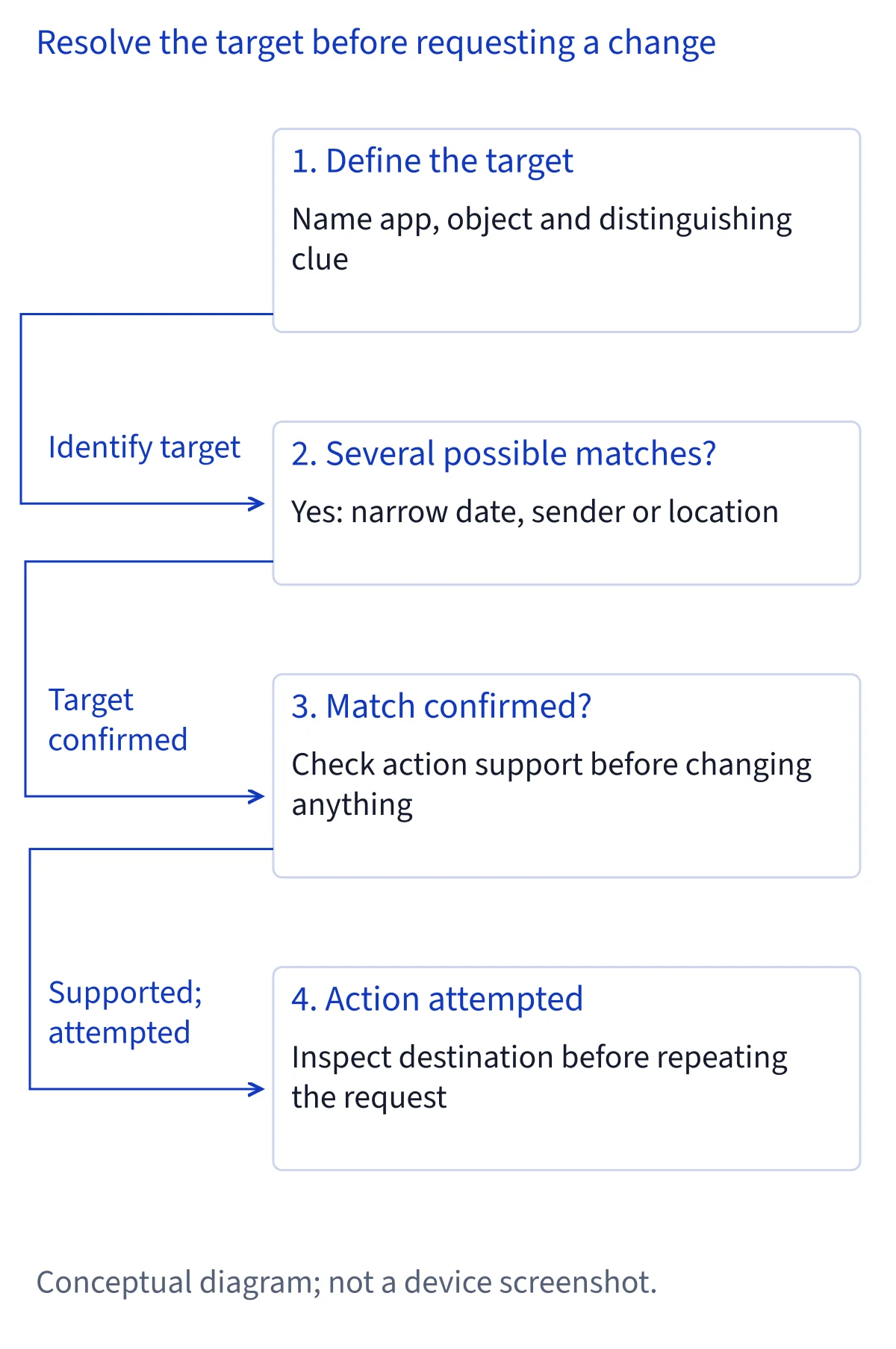
A result can sound plausible while pointing to the wrong item. Before acting on it, check a detail that would distinguish the correct match: the date, place, sender, document name or app where it came from. If several results remain, narrow the period or identify another characteristic. This is practical advice for working with your own information, not an Apple-prescribed command format. The goal is to make the answer traceable to something you can inspect.
Use a different standard for a reversible lookup and a consequential change. A rough lead may help you find a café, provided you verify its address or the underlying record. A rough match is inadequate for moving important files or changing a calendar event. Ask to see the candidates or open the relevant app when possible. If the system cannot show which item it selected, pause the action and complete the check directly in the app.
Understand the café example without inventing a command
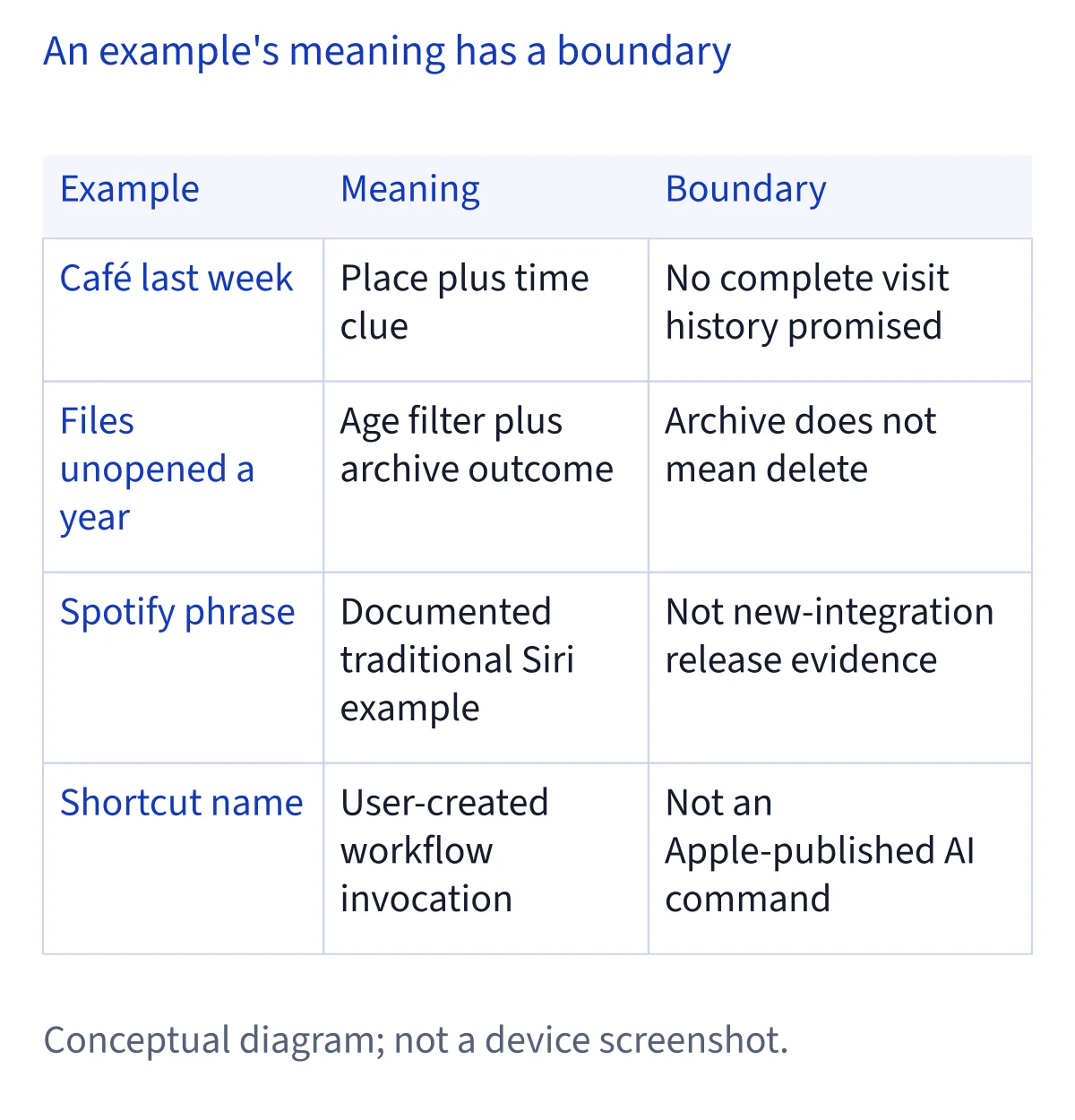
Apple's developer announcement uses the idea of finding a café you visited last week. That is the documented meaning, paraphrased here, rather than a quotation of words you should say. The scenario combines a place with a relative time reference and potentially relevant personal context. It does not identify a universal source that stores every visit, promise a complete travel history, or show that Siri AI can infer a visit when no accessible information supports it.
Resolve “last week” against when you make the request, then inspect the result for the place and date you meant. A similarly named café, an old recommendation and a real visit are different things. If the answer lacks a source or mixes those possibilities, try narrowing the location or identifying where the clue might live. Be mindful that searching personal context can surface private material. Review the result on your own device before sharing a location or a conversation excerpt with anyone else.
Treat archiving as a file operation that needs review
Apple also illustrates archiving files that have not been opened for a year. This is a paraphrase of an announced example, not an observed command or a promise that every file manager exposes the same archive operation. “Not opened” is a filter; “archive” is the desired outcome. Neither word tells you which folders are in scope, whether the app can assess access history for every file, or where the selected files would end up. Do not silently substitute deletion for archiving.
A safer workflow is to identify the proposed files, inspect their names and locations, and decide on a destination before approving a change. Check whether shared, work or otherwise important files appear in the set. Afterward, confirm the files are in the intended location and that you can still open what you need. If Siri AI cannot show a reviewable selection or explain the proposed change, use the Files or Finder interface to complete the task yourself.
Separate finding information from changing it
Retrieval asks for an existing answer, such as identifying a place or locating a document. An app action changes a state, such as moving a selected file or updating an item. A multi-step task combines operations and may depend on a result from an earlier step. This distinction helps you decide when a quick answer is enough and when you need to inspect a proposed change. Apple's announcement describes app actions and developer skills that can combine actions; it does not make every multi-step workflow publicly available.
For retrieval, verify where the answer came from and whether it refers to the intended person, period and item. For an action, verify the target and the resulting state. For a multi-step workflow, check the handoff between steps: a correct first result can still be sent to the wrong app or used to change the wrong record. If the chain is unclear, break the job into smaller requests and review each outcome before continuing.
Choose among Calendar, Messages, Mail and Reminders
Calendar, Messages, Mail and Reminders are among the system apps in Apple's announced action rollout. Their names suggest different destinations for information and changes, but the announcement does not supply a verified voice command for every operation in each app. Decide first whether the task concerns an appointment, a conversation, email or a reminder. Then identify the specific item and intended change. Do not treat a mention of an app in the rollout as evidence that a particular action is already present on your device.
These apps can hold similar words with different consequences. A date in a message is not itself a calendar event; an emailed plan is not necessarily a saved reminder. When you ask about a person or time, inspect which record the result references. When you change or create something, reopen the destination app and check the title, date, recipients or other relevant details. For communication involving another person, review the content and recipient before allowing anything to be sent.
Keep Files, Finder and Preview tasks distinct
Files, Finder and Preview also appear in Apple's list of system apps for the action rollout. The list establishes announced app coverage, not identical interfaces or commands across devices. For a file task, determine whether you want to locate an item, inspect it or change its organization. A filename alone may identify several copies. Folder, date and content clues can help you select the intended one, but you should inspect the actual item before a consequential action.
The archiving example calls for special care because a filter can include more than you expect. Review the proposed selection rather than assuming the age condition captures only disposable files. If the device presents a result in Preview, that does not by itself prove a change has been made in Files or Finder. Check the app and location that hold the original item. When an action is unavailable, manually locating and organizing the files remains a way to finish the task without guessing what Siri AI did.
Use Journal, Notes and Photos with clear boundaries
Journal, Notes and Photos are three more apps named in the announced rollout. The announcement does not provide a tested spoken phrase or a complete list of operations for each. If you want to find existing material, define what makes it recognizable: a topic, approximate date or distinctive item. If you want to make a change, identify where the result should be saved. Keep those objectives separate so that retrieving a note is not confused with editing it.
Personal collections can contain sensitive information and near matches. Several photos may show the same place; several notes may share a title; a private journal entry can include details you did not intend to display to others. Inspect the selected item and the app that holds it before sharing or modifying it. If a result contains a plausible summary but cannot be tied to the record you meant, open the source material yourself. The app's inclusion in Apple's list is not a substitute for checking the individual outcome.
Distinguish Music, Maps and Weather requests
Music, Maps and Weather appear in Apple's announced system app list. Their purposes differ, so the first step is deciding whether you seek media, a place or weather information. Provide enough context to recognize the answer: the intended music item, the place you mean, or the location relevant to a forecast. These are ways to reduce ambiguity, not invented official utterances. Apple's list does not say that any particular wording works in every supported language.
Check the result according to the task. For music, confirm the selected item or destination before assuming the right material will play or be saved. For a place, verify its identity and location rather than relying on a name alone. For weather, check which location the answer uses; a familiar city name may refer to somewhere other than where you are. If a request depends on private context, remember that a general Maps or Weather result does not establish that the system found your personal record.
Approach Safari as a source and an app
Safari is on Apple's announced action list. That supports discussing it as an app in the rollout, but it does not justify inventing a menu of browser commands or claiming that every browser operation is available. Decide whether your request concerns information shown in a page, an item you have saved, or a change within the browser. A page title, site name and approximate context can help distinguish one result from another. Inspect the actual page before relying on a summary.
Browser tasks can also look deceptively similar. Finding a page is different from changing your browser data, and opening a page is different from confirming that its contents are trustworthy. If Siri AI proposes an action that affects several items, review the scope and consequence first. If it only returns a link, that is a retrieval result, not evidence that a later action occurred. Use Safari itself to check the final state when the difference matters.
Know where Shortcuts and developer skills fit
Shortcuts is also among the 15 apps in Apple's announced system app list. It is useful to distinguish a user-created shortcut from a Siri AI action announced for an app. A shortcut has a workflow you or its creator assembled and a name you chose. Discussing possible shortcut names does not make them Apple-published commands. If you build one, inspect its steps, permissions and effects before invoking it, particularly when it handles files or sends information elsewhere.
Apple's developer announcement also describes skills, which can combine multiple actions into one request through app integrations. That developer concept is not evidence that every third-party app has shipped a public Siri AI skill. If a task follows a predictable sequence you control, a Shortcut may be easier to inspect and revise. If it depends on app content or context, check what the particular integration exposes. In either case, judge the final result in the destination app rather than by how natural the request sounded.
Read third-party Siri examples in their proper context
Spotify documents the exact English example “Hey, Siri, play my Discover Weekly playlist on Spotify.” It is an example from Spotify's Siri documentation, not evidence that a new Siri AI App Intents integration has been publicly released. The fact that a service documents a Siri request does not establish identical behavior across languages, regions, software versions or account setups. If you use the example, check the service's current instructions and the result on your device.
Keep the evidence label attached to any example you share. “Documented by Spotify for Siri” describes what the source supports. “Verified Siri AI command” would make a different, stronger claim that this documentation alone cannot support. The same principle applies to other app guides: identify whether a page documents Siri playback, Shortcuts actions or an announced Siri AI integration. Those are related ways to interact with apps, but they are not interchangeable proof of public availability.
Account for Bear and Craft's different documentation
Bear documents Siri Shortcuts for creating and searching notes, among other operations, and states that locked notes cannot be accessed through those shortcuts. If a request appears to miss a locked note, that documented restriction is more useful than repeatedly changing your wording. Bear's documentation supports a discussion of its Shortcuts capabilities; it does not turn every note-related idea into a publicly verified new Siri AI action. Check the note and the operation in Bear before treating the task as complete.
Craft documents Apple Shortcuts integration and separately describes Siri capabilities involving document content, document creation, adding text and tasks. Its Siri documentation gives limits on what content is shared and which existing document changes are supported. That first-party description deserves attention, but it does not by itself settle how Craft's features map to Apple's new developer preview or establish an independently confirmed public Siri AI integration. Consult Craft's current instructions for the feature you intend to use, and inspect the target document afterward.
Use Data Jar, Scriptable and Actions as workflow components
Data Jar describes a data store for Shortcuts, including structured values. Scriptable documents running scripts from Siri Shortcuts. Actions publishes its collection of Shortcuts actions. These are evidence for tools that can help you build a workflow; they are not a ready-made catalog of natural-language Siri AI commands. A user-created shortcut might incorporate one of these tools, but its name, inputs and effects depend on the workflow someone actually built. Do not present a hypothetical shortcut name as a phrase tested by the app maker.
Before running a workflow that reads personal data or changes files, inspect the shortcut's actions and the data each component receives. Determine where information is stored, what a script may alter and what output you can check. Permissions and available actions can affect the result, so a successful launch is not enough evidence that the intended work finished. Open the destination app or data store and verify the specific record. If you cannot understand a step's effect, remove or review that step before using the workflow with important data.
Classify a failure before trying again
If Try Siri AI (Beta) is absent, start with availability and setup. If Siri AI opens but cannot find an item, check the app, date range, access and distinguishing details. If it finds the wrong item, treat that as a selection problem and refine the target before requesting any change. If it identifies the right item but cannot act, the particular app action, permission or rollout stage may be the obstacle. If it reports success yet the destination app shows no change, inspect the app's actual state before repeating the operation.
Repetition without classification can make a problem harder to diagnose. A second attempt might create a duplicate or act on a different match. Record what you asked, which app or item appeared, and what changed, without sharing private content unnecessarily. Then adjust one factor at a time. Apple describes an action rollout and a developer preview, so an unavailable third-party integration should not be treated as a speech-recognition failure. Use the dedicated setup or troubleshooting guide for the symptom you actually see.
Common questions
Is there an official list of 100 Siri AI commands?
The Apple sources used here do not provide such a list. Its developer announcement names apps in an action rollout and illustrates two tasks, but those descriptions are not 100 tested spoken phrases. Use them to identify possible tasks, check availability on your device, and verify each result before relying on it.
Can Siri AI archive files I have not opened for a year?
Apple uses that task as an example in its developer announcement. The example does not establish that the action is available in every current setup or define which files qualify. If your device offers it, inspect the proposed files and destination before approving anything. Archiving and deleting are different outcomes; do not assume one means the other.
Does a Spotify Siri example prove public Siri AI integration?
No. Spotify documents a specific English Siri playback example. That supports describing what Spotify says about using Siri, but it does not independently establish a publicly released integration with the new Siri AI developer features. Check Spotify's instructions and your own result, and keep the documented Siri example separate from claims about the Siri AI preview.
What should I do when Siri AI picks the wrong item?
Do not approve a change to that item. Check the app, date, name and location, then narrow the request with a detail that distinguishes the intended result. Open the source record if the answer is still ambiguous. For important file or communication tasks, complete the operation in the app when you cannot verify the selected target.