
Productivity apps for Siri and Shortcuts workflows
Choose your productivity app by what the workflow must store or change: notes, project documents, reusable values or scripted logic. This documentation-based review separates Apple’s announced Siri AI rollout from third-party Shortcuts capabilities. No physical-device tests were performed, and the shortlist has no scores or rankings.
Start with the information your workflow needs
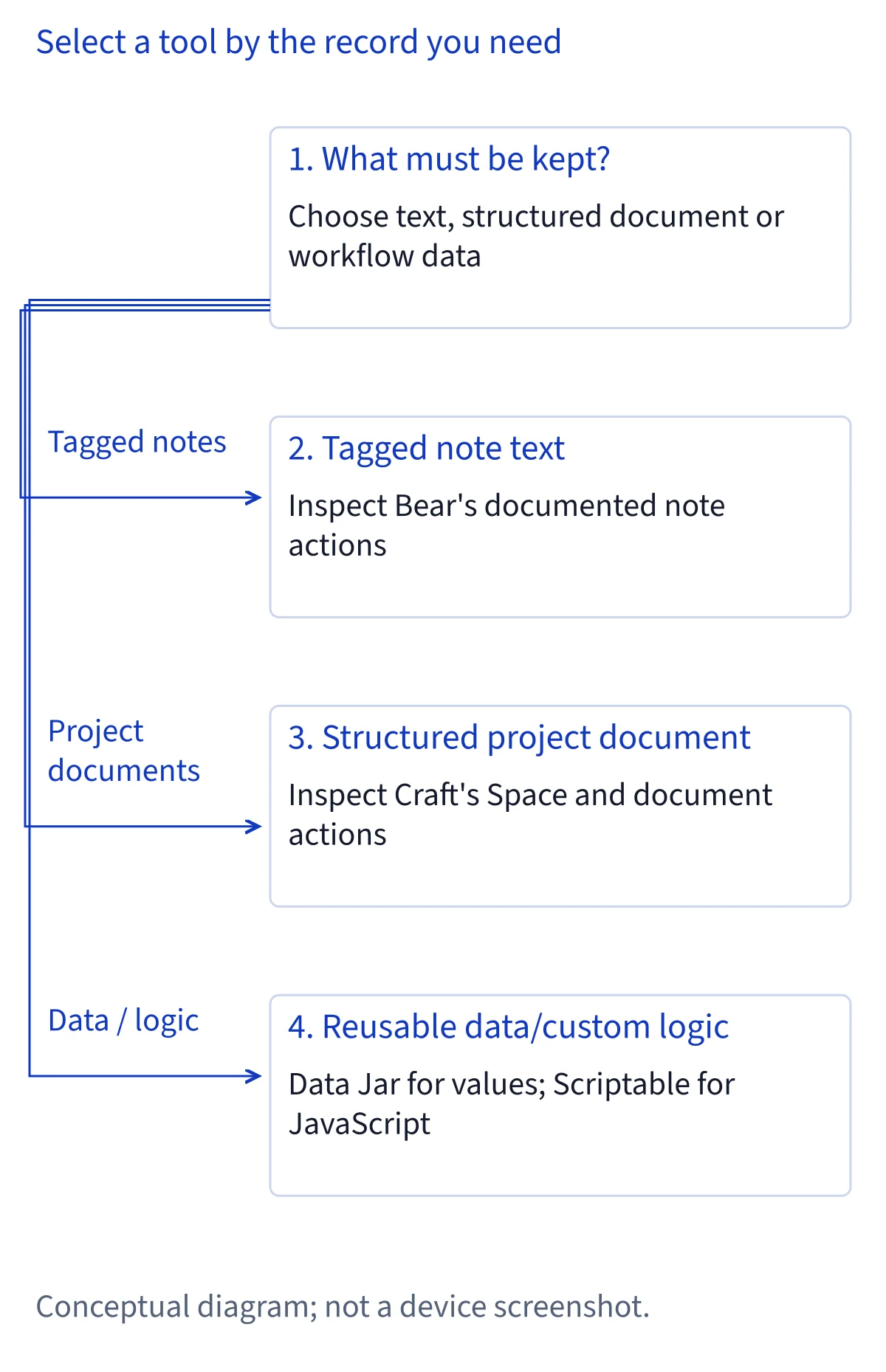
A useful shortlist starts with a destination rather than an assistant brand. For a short thought that needs a title, text and tags, inspect a note app. For meeting preparation that combines an event with an agenda and project material, inspect a document app. If several shortcuts need the same preferences or saved values, consider a dedicated data store. If the missing step requires custom logic, a scripting tool becomes relevant.
Write down one input, one intended change and one way to inspect the result before choosing. For example, a proposed capture workflow might accept text, append it to a chosen note and then open that note for inspection. This describes a workflow to build, not a verified Siri command. Keeping the initial goal narrow makes it easier to compare the actions an app actually exposes and avoid installing several tools for the same job.
Separate Apple’s rollout from third-party integration
Apple’s November 3 announcement names Calendar, Files, Finder, Journal, Mail, Maps, Messages, Music, Notes, Photos, Preview, Reminders, Safari, Shortcuts and Weather in its app-action rollout. Notes, Reminders, Calendar and Shortcuts therefore belong on this shortlist as Apple-announced options; specific actions vary. Their inclusion does not establish that every requested operation is available on every platform, or that this guide has tested individual actions.
The same announcement introduces a third-party Developer Preview in the 27.3 betas. It describes App Intents, app content and actions, plus skills that combine actions. That preview is not automatic evidence of a public integration in a downloaded app. Likewise, an established Shortcuts action does not by itself prove new Siri AI support. When comparing candidates, keep the published app action, the route used to invoke it and its release status as separate questions.
Apple Notes, Reminders and Calendar: choose the right record
Choose among these Apple apps according to the record you want to keep. As an editorial recommendation, use Notes for reference text, Reminders for work you intend to complete and Calendar for time you intend to reserve. Apple’s Siri AI support page includes these apps in its description of personal context, while its developer announcement places them in the action rollout. Neither statement promises unrestricted access to all their data.
Before combining them, decide which app owns the original information. A meeting note and a dated task can describe related work without being interchangeable. For a proposed planning workflow, check the selected calendar, the destination reminder list and the note location independently. Inspect dates, titles and saved content in the destination apps. Treat the ability to find information and the ability to change it as different capabilities that need their own evidence.
Shortcuts: connect explicit steps before adding voice
Shortcuts is the place to inspect how a multi-app workflow passes information between actions. Craft’s documentation illustrates the distinction clearly: Apple’s Dictate Text produces text, Craft’s Add to Document receives it and Apple’s Show Notification can provide a final message. Each step has a particular responsibility. A notification alone should not be your only evidence that the intended content reached the intended document.
For a first build, run the shortcut from its editor and inspect the values passed between steps. Use ordinary sample text and a disposable destination. Once the saved result is correct, consider invoking the shortcut by its name through Siri, as Bear and Craft document. Choose a distinctive name yourself; it is a user-created shortcut name rather than an official natural-language command. Add more apps only after the simplest path produces a result you can inspect.
Bear: capture, retrieve and extend tagged notes
Bear is a candidate when the destination is a note rather than a project hierarchy or shared variable. Its documentation lists creating notes from text or links, searching notes and tags, adding text, files or tags, removing tags and exporting notes. It also documents opening particular notes or sections, archiving or pinning notes and generating backups on Mac. Bear describes Shortcuts support on iPhone, iPad and Mac.
The important boundary is that shortcuts cannot access locked Bear notes. Do not design a capture or retrieval process that assumes otherwise. For a proposed append workflow, begin with an unlocked sample note and inspect the target identifier and appended text. Bear also recommends avoiding several automatically generated legacy actions. Open Bear’s current action collection in Shortcuts and select the documented app actions rather than assuming an older action with a familiar name is the right choice.
Craft: assemble project documents with defined destinations
Craft fits workflows that turn several inputs into a document or add material to an existing project. Its documented actions include Create Document, Add to Document, Add Subpage to Document, Find Page and Open Daily Note. Folder and task actions provide additional building blocks. Configure the Space and document explicitly, then pass the returned document to later actions when appropriate. This makes the target easier to follow than repeatedly choosing a destination by memory.
Craft documents Shortcuts requirements of iOS or iPadOS 17 and later, or macOS 14 and later; its Siri Actions category requires OS 27. Craft actions are not supported on Apple Watch, and a locked-device launch may require unlocking. Apple’s Describe a Shortcut cannot yet add Craft actions, so add them manually. If an existing shortcut breaks, Craft recommends replacing legacy actions and reconnecting inputs and outputs, even when the replacement has the same name.
Craft’s updated Siri claims need a separate decision
Craft also publishes updated Siri capabilities, including finding documents, answering questions from content, creating documents, appending text and managing tasks. This deserves recognition beyond its established Shortcuts support. However, new Siri AI public integration status is not independently confirmed here: the vendor page and Apple’s third-party preview timeline have not been reconciled with a corresponding public app release and API scope.
Even within Craft’s description, access is selective. Content is shared for the 50 most recently edited documents, and only their first-level content is included. Other documents expose titles and details rather than readable bodies. Tasks need a schedule or deadline. Document requests use the most recently used Space. Siri works with plain text and cannot rewrite, reorganize or delete existing document content. These boundaries matter if your project relies on nested pages or undated checkboxes; neither should be assumed available merely because Siri finds the document.
Data Jar: keep reusable values outside individual shortcuts
Data Jar serves a different purpose from a notebook. Its developer describes a data store built for Shortcuts, using JSON-compatible dictionaries and lists. Data is stored offline and synchronized through iCloud when possible, with stored files accessible through iCloud Drive. It is therefore a candidate when several workflows need reusable information rather than separate copies embedded in each shortcut.
A proposed use is a dictionary of project preferences or a list of capture destinations. Begin with harmless sample values, inspect their structure and confirm that the receiving shortcut gets the expected type. Then check another device separately if cross-device use matters. Offline storage does not mean another device already has the newest value; synchronization and local access are different questions. The supplied documentation establishes Data Jar’s role in Shortcuts, not an independently verified natural-language Siri AI integration or unrestricted access to its entire store.
Scriptable: use custom logic when actions are insufficient
Scriptable is the candidate for people prepared to maintain JavaScript. Its developer documents ES6 support, scripts stored as plain JavaScript files, access to bridged native iOS APIs and execution from Siri Shortcuts. Share-sheet input and Files integration offer other ways to supply and process information. Those capabilities support a scripting role; they do not establish that every JavaScript library or desktop script will run unchanged.
Choose it when you can describe the missing transformation precisely, such as turning structured input into a particular text result. For a proposed first check, use a small local sample, inspect the returned result and connect it to a destination only afterward. Scriptable’s native API documentation is available offline, but that statement does not make every script offline-capable. Network requests, file locations and permission requirements depend on the script. Nor does Siri Shortcuts execution guarantee that a script can run while locked or without permission prompts.
Inspect permissions and failures at the step that needs them
When a proposed workflow fails, distinguish recognition, execution and saved output. First check whether the shortcut completes from the editor. Then inspect its selected account, Space, note or file and the value entering the failing action. Only after those checks should you compare a Siri-triggered run. A correctly recognized name does not establish that a later action received usable input or had permission to change its destination.
Review permissions in proportion to the work. Craft explicitly notes that actions may need access to the microphone, location, photos, files or another app. Apple also documents Excluded Apps under Siri settings, which can affect information use and app actions. Check relevant restrictions without granting unrelated access. Apple’s privacy documentation distinguishes on-device processing, Private Cloud Compute and optional improvement data collection; using a productivity app does not collapse those into one universal privacy promise. Third-party app terms and privacy policies still apply.
Make the final choice by maintenance cost and evidence
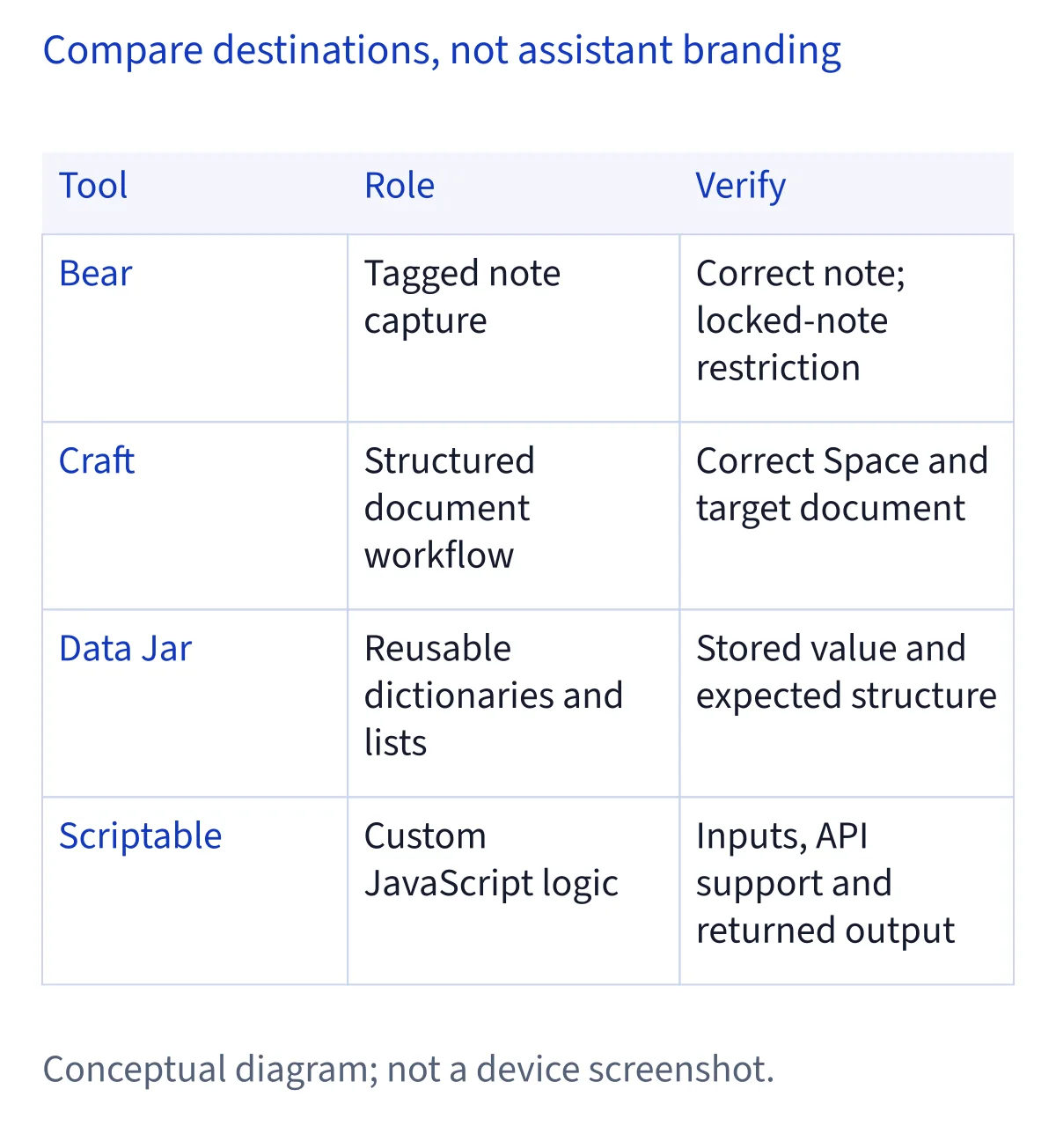
Prefer the smallest setup that preserves the information you need. Start with Apple’s announced options if your records already live there. Inspect Bear for tagged note capture, Craft for structured project documents, Data Jar for reusable values and Scriptable for custom logic. These are task-based recommendations, not a ranking of reliability or speed. Each extra dependency gives you another action, permission or data structure to maintain.
Before relying on a candidate, confirm the actions visible in your installed app and inspect a complete sample result. Recent release history is a separate selection criterion: whether each third-party candidate has updated within the last 12 months remains pending in the underlying review. No current version, price or freshness claim is established here. Use the directory to explore documented capabilities, then check Siri AI eligibility separately. An app’s Shortcuts support can be useful without proving eligibility for the new assistant.
Common questions
Were these productivity apps tested on physical devices?
No physical-device tests were performed for this shortlist. Recommendations follow the supplied Apple and developer documentation and distinguish announced rollout, documented Shortcuts actions and unresolved integration claims. There are no performance scores or reliability rankings. Before depending on a workflow, build a small sample and inspect the actual saved result on your device.
Does Shortcuts support mean an app is verified for Siri AI?
No. A documented Shortcuts action establishes a particular automation path, which may include running a named shortcut through Siri. Apple’s new third-party Siri AI Developer Preview is a separate integration context. Confirming public support requires evidence about the specific app release and capabilities, rather than assuming every existing shortcut has become a new Siri AI action.
Which app should I choose for notes, documents or shared values?
Inspect Bear when you need tagged notes, search and appending text; consider Craft when several inputs should become a project document. Data Jar addresses reusable structured values, while Scriptable supplies custom JavaScript logic. Start with one destination and one change, then compare the documented action and restrictions before expanding the workflow across more apps.
Can Siri read all my notes and project documents?
Do not assume complete access. Bear states that shortcuts cannot access locked notes. Craft describes readable content from only the first level of its 50 most recently edited documents, with other documents exposing titles and details. Permissions, exclusions and platform availability also matter. Finding a document does not necessarily mean Siri can read or edit its entire contents.