
Siri AI onscreen awareness: evidence and practical boundaries
Siri AI can, according to Apple, answer questions about and act on onscreen content. Those are two broad interaction types, not a collection of verified scenarios. Use this guide to identify the intended content, separate interpretation from actions, and check what a response actually establishes before relying on it.
Two documented interaction types, with clear evidence limits
Apple's Siri AI support article establishes exactly two broad onscreen interaction types: asking about displayed content and acting on displayed content. The first concerns understanding or answering a question. The second concerns doing something with the relevant material. Neither category establishes a particular command, document format, app permission, or successful outcome in every situation.
This documentation-based review uses Apple's support article and developer announcement as its capability baseline. They do not provide fifteen scenario-level verified onscreen examples, and the two categories are not two hands-on demonstrations. That distinction matters when deciding what to try: a general capability description can justify a careful evaluation, but it cannot establish which paragraph was read, which object was selected, or which change occurred. The procedures below are proposed user checks, with observable results left for you to verify.
Identify whether the task really depends on the current screen
Start by identifying the source your request needs. If the answer depends on a passage, image, or item currently displayed, onscreen awareness is the relevant category. If you are looking for something from an earlier message or a previous visit, the request may instead depend on personal context or retrieval. If you want a change in an app, an action must also be available for the intended operation.
Apple's developer announcement gives finding a coffee shop visited last week and archiving files not opened in over a year as examples of broader capabilities. It does not establish that either example operates on the current screen. Do not use those examples as proof of screen understanding. A useful preliminary question is whether someone could identify the requested source merely by looking at the current view. If not, make the missing source explicit.
Separate screen content from personal context and indexing
Apple describes personal context understanding across messages, emails, photos, and other information separately from onscreen awareness. Its developer announcement also says Siri AI can surface entities in the Spotlight semantic index. These descriptions concern available information and app integration; they do not establish that a response was derived from the exact material visible when you asked.
When evaluating a screen-dependent answer, choose a harmless detail specific to the displayed passage and compare the response with that passage. This is a proposed way to assess source alignment, not a guaranteed method for revealing Siri's internal processing. A correct answer could still draw on information available elsewhere. Conversely, a failure to answer about one visible item does not prove that every form of personal context is unavailable. Keep the question narrow enough that you can distinguish an answer about the displayed content from a general answer about its topic.
Recognize when Visual Intelligence uses a different input
Visual Intelligence is another separately described capability. Apple's support article identifies Siri mode in the iPhone Camera app, the screenshot gesture on iPhone and iPad, and keyboard shortcuts on Mac as entry points. On Apple Vision Pro, it describes asking about and acting on surroundings. These input paths should not be treated as interchangeable proof that an ordinary onscreen request reads the same information.
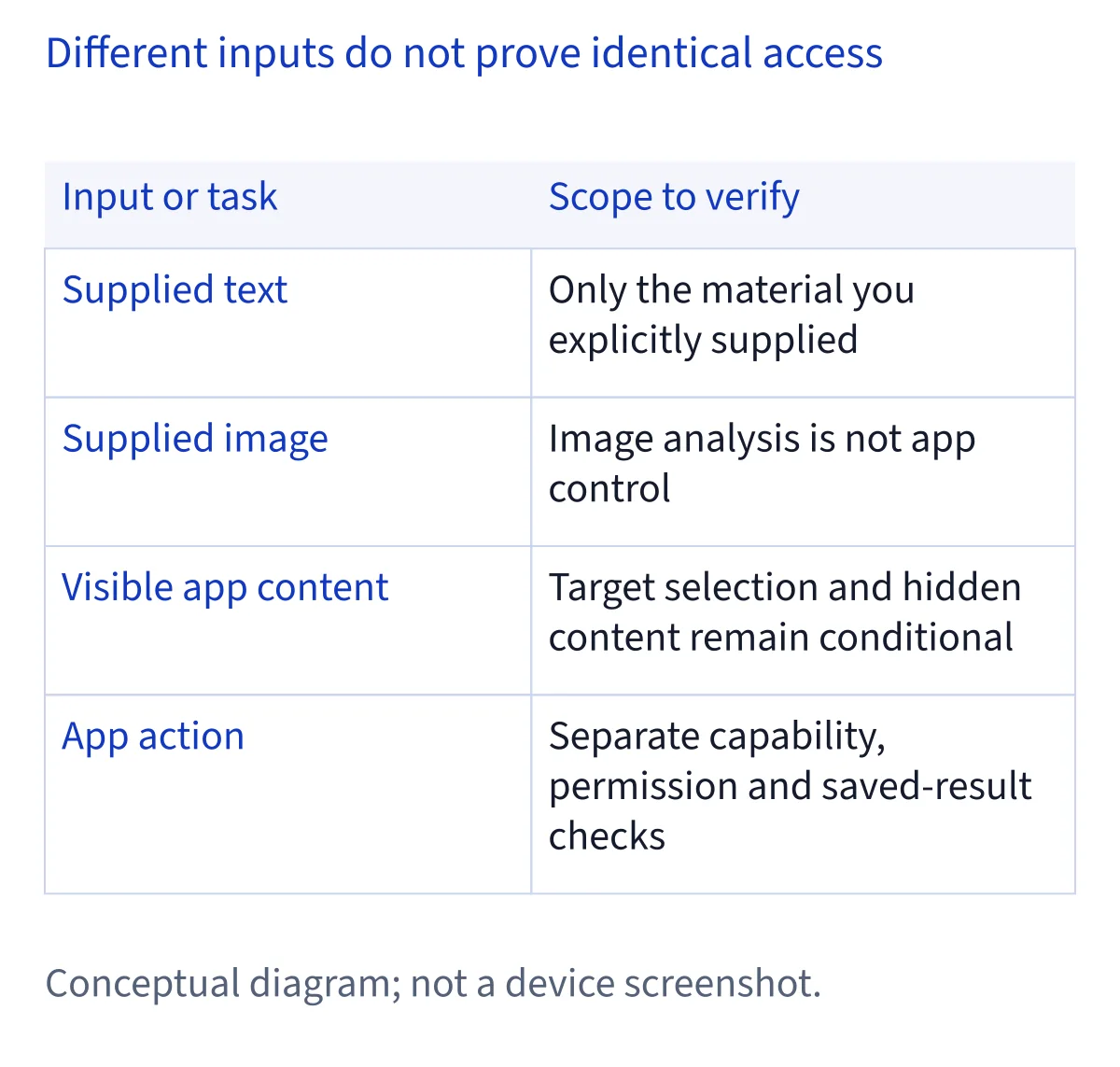
An image or screenshot also has a practical boundary: it shows captured visual material, rather than necessarily exposing the underlying document, its other pages, or an app's structured objects. When evaluating a response, record whether you supplied an image, used a screenshot path, or asked while content was simply displayed. If a screenshot-based question succeeds after a screen-dependent question fails, that observation supports the narrower input path you used. It does not establish universal access to the originating app.
Prepare one identifiable view before asking for interpretation
For a proposed first check, open the intended app and bring one non-sensitive item into view. Read the relevant content yourself before asking for an explanation. Note the document title, page, or visible passage so that you have a reference for comparison. If the app offers a selection, you can select the intended material as part of preparing the view, without assuming Siri necessarily receives that selection.
Begin with interpretation rather than a change. Ask in your own words about the specific material you intend, then inspect whether the response addresses it. These are evaluation suggestions, not documented command wording. Prefer a question with an answer you can check against the displayed content. A fluent explanation that could apply to many documents gives less evidence of correct targeting than an answer that accurately addresses the particular passage you meant.
Resolve pronouns, multiple windows, and document boundaries
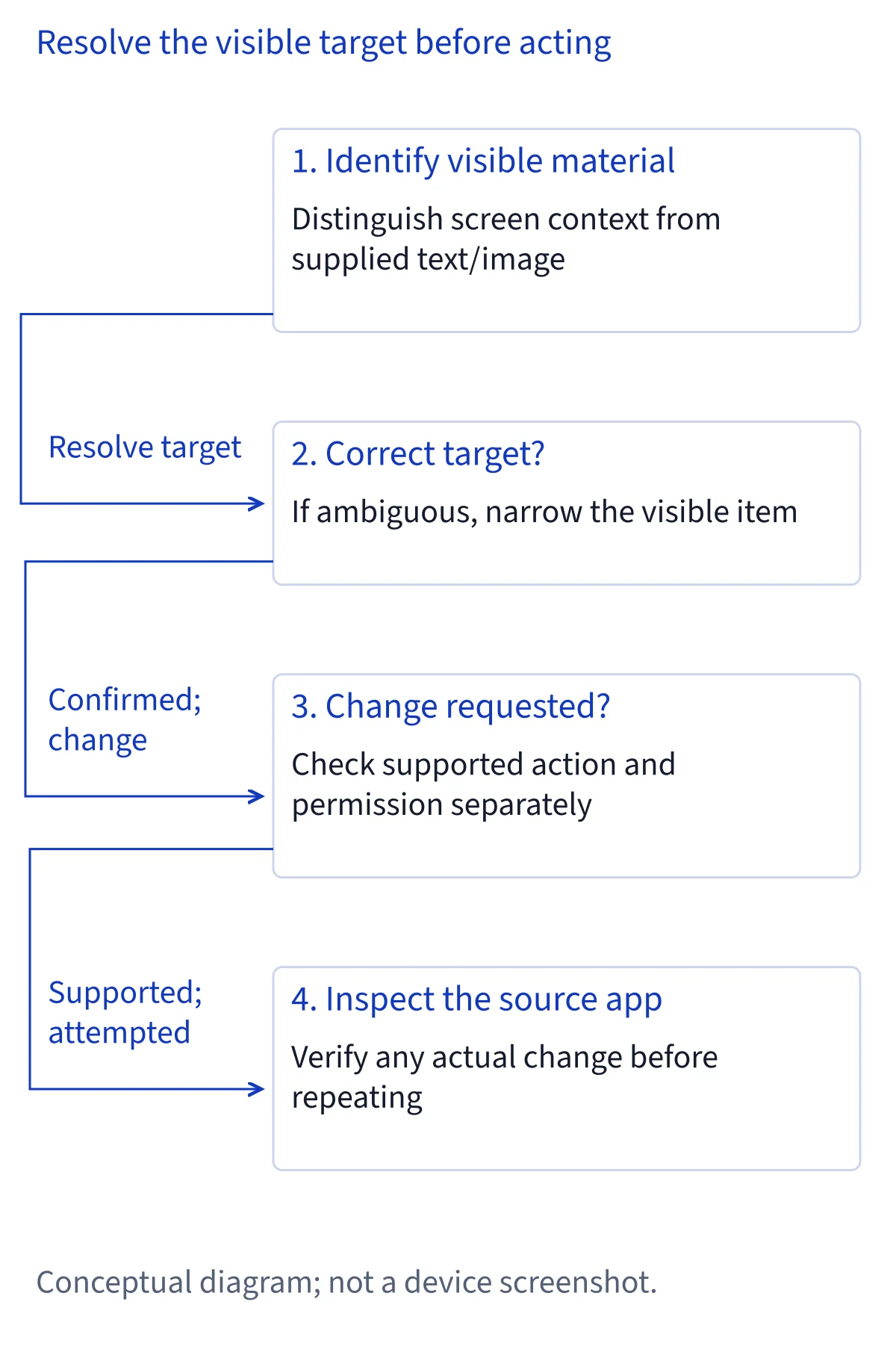
Words such as this, that, and it become ambiguous when several plausible targets are visible. A document may contain a selected sentence, a sidebar item, an attachment, and a link with similar names. On a desktop, multiple windows can add another layer of uncertainty. The supplied documentation does not define a universal rule for which target Siri chooses in these situations.
As a proposed check, replace the pronoun with the visible title or another distinguishing description. Keep the intended item in view and reduce competing selections where practical. For a long document, specify the relevant page or passage instead of assuming that a question covers the entire file. If the answer refers to another item, stop and restate the target. Repeatedly continuing with ambiguous references can make a conversation sound coherent while leaving the original targeting error unresolved.
Review the target before requesting an app action
Understanding displayed content and changing something in an app are different checkpoints. Apple documents app actions and an announced rollout across Apple apps, but that does not mean every visible item supports every operation. A correct explanation of a document does not establish permission or capability to edit, move, share, or otherwise act on it.
Before attempting an action, identify the intended object, destination, and desired change. If the interface presents a preview or confirmation, compare those details with your intention before proceeding. Do not assume every operation provides such a checkpoint. Afterward, inspect the result in the app itself rather than relying solely on conversational acknowledgment. For an unfamiliar workflow, a harmless duplicate can be a useful proposed starting point. Where repeatability matters more than conversational flexibility, separately documented Shortcuts workflows may offer a clearer procedure to inspect.
Check app evidence without treating a preview as public support
Apple's November 3 announcement says it started rolling out capabilities across fifteen Apple apps, including Notes, Mail, Safari, Files, Finder, and Preview. Fifteen apps are not fifteen verified onscreen scenarios. The announcement does not enumerate every supported screen, content type, or operation for each app, and platform differences remain relevant.
The same announcement introduces a Developer Preview using App Intents for custom content and actions, skills for combining actions, and access to entities in the Spotlight semantic index. That preview is evidence of a developer integration path, not automatic public availability for every third-party app. When checking an app, distinguish its documented Shortcuts support, a vendor's statement about Siri capabilities, and evidence of a publicly released Siri AI integration. An absent example leaves the particular scenario unestablished; it does not prove permanent non-support.
Treat permissions and privacy as separate questions
Sharing or displaying content should not be interpreted as permission to access every app, hidden material, or all pages of a document. Apple's onscreen capability statement provides no guarantee of continuous full-screen reading. Its broader Siri privacy notice describes Excluded Apps controls affecting app information, actions, and suggestions, but that notice should not be stretched into a precise specification of onscreen selection behavior.
The notice says Siri AI requests may be processed on device or through Private Cloud Compute, whose processed data is not stored or made accessible to Apple. Separately, opting into Improve Siri & Apple Intelligence permits additional collection and review under its own terms. Do not collapse those arrangements into a claim that every interaction is entirely local or never retained. For initial checks, use non-sensitive content and review the privacy choices relevant to the workflow you actually invoke.
Use manual fallbacks without changing the capability claim
If a screen-dependent question produces an unclear answer, return to the source before escalating the request. Reopen the intended item, narrow the visible passage, and make the reference explicit. A response about the wrong object is a targeting problem to resolve before any action. A response that lacks necessary context may call for supplying that context yourself.
Where appropriate, you can manually copy a short non-sensitive excerpt into your question or use a sharing option the app actually provides. These are suggested user workflows, not demonstrated Siri commands or guarantees that a particular share destination exists. Supplying text directly changes the evidence: success then shows that Siri handled the supplied excerpt, not that it independently recognized the original screen. Likewise, completing an operation manually can finish your task without establishing support for the corresponding conversational app action.
Keep a verification notebook and scope each conclusion
For a useful personal record, note the date, device, operating system, app, device and Siri languages, visible item, input path, exact request, and observed result. Distinguish what Siri said from what you inspected afterward. Record whether a selection was present, whether you supplied text or an image, and whether the app's content actually changed. Avoid storing sensitive source material merely to make the record more complete.
A successful observation applies to that combination of conditions; a failed attempt is not a permanent compatibility verdict. Establish basic eligibility separately when interpreting either result. Apple's current Siri AI languages are English, French, Japanese, Korean, Portuguese, and Spanish, with matching device and Siri languages required. Platform and account-region restrictions also apply. Use the availability guide for those conditions, then return to the narrower question of whether the intended screen content and action target were handled correctly.
Common questions
Does Apple provide fifteen verified onscreen awareness examples?
No such collection appears in the supplied Apple sources. The support article documents two broad interaction types: asking about and acting on onscreen content. The developer announcement names fifteen Apple apps in a rollout, but an app list is not a set of verified onscreen scenarios or evidence of hands-on testing.
Can Siri AI continuously read everything across my apps?
Apple's supplied onscreen awareness description does not guarantee continuous full-screen reading or access to every app and hidden item. App information, available actions, privacy controls, and the input path remain separate considerations. Check the specific displayed material and inspect the result rather than inferring unrestricted access from one successful response.
Is asking about a screenshot the same as onscreen awareness?
Not necessarily. Apple separately describes Visual Intelligence entry points, including screenshot gestures on iPhone and iPad. A screenshot supplies captured visual material, which does not by itself establish access to an underlying document or its app actions. Record which input you used so your conclusion matches the capability you actually evaluated.
What should I check before asking Siri to act on displayed content?
Identify the exact object, intended destination, and requested change. Resolve ambiguous references before proceeding, and inspect any preview or confirmation that appears. After the request, verify the result inside the app. These are suggested safety checks, not a promise that every app supports the operation or presents a confirmation screen.