
How to Use the Siri AI App on iPhone
The Siri AI app brings your conversations together so you can start a request, return to an earlier discussion, and continue across supported Apple devices. On iPhone, open Siri, choose a conversation or start a new one, then speak or type. History, deletion, and retention have separate controls.
What is the Siri AI app for?
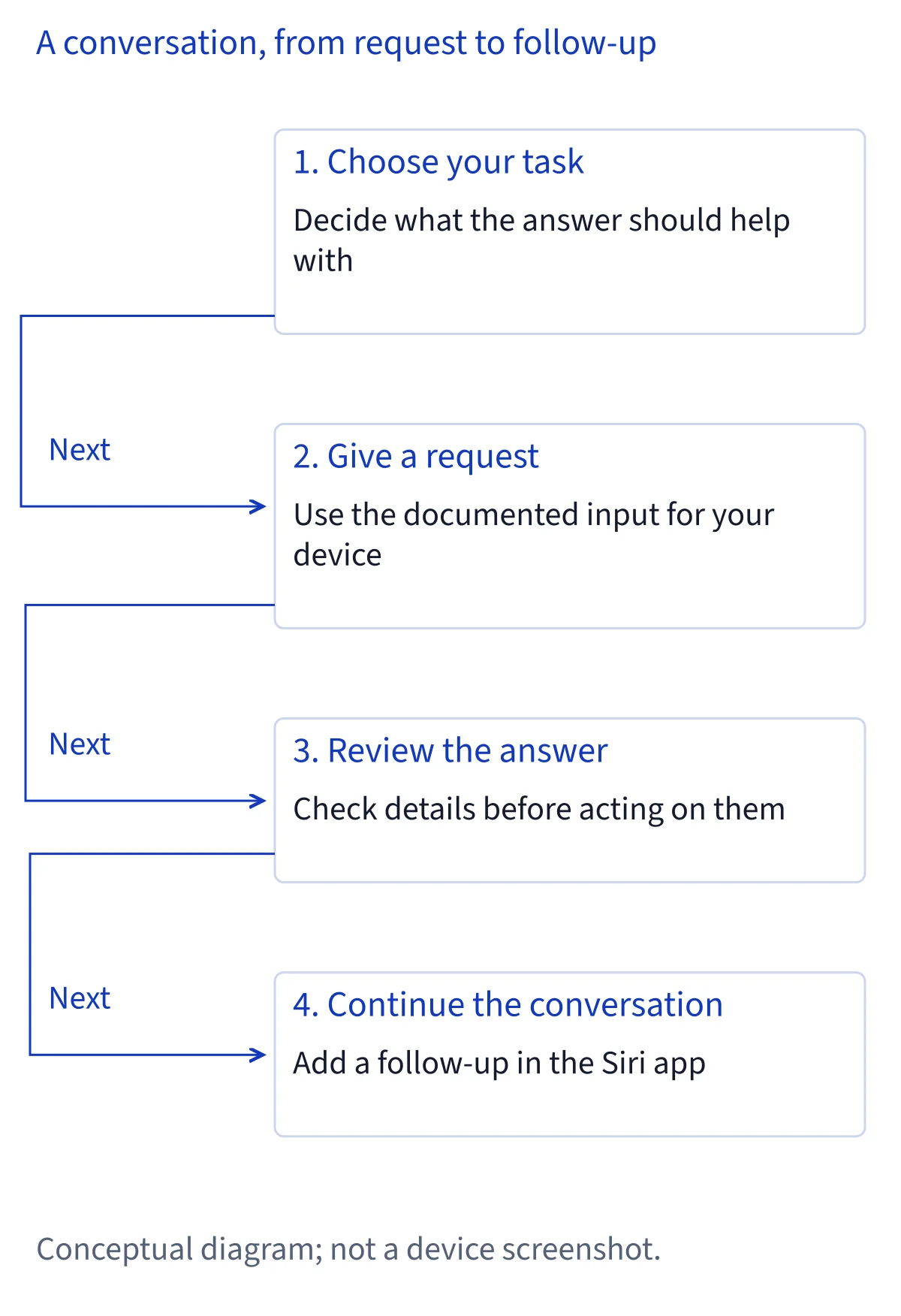
Use the dedicated Siri app when you want a conversation you can return to. Apple's iPhone guide describes a place for starting new discussions, continuing existing ones, and organizing their history. That makes the app useful for a task that develops through several questions, such as refining a trip itinerary. The itinerary is an example of writing with Siri in Apple's getting-started guide; it is not a promise that the assistant books travel for you.
This guide begins with everyday use after Siri AI is enabled. If the app or setup entry is missing, use the setup and compatibility guides before following the conversation steps below. Apple describes Siri AI as a beta requiring compatible hardware, a supported system, matching supported device and Siri languages, and an eligible Apple Account region. Installing an operating-system update alone does not establish all those conditions. The app's existence also does not establish support for every action in another app; check the particular action separately.
Start a conversation by typing or speaking
Open the Siri app on your iPhone. Tap the new conversation button to begin a separate discussion, or tap an existing conversation to continue it. For a typed request, enter your text with the keyboard and tap the Ask Siri button. For a spoken request, tap the Microphone button and speak. Tap the Keyboard button when you want to return to typing. Those button names come from Apple's article and its accessible image labels; they are not a report of testing on a particular phone.
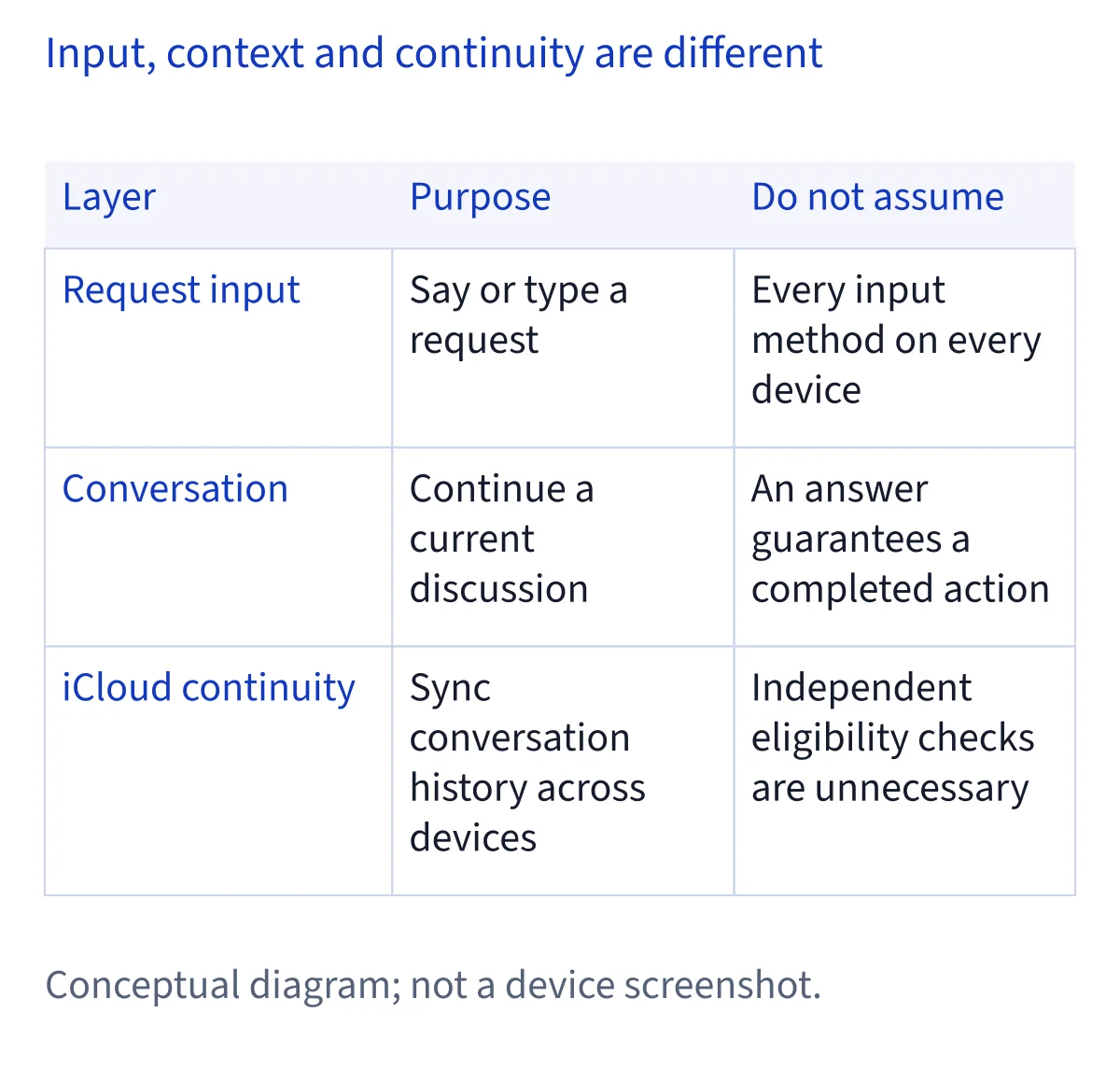
Choose input for the situation: typing lets you compose a precise question when speaking would be inconvenient, while the microphone lets you state a request aloud. Both belong to the documented conversation flow. Apple's Siri settings guide also says you can always type when Siri AI is on. If your concern is whether the answer is spoken aloud, look at Responses settings rather than changing your input method repeatedly. Input controls determine how you ask; response controls determine how Siri answers.
Continue a topic and add relevant material
Enter a follow-up question in the same conversation when you want to build on the discussion. Apple's app instructions explicitly include follow-up questions. Its getting-started guide illustrates revising a draft and continuing requests after an initial answer. You can therefore use one discussion to ask for a draft and then request a change, while starting another conversation gives an unrelated subject its own place in history. This is an organizational suggestion, not a claim about a fixed memory window.
The app also has documented ways to add material. Tap Add, then Camera to take a picture; choose Photos to select a photo; or choose Files to select a file for the conversation. Check that you selected the intended item before submitting a question about it. These instructions establish the attachment routes, but they do not establish an exhaustive list of readable file formats, maximum sizes, or guaranteed extraction accuracy. For answers that matter, review the response against the original material rather than assuming that adding an item means every detail was understood.
Find, pin, and rename earlier conversations
Return to conversation history to find a discussion you want to reuse. If the app opens to a new conversation, Apple's guide says to tap Close to see history. Use the Options button in the top-right corner and choose Grid or List to change the display. A different display changes how you browse; it is not a separate collection of conversations. For a specific topic, tap Search, enter what you are looking for, and tap Search on the keyboard.
To make an important discussion easier to reach, touch and hold it and choose Pin. To give a discussion a clearer name, touch and hold it, choose Rename, enter the new name, and tap OK. A descriptive name can distinguish several similar planning or writing conversations without requiring you to open each one. Apple documents these as separate actions, so use the one that matches your goal: search to locate, pin for access, or rename for recognition. None of those steps is the documented deletion command.
Continue across devices with iCloud
Apple says Siri conversation history syncs across platforms when you are signed in to the same Apple Account. Its current Siri AI support article describes starting on iPhone and continuing on Mac, iPad, Apple Watch, or Apple Vision Pro. Each device still needs the applicable Siri AI requirements; sharing an account does not make an otherwise ineligible device compatible. Use this continuity feature to return to an existing discussion rather than manually repeating its opening question on every device.
The app guide links to Apple's iCloud setup instructions. On iPhone or iPad, those instructions give Settings → your name → iCloud → See All → Siri → Sync this device. On Mac, open System Settings, choose your name, open iCloud, select See All beside Saved to iCloud, then Siri and Sync this Mac. The iCloud article describes settings synchronization and says it does not occur without the same account and iCloud for Siri enabled. The sources confirm conversation sync, but do not specify here exactly how manual conversation deletion propagates between devices. Do not treat another device as a guaranteed backup of a deleted discussion.
Delete selected conversations and set retention
To delete one conversation, touch and hold it, tap Delete, then tap Delete again to confirm. To delete several, tap Options in the top-right corner, choose Select, select the conversations, tap Trash, and confirm Delete. Review the selected discussions before confirmation so the action matches your intention. Apple's article documents single and multiple deletion; it does not supply a separate promise here about a one-tap delete-all control or a recovery period after manual deletion.
Retention is a different decision. Open Settings → Siri → Keep Conversations and choose an option. Apple explicitly warns that choosing 30 days or 1 year permanently deletes older conversations. Consider that effect before shortening the period, especially if you intend to return to a long-running project. The source does not say that pinning exempts a conversation from that warning. Searching, renaming, and pinning help organize history; use the retention setting only when you want to decide how long conversations remain. This guide does not promise an undo process for permanently deleted history.
Choose what opens and review everyday settings
Choose the app's opening view in Settings → Siri → Opens To. Apple lists Recent Conversations and A New Conversation. Select the first if you normally resume a discussion, or the second if you usually begin with an unrelated request. In the same Siri settings, Preview lets you choose a conversation preview length. These controls affect entry and browsing, while Keep Conversations controls retention; check the setting name before changing it to solve a history problem.
For spoken output, open Siri settings and choose Responses. The iPhone manual gives Spoken Response and Silent Response when Siri AI is enabled, and warns that options depend on the Siri version. Voice selection belongs under Voice, covered in the separate voice guide. Access to another app's data is a further setting: the manual documents Excluded Apps, including Add Apps to restrict access. Review permissions independently of whether you type or speak. If the app is unavailable or stops responding, use the missing-option or troubleshooting guides with your device model, OS, and current language settings rather than guessing a universal fix.
Common questions
How do I use the Siri AI app?
Open Siri on your iPhone, tap the new conversation button or select an existing discussion, then type and tap Ask Siri or tap Microphone and speak. Use Keyboard to return to typing. Apple's app guide also documents follow-up questions and adding pictures, photos, or files.
Can I continue Siri AI conversations on another device?
Apple says conversation history syncs through iCloud across supported Apple devices signed in to the same Apple Account. Its support article names iPhone, Mac, iPad, Apple Watch, and Apple Vision Pro. Each device still needs to meet the applicable Siri AI requirements; account sharing alone does not establish compatibility.
How do I delete Siri AI conversations?
Touch and hold a conversation, choose Delete, and confirm Delete. For several conversations, use Options → Select, select the discussions, tap Trash, and confirm. Separately, Settings → Siri → Keep Conversations controls retention. Apple warns that selecting 30 days or 1 year permanently deletes older conversations.
Can the Siri app open directly to a new conversation?
Yes. Apple's iPhone guide gives Settings → Siri → Opens To, with Recent Conversations or A New Conversation as the choices. Select A New Conversation if that suits your routine. This opening-view setting is separate from Keep Conversations, which determines how long your conversation history is kept.