
How to Change Siri AI's Voice on iPhone
To change Siri AI's voice on iPhone, open Settings → Siri → Voice and select an available variation or voice. Expressive Voices add pace and expressivity controls only on eligible hardware and in English. If those controls are missing, check the language, device model, and software path before assuming Siri is broken.
Choose an ordinary Siri voice first
Open Settings on your iPhone, tap Siri, then tap Voice. The iOS 27 iPhone manual says to select an option under Variations to change the variation, or under Voices to change the voice. Use the choices actually shown for your setup. The source does not provide one universal catalog of names and accents for every language, so this guide does not assign a fixed voice number or recommend a voice that might not appear on your device.
Keep voice selection separate from language selection. Voice changes how Siri sounds; Language selects the language used for Siri and also affects Maps, turn-by-turn directions, and Listen to Page in Safari, according to the manual. If you simply want a different available voice in your current language, begin with Voice. Moving to a different language has wider consequences and must still meet Siri AI's matching-language requirement. The everyday Siri app has its own conversation controls, but Apple's documented route for these voice settings starts in Settings, not inside a particular chat.
What do Expressive Voices change?
Expressive Voices add customization beyond selecting an ordinary variation or voice. In the iPhone manual's Voice section, Apple says to adjust Voice, Pace, and Expressivity until the result sounds right to you. Its current Siri AI support article describes this as customizing pace and expressiveness. These are the documented control names; Apple does not specify a numeric scale, a set of slider stops, or a recommended setting for a particular speaking style in the material reviewed here.
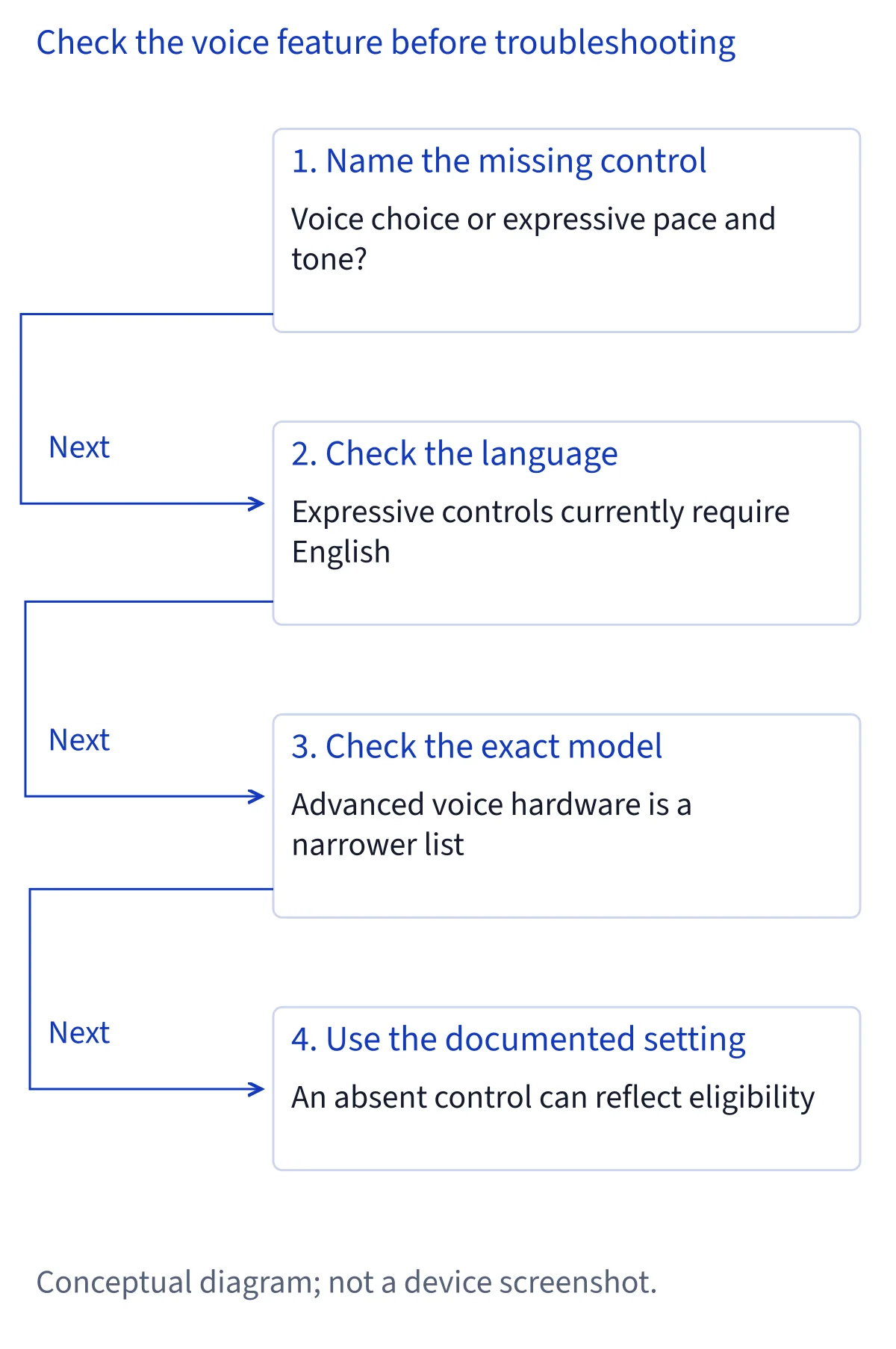
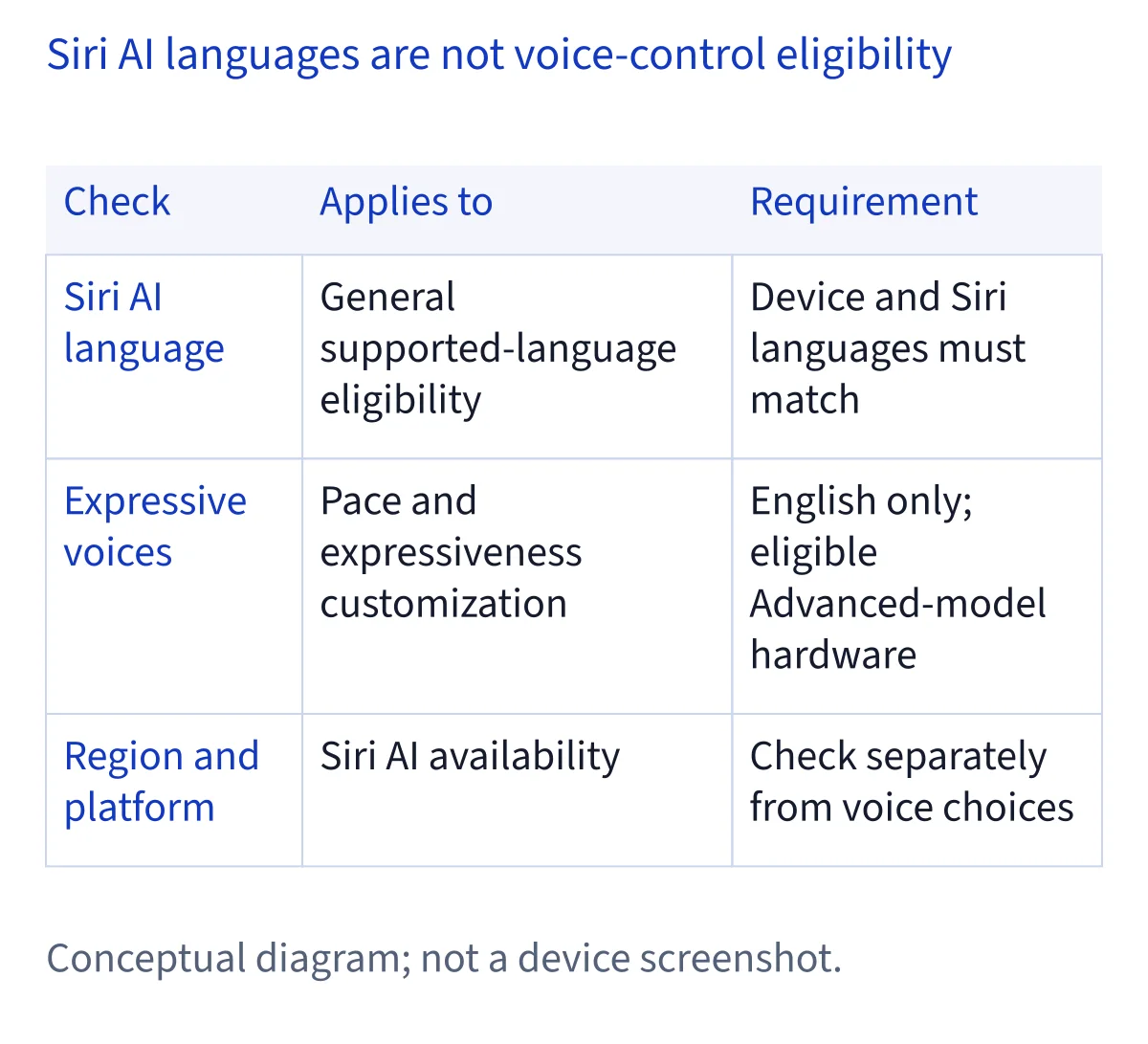
The feature is English-only. The iPhone manual further describes American and British voices to start. That is narrower than Siri AI's overall language support: using Siri AI in Spanish does not establish that expressive controls are available in Spanish. Ordinary voice selection and expressive customization therefore need different checks. First find the available voice choices, then determine whether your language and hardware qualify for the extra controls. The cited instructions describe adjusting Siri's output; they do not document cloning your voice, uploading a voice sample, or exporting generated narration from this settings screen.
Check the narrower expressive-voice device list
Siri AI compatibility alone is not enough for Expressive Voices. Apple's November 5 support article requires the AFM Core Advanced on-device model. It lists iPhone 18 Pro, iPhone 18 Pro Max, iPhone Duo, iPhone 17 Pro, iPhone 17 Pro Max, and iPhone Air. A phone appearing on the broader Siri AI eligibility list does not automatically appear on this narrower list. Identify the exact model before looking for an absent pace control; a Pro model and its standard counterpart are different entries.
The same article lists iPad mini with A20 Pro; iPads with M4 or later and at least 12 GB unified memory; Macs with M3 or later and at least 12 GB unified memory; and Apple Vision Pro with M5. Both the chip and memory conditions matter where specified. The iPhone manual's footnote names five iPhones and omits Duo, while the current support article explicitly includes it. This guide uses that dated support article for the broader hardware list and the manual for iPhone steps. It does not invent identical menus on iPad, Mac, or Vision Pro.
If Voice or expressive controls are missing
First distinguish a different menu label from a missing feature. The iOS 27 manual gives Settings → Siri → Voice. Apple's separate voice support article gives Settings → Siri → Siri Voice and says some software versions place Siri under Apple Intelligence & Siri. Check the route matching your installed software. These source differences do not justify inventing a hidden switch or assuming that every device uses the same label. Record what you see if you need support.
Next check which feature is absent. If ordinary voices appear but Pace and Expressivity do not, compare your exact hardware with the Advanced-model list and check the English-only condition. If Siri AI itself is unavailable, use the compatibility or missing-settings guide: the device and Siri languages must match a supported language, and region and platform restrictions still apply. Apple's current article lists six Siri AI languages, despite an older voice article saying English-only for the beta. Use the current six-language scope for Siri AI, while retaining English-only for Expressive Voices. A language change is not a guarantee that every other requirement is satisfied.
Change spoken responses separately from the voice
If Siri sounds silent, check Responses before choosing another voice. Apple's iPhone manual gives Settings → Siri → Responses. With Siri AI on, it names Spoken Response for spoken output and Silent Response for silent output. It also lists Always Show Siri Captions and Always Show Request for displaying Siri's words and your request. The manual explicitly warns that the options depend on which Siri version you use, so match the control to the wording shown on your phone.
This separates three practical tasks: the microphone or keyboard determines how you submit a question, Voice determines the selected sound, and Responses determines whether Siri answers aloud. A silent-response preference can therefore explain why changing voices does not address your actual goal. The same Responses section includes Automatically Send Messages, but that is an action-confirmation setting, not a voice-quality control. Review it on its own terms rather than changing it while trying to adjust sound. For general failures after checking the documented output option, move to troubleshooting with a description of the behavior you observe.
How do I change Siri's voice back to normal?
If you mean a previously preferred sound, return to Voice and select the available variation and voice that you want. Apple documents changing those choices, but the reviewed instructions do not identify a universal normal voice, a one-button reset to your previous selection, or saved expressive presets. If expressive controls are available, adjust the documented Voice, Pace, and Expressivity options according to what you hear. This guide does not supply invented default values for restoring an earlier sound.
If instead you mean turning off Siri AI and returning to Siri Classic, that is a different product-setting question. The official articles read for this guide establish voice, language, and response controls; they do not verify a Use Siri Classic fallback sequence. We therefore do not present that menu as an Apple-confirmed procedure. Decide whether your goal is to change the sound, stop spoken answers, or switch assistant versions before changing settings. The first two have documented routes above. For the third, consult current Apple instructions for your installed version rather than assuming that changing Voice disables AI.
Keep language, voice generation, and app use distinct
Choose a supported language you actually want to use, rather than changing language only to chase a control. Apple's November 5 Siri AI article lists English, French, Japanese, Korean, Portuguese, and Spanish, and requires device and Siri languages to match. That general availability is separate from expressive output's English limitation and Advanced-model requirement. For an eligible Spanish setup, the absence of English expressive controls does not by itself show that Siri AI has failed. Check the relevant requirement for the specific feature.
A search for a Siri voice generator, voice changer, or downloadable text-to-speech recording can also describe a different goal. The sources here teach you to select and customize the assistant's speaking voice, not to create an audio-production workflow. We do not direct that intent to the Siri app as if it were a documented export tool. Use the app guide when you want to talk, type, or continue conversations. Use this settings guide when you want to change Siri's sound or response behavior, keeping each documented control tied to the task it actually performs.
Common questions
How can I customize Siri AI's voice?
On iPhone, open Settings → Siri → Voice and choose an option under Variations or Voices. On hardware with the required AFM Core Advanced model, Expressive Voices add Voice, Pace, and Expressivity controls. Those expressive options are English-only; Siri AI's broader support for Spanish and other languages does not extend them automatically.
Why can't I see Siri AI pace and expressivity settings?
Check your exact device against Apple's narrower AFM Core Advanced list and confirm the English requirement. Supporting Siri AI alone is insufficient. Also check the software-specific menu: the iOS 27 manual says Voice, while a separate support article says Siri Voice and notes that some versions use Apple Intelligence & Siri.
How do I change Siri's voice back to normal?
Return to Voice and choose the available variation and voice you prefer. The reviewed Apple instructions do not specify a universal normal voice or a reset to your previous selection. Returning to Siri Classic is a separate question; these official sources do not verify a Use Siri Classic fallback menu.
Can I use Expressive Voices in Spanish?
The current Siri AI support article describes Expressive Voices as English-only. The iPhone manual specifies American and British voices to start. Spanish is among Siri AI's six currently listed languages, but that does not make expressive customization available in Spanish. Ordinary voice choices and expressive controls have different availability requirements.