
Try Siri AI Option Not Showing in Settings?
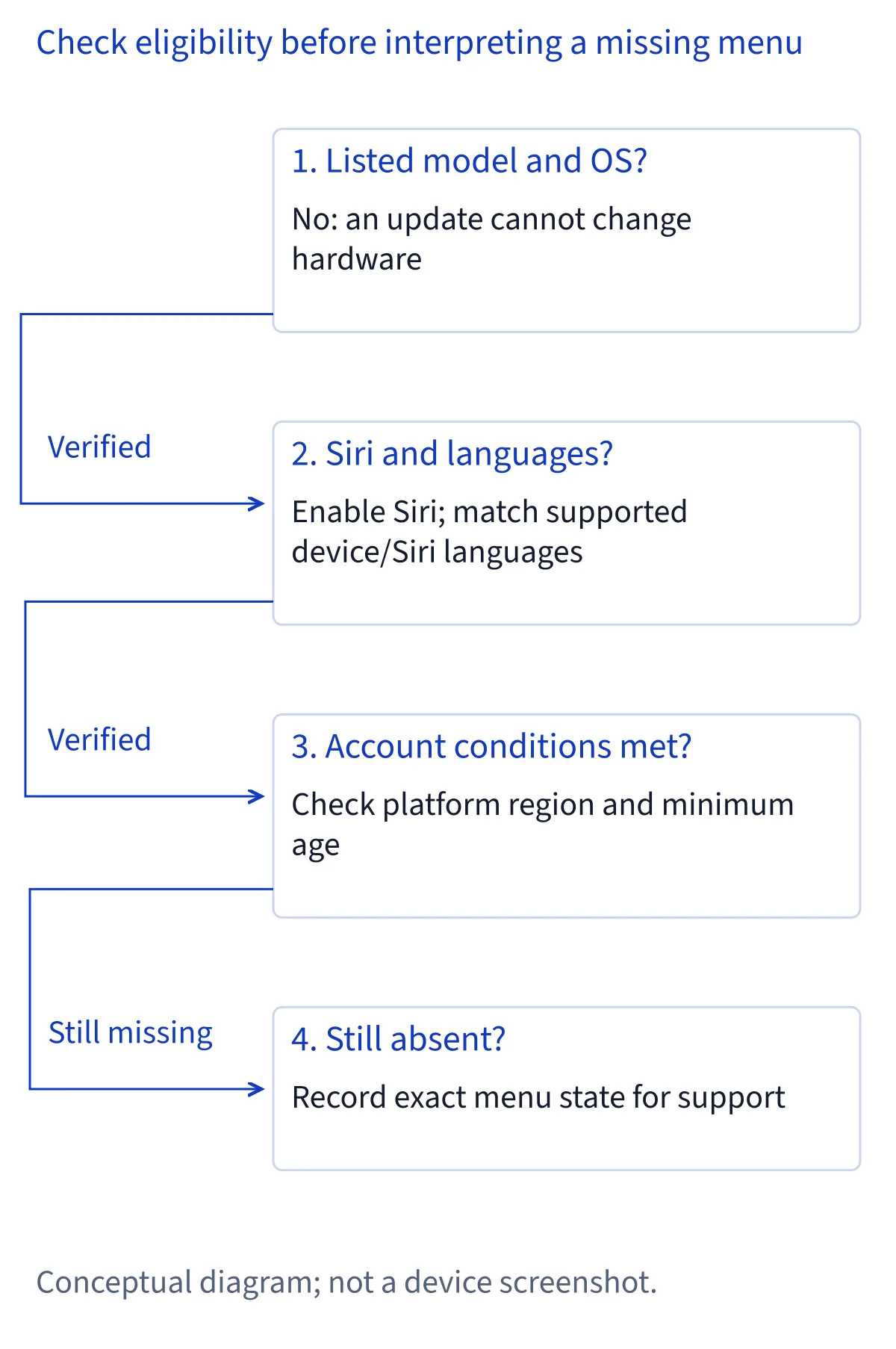
If Try Siri AI (Beta) is missing from Settings, start with your exact device model. Then check its operating system, whether Siri is on, matching supported languages, your Apple Account region, and age eligibility. Finally, confirm that you are looking at the right menu and that the option is truly absent.
First, check your exact device model
An eligible operating system does not make every device eligible for Siri AI (Beta). Apple lists iPhone 15 Pro models, iPhone 16 models or later, iPhone Duo, and iPhone Air, running iOS 27. The standard iPhone 15 and iPhone 15 Plus are outside that list. Every iPhone 14 model is also outside it, including the Pro models. If you have one of those phones, a missing Try Siri AI option is consistent with Apple's device list. Updating the phone cannot change its model. Identify the exact model before spending time on language or account settings; the difference between iPhone 15 and iPhone 15 Pro matters here.
On iPad, Apple's list includes iPad mini with A17 Pro or A20 Pro and iPads with M1 or later. On Mac, it includes M1 or later Macs and MacBook Neo with A18 Pro; Intel Macs are outside the list. Apple lists any Apple Vision Pro. For Apple Watch, the listed models are Series 9 or later, Ultra 2 or later, and SE 3, but the watch must be paired with an Apple Intelligence capable iPhone that has Siri AI turned on. A watch model alone does not satisfy that condition. Use the compatibility checker if you are unsure which part of your setup qualifies.
Next, check the operating system and platform
Apple describes Siri AI (Beta) for iOS 27, iPadOS 27, macOS 27 Golden Gate, visionOS 27, and watchOS 27. Check the system installed on the device where you expect to find the option. If it is running an earlier major version, that fails this requirement even when the hardware is on Apple's list. Check for an available update through your device's normal settings, then return to the Siri menu. If an update is unavailable for your device, use the device list to determine whether the hardware itself is eligible. Treat these as two separate checks: a listed model with an older system and an unlisted model with a newer system call for different conclusions.
The listed OS families establish where Apple describes Siri AI availability; they do not guarantee that the entry appears in every individual 27.0 build or every regional configuration. Apple's November 3 developer announcement discusses a separate 27.3 developer preview for app integrations. Installing a developer beta is not a documented remedy for a missing consumer setup option, and the developer announcement should not be read as a promise about the menu on your device. Once you have confirmed the model and system, continue through the remaining checks instead of assuming that the version number alone settles availability.
Make sure Siri itself is turned on
Apple's setup instructions place the entry at Settings → Siri → Try Siri AI (Beta). If Siri is off, Apple's first instruction is to select Turn On Siri. Open Settings, enter Siri, and look for that initial control before deciding that the AI entry is missing. Turning on Siri is a prerequisite in the documented setup sequence; it is not evidence that Siri AI has already been enabled. After that step, inspect the Siri menu again. If Try Siri AI (Beta) appears, select it and follow the on-screen setup instead of continuing through a missing-option diagnosis.
The subsequent Apple setup sequence includes choosing a voice, completing voice enrollment, and reviewing privacy settings. Those screens belong to setup after you reach the entry; their absence does not, on its own, explain why an entry is missing earlier in the menu. Similarly, seeing ordinary Siri controls does not prove that Siri AI is available on your particular setup. Keep the sequence narrow: first check whether Siri was off, then whether the named Try Siri AI (Beta) control appears. If you cannot find the Siri menu itself, record what menu you do see for the support handoff later in this guide.
Match the device and Siri languages
Apple requires the device language and Siri language to be the same supported language. Check both settings separately: a supported Siri language paired with a different device language does not meet the stated requirement. As of this page's November 6, 2026 review, the supported languages in Apple's current material are English, French, Japanese, Korean, Portuguese, and Spanish. If both of your settings already match one of those languages, move on to the account and regional checks. If they differ, choose a matching supported language that you actually want to use, then revisit the Siri menu. Treat that change as a diagnostic step, not a guarantee that the option will appear.
Apple's developer announcement also mentions Traditional Chinese, Vietnamese, Turkish, and Norwegian as languages planned for expansion. A planned expansion is not confirmation that those languages are generally available in the current consumer setup. Do not infer eligibility from a language listed as coming soon or from an earlier article about launch-day language support. You also do not need to assume that English is the only supported choice: the current first-party material includes Spanish and the other languages named above. The key question for this step is whether your device and Siri are both set to the same language that Apple currently lists.
Check your Apple Account region and platform
Apple says the Apple Account region must meet Siri AI's availability conditions. In particular, Siri AI currently does not work with an Apple Account set to mainland China. If that describes your account, a language change alone will not meet the account requirement. Note the region shown for the account you actually use on the device when describing the problem to support. Avoid treating a device's physical location, its interface language, and its Apple Account region as interchangeable facts; the account region is a distinct check in Apple's setup conditions. The sources for this page do not provide a general workaround for a restricted account region.
The European Union needs a platform-specific reading. Apple says Siri AI is unavailable there on iOS, iPadOS, and watchOS. It says macOS 27 Golden Gate and visionOS 27 can be used with an EU Apple Account when the device and Siri languages match a supported language. That Mac and Vision Pro exception means an EU account does not produce the same answer on every device. Check the platform before drawing a conclusion from the account region. A supported EU Mac still needs the other requirements in this guide; likewise, a paired Apple Watch cannot sidestep the availability conditions for its required iPhone. If you are comparing two devices, assess each setup separately.
Check age eligibility
Apple says Siri AI is unavailable to people under 13. Check this condition after the device, system, Siri, language, and region checks, because a failure at any earlier step can already account for an ineligible setup. If the account holder is under 13, the age restriction is a separate reason the feature is unavailable. The two first-party sources used here do not establish that every greyed-out control or missing menu entry is caused by age, so do not diagnose an individual screen from its appearance alone. If you are helping someone else, use the age associated with the account and avoid sharing private account details to ask for general help.
If the person meets the age requirement, that removes one possible eligibility issue but does not prove that all other conditions have been met. Return to the earlier checks if you skipped any of them, especially the exact device model and the pairing condition for Apple Watch. Do not try to resolve an age restriction by creating a misleading account profile. For a remaining discrepancy, describe the observed menu state and the relevant eligibility facts to Apple Support. The practical purpose of this step is to identify whether a published requirement applies, not to guess at an undocumented reason for a particular interface state.
Finally, identify the menu state you actually see
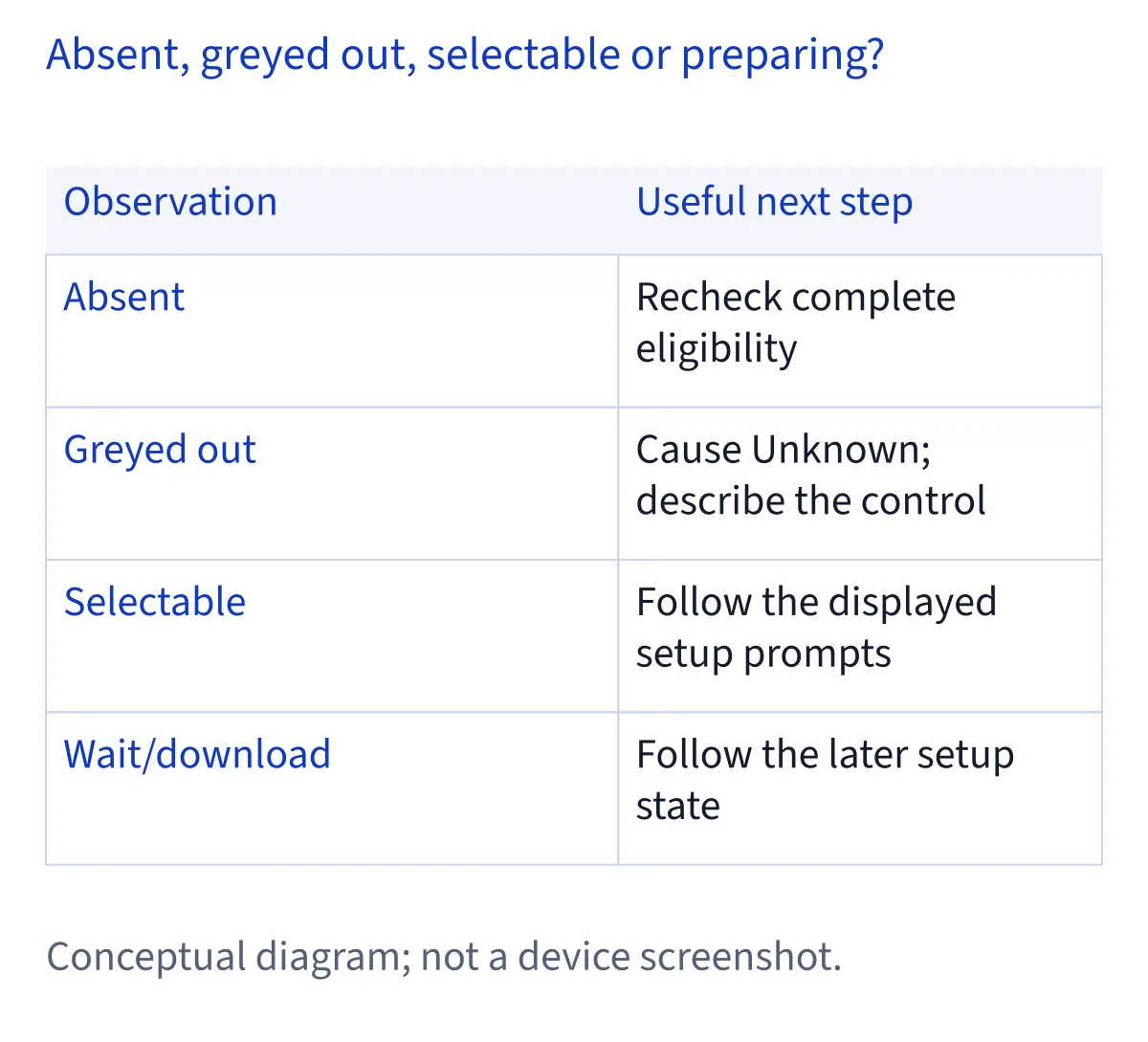
Return to Settings → Siri and compare the screen with Apple's named control, Try Siri AI (Beta). If the option is absent, record that specific observation and recheck the earlier requirements in order. If it is present but greyed out, describe it as greyed out; Apple's two cited pages do not establish a single cause for that state. Do not call it a missing option or claim that a particular account, download, or system setting caused the greyed-out control without further evidence. If the option is available to select, you have found the entry and can follow Apple's setup prompts. These distinctions prevent a support conversation from starting with the wrong problem.
There is also a different path once setup has progressed. Apple says Siri AI downloads automatically after you opt in, although high demand can sometimes place you on a waitlist with variable timing. If you already joined a waitlist or started a download, the missing-entry diagnosis is no longer the best match for what you see. Use the waitlist guide for that status. If you completed setup and Siri AI then fails to respond or perform a task, use the troubleshooting guide for problems after activation. Neither a waitlist nor a later response failure establishes why someone else's Try Siri AI option is absent.
What to include when asking for help
If all the published requirements seem to fit and the option is still absent, prepare a concise account of what you checked before contacting Apple Support. Include the exact device model, installed operating system version, whether Siri is on, the device language, the Siri language, and the Apple Account region. For an Apple Watch, include the paired iPhone model and whether Siri AI is already enabled on that phone. Say whether the entry is absent, present but greyed out, or available to select. Mention if you have already joined a waitlist or started a download, since those are later stages of setup. Include the date you checked so the description reflects the state you actually observed.
Describe the navigation you followed, such as Settings → Siri, and the words visible on the screen. A screenshot may help if you choose to share one, but review it first for personal information. Never send a password, verification code, recovery information, or other account secret as part of this handoff. Do not state that you tested a different model or system unless you actually did. The goal is to give support enough context to identify which requirement or menu state needs investigation without guessing at an undocumented explanation. This page's eligibility and setup information was reviewed against the cited Apple support page and developer announcement on November 6, 2026.
Common questions
Why is Try Siri AI missing on my iPhone 15?
Apple lists iPhone 15 Pro models for Siri AI, but not the standard iPhone 15 or iPhone 15 Plus. Check the exact model, since the family name alone is not enough. If you have a 15 Pro model, continue with the operating system, Siri, matching languages, account region, and age checks before deciding what explains the missing entry.
Can an iPhone 14 Pro show the Try Siri AI option?
No iPhone 14 model appears on Apple's Siri AI device list, including the iPhone 14 Pro. The iOS version installed on that phone does not change the listed hardware eligibility. If you are checking several devices, assess each exact model separately; a supported iPad or Mac may have a different answer under its own platform and regional requirements.
What if Try Siri AI appears but is greyed out?
A greyed-out entry is different from an absent one. Check the published requirements for device, OS, Siri, matching languages, account region, and age, but do not assume which one caused that screen state. The two Apple sources cited here do not give a single explanation for every greyed-out control. Record what you see and share the relevant setup details with Apple Support.
I already joined the waitlist. Is the option missing?
If you joined a waitlist through the Siri AI setup, you have already reached the entry this guide is designed to locate. Apple says a waitlist can appear during high demand and that the waiting time varies. Follow the waitlist guidance for your current status. If setup finished but Siri AI later stopped responding, use the troubleshooting guidance for problems after activation.