
Siri AI Waitlist: What to Do While You Wait
Yes, Siri AI can still put you on a waitlist when demand is high. Apple says the wait can vary and that Siri AI downloads automatically when it is ready. First identify what your device actually shows: a missing setup option, a waitlist message, a download, or a feature that does not respond.
Can Siri AI still have a waitlist?
Yes. Apple’s support guidance, checked November 6, 2026, says that high demand may place people on a waitlist before Siri AI downloads. That is a conditional status, not a statement that everyone must wait. If your device proceeds to a download, follow what it shows. If it says you have joined a waitlist, that message is consistent with Apple’s current guidance. A report that access became immediate for some people cannot establish that the queue has permanently disappeared for every eligible device.
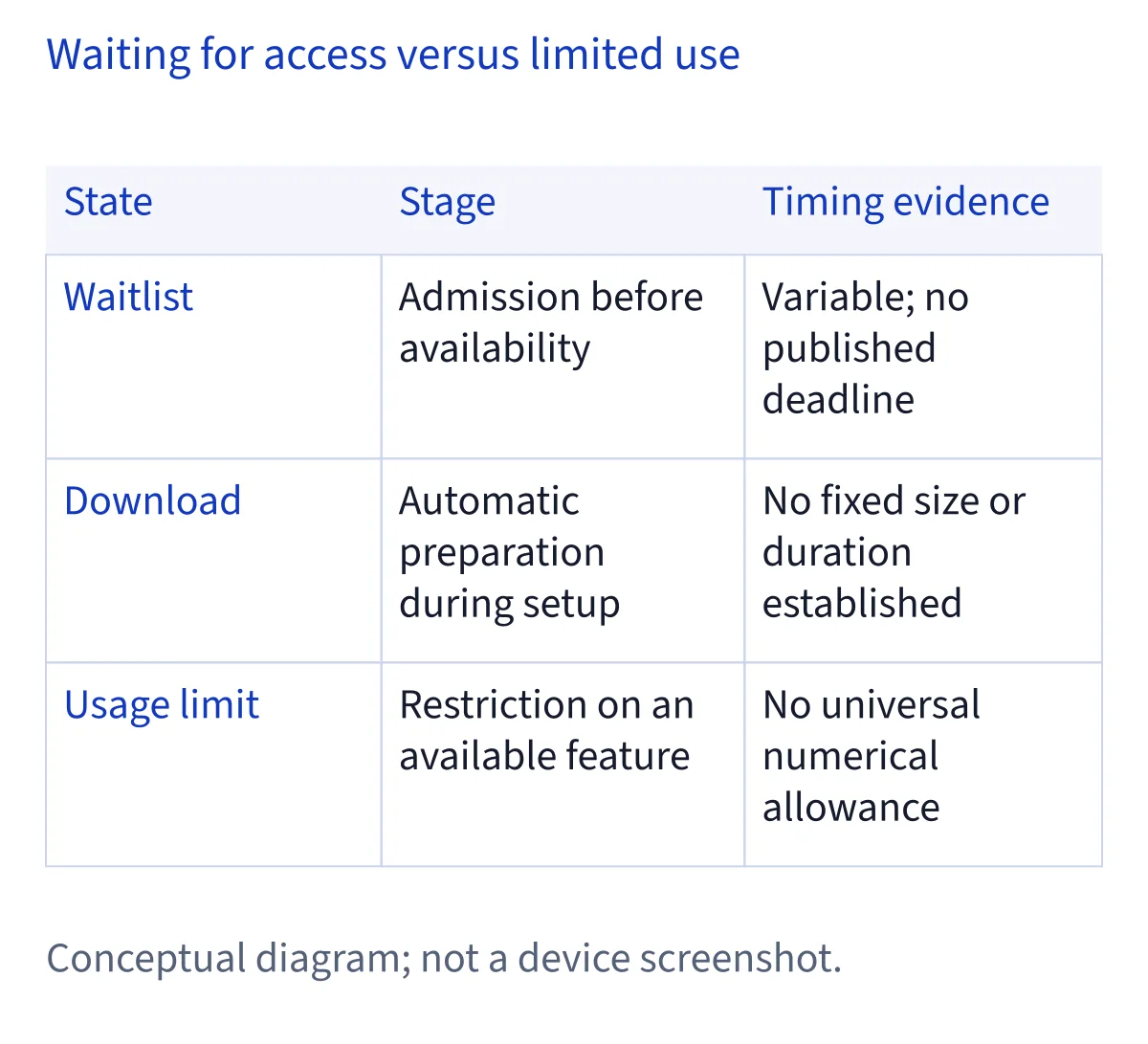
Apple says waiting time can vary. It does not give a duration you can use as a deadline for your own request. Note the status and when you first saw it, then check for a change at reasonable intervals. A quiet screen does not, by itself, tell you whether a request was lost or how many people are ahead of you. The next useful question is whether you reached the waitlist after completing setup, or whether the setup option never appeared at all.
Is the setup option missing, or are you waiting?
These are different starting points. Apple gives the setup path as Settings → Siri → Try Siri AI (Beta). If Siri is off, choose Turn On Siri first. Then follow the prompts to select a voice, complete voice enrollment, and review privacy settings. Seeing a waitlist message after those steps means you reached the access stage. You do not need to diagnose a missing menu option when the device has already shown you a queue status.
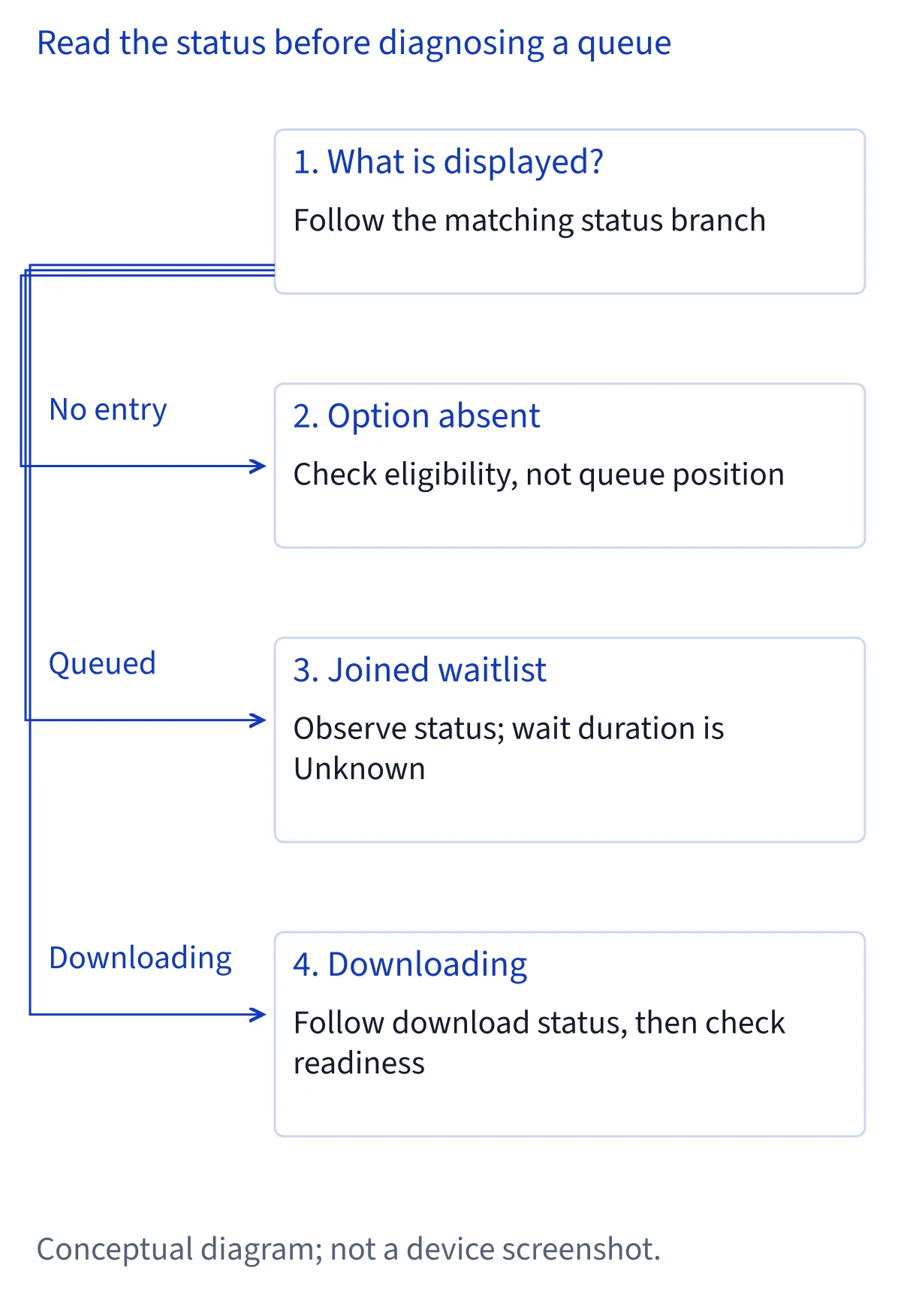
If Try Siri AI (Beta) never appears, do not call that a stuck waitlist. Check the device, operating system, language, and Apple Account region before drawing a conclusion. Apple treats Siri AI eligibility separately from general Apple Intelligence availability. An eligible device alone is not enough if another condition is unmet. Write down the exact screen you see rather than relying on a remembered phrase. A missing option deserves an eligibility check; a visible waitlist message calls for observing the queue and the later download.
Which requirements should you check before blaming the queue?
Start with your exact device model and its operating system. Apple lists Siri AI (Beta) for supported devices running the relevant versions of iOS 27, iPadOS 27, macOS 27 Golden Gate, visionOS 27, or watchOS 27. The supported device lists differ by platform, and Apple Watch also needs to be paired with an eligible iPhone on which Siri AI is enabled. A device that runs a listed operating system is not automatically on the Siri AI hardware list. Check the full combination rather than stopping at the version number.
Next, compare the device language with the Siri language: Apple requires both to be the same supported language. The Apple Account region must also be eligible. These checks matter especially when there is no setup option, but recording them is useful if you later need help understanding a status message. Do not change an account region merely to try to force access. Eligibility rules and a high-demand queue answer different questions: one concerns whether setup is offered, while the other concerns when access proceeds after an eligible request.
What should you do after joining the waitlist?
Keep the message you saw as your baseline. Apple describes a variable wait under high demand, so there is no published countdown to compare against your own case. You can return to Settings → Siri to see whether the status has changed, while leaving the normal setup in place. Checking periodically is a practical way to notice progress; it is not a technique for moving ahead in the queue. If the device begins downloading, treat that as a new stage and follow its on-screen guidance.
Repeatedly switching settings, restarting the setup flow, or looking for a purported priority trick does not have a documented benefit in Apple’s cited guidance. It may also make your own timeline harder to reconstruct. A better next step is to record the exact wording, the date you joined, and whether you later saw a download or a usable Siri AI screen. If you use more than one eligible device, note which device showed which status. That keeps a wait on one device from being confused with a missing option on another.
How do you recognize the automatic download stage?
Apple says Siri AI downloads automatically as part of becoming available. That means a waitlist message and a later download are consecutive possibilities, not competing explanations. Use the status displayed by your device to tell them apart. If it still reports that you have joined a waitlist, record that as waiting. If it shows a download in progress, record that as downloading. If setup prompts resume afterward, follow those prompts and check whether Siri AI can be opened.
The cited first-party guidance does not establish a download size or a guaranteed completion time. Avoid diagnosing a stalled download from a number or deadline taken from an unrelated report. If a displayed download appears to stop changing, note its exact wording and what the screen shows when you return later. A completed download also does not prove that every action you may ask for is available. First establish whether the interface is ready; then investigate any particular request that fails. Those observations will make subsequent troubleshooting much more precise.
What if Siri AI opens but an action is unsupported?
If you can open and use Siri AI, the waitlist is no longer the best explanation for a single unsuccessful request. Describe what you asked and which app or task was involved. Apple’s developer announcement describes a rollout of actions in its own apps, while third-party app integration is discussed in the context of a developer preview. An announced rollout or developer capability should not be read as proof that a particular action is already available to you. Check the availability of the specific action instead of restarting waitlist setup.
Try to separate an interface problem from an action problem. For example, note whether Siri AI accepts other requests and whether the failure concerns only one app or one kind of task. Do not assume that an app’s ordinary Shortcuts support establishes public Siri AI integration. If the request depends on an app feature that has not reached your setup, more time in a waitlist will not explain the missing action. Keep the wording of the response you received; it is more useful than a general report that Siri AI is broken.
Could a daily usage limit look like a waitlist?
It can cause confusion, but it belongs to a later stage. Apple says some Siri AI features that use server models have daily usage limits. Those limits may depend on the feature, the complexity of a request, and system needs or policies. The cited guidance gives no fixed number that would let you calculate how many requests remain. A limit affecting an already available feature is not evidence that your original waitlist request has restarted.
First ask whether you ever completed setup and used the relevant feature. If you have only a joined-waitlist message, a daily quota is unlikely to be the right category for what you see. If Siri AI is open and a particular server-based request receives a limit message, record the message and the feature involved. Avoid treating every failed action as a quota issue; an unsupported action and a usage limit call for different follow-up. Apple’s current first-party information does not establish a presently sold iCloud+ allowance that you should buy to resolve this situation.
What should you record if nothing seems to change?
Make a short observation log for yourself. Start with the device’s exact model, its operating system version, the device and Siri languages, and the Apple Account region. Record the date and approximate time when you first saw Try Siri AI (Beta), joined a waitlist, or noticed a download. Copy the current message as closely as possible. When you check again, add a new observation instead of replacing the first one. This is practical troubleshooting advice, not an Apple requirement or a way to speed up access.
Keep separate entries for changes in status. “Option absent,” “joined waitlist,” “downloading,” and “opens but cannot perform this request” each point to a different next step. If you report an issue later, include the relevant sequence and the exact action or response rather than only the total time elapsed. Do not place account credentials or private message contents in a troubleshooting note. The purpose of the log is to see what changed, identify the stage you reached, and avoid repeating checks that already gave you a clear answer.
What if your region or language is the real obstacle?
Apple requires the device language and Siri language to match in a supported language, as well as an eligible Apple Account region. The currently supported languages in Apple’s cited guidance are English, French, Japanese, Korean, Portuguese, and Spanish. Check both language settings rather than assuming that changing one automatically changes the other. If the setup option is missing, a mismatch is worth investigating before you interpret the absence as a queue. If you already see a waitlist message, preserve that observation while checking the settings.
Regional limits also differ by platform. Apple says Siri AI is unavailable on iOS, iPadOS, and watchOS in the EU, while eligible macOS and visionOS setups can work there with a matching supported language. Apple also says it currently does not work when the Apple Account region is mainland China. These are eligibility conditions, not a waiting-time estimate. Changing an account region as a workaround is not a sound troubleshooting step. Read the platform-specific rules for the device you actually use before deciding that a silent or missing screen is a delayed download.
When should you move from waiting to troubleshooting?
Move to the guide that matches a changed symptom, not to one chosen by elapsed time alone. Apple gives no guaranteed waitlist duration, so an arbitrary number of hours or days cannot prove that something has failed. If Try Siri AI (Beta) disappears or was never present, revisit eligibility and the missing-option checks. If your screen changes to a download and the process appears to stop, note what the device actually displays and investigate the download stage. If Siri AI opens, focus on the particular response or action that does not work.
For an unchanged waitlist message, your most defensible next step is to retain the observation, check for a later status change, and consult Apple’s current support guidance if the situation persists. Bring your short log if you seek help so the person assisting you can distinguish eligibility, waiting, downloading, and feature availability. No priority setting, guaranteed queue shortcut, download size, or promised completion date follows from the cited sources. Clear evidence of which stage you reached is more useful than guessing why an unseen process has not moved.
Common questions
Has Apple removed the Siri AI waitlist?
Apple’s support guidance checked November 6, 2026, still says that high demand may put people on a waitlist before the automatic download. Access may proceed directly for some people, but that does not make a visible waitlist message invalid. Follow the status on your device and consult Apple’s current guidance for changes.
How long does the Siri AI waitlist take?
Apple says the wait can vary and does not provide a guaranteed duration in the cited guidance. Record when you joined and the exact status you see, then check for changes periodically. Do not use someone else’s experience as a deadline for your device. If the status changes to downloading, investigate that stage separately.
Why can’t I see Try Siri AI (Beta)?
A missing setup option is not the same as joining a waitlist. Check your exact device model and operating system, whether the device and Siri languages match in a supported language, and whether your Apple Account region is eligible. Apple also says to turn on Siri first if it is off. Use the missing-option guide for that symptom.
Does a daily limit mean I am back on the waitlist?
No such connection is established by Apple’s cited guidance. Apple describes daily limits for some features using server models, while a waitlist can occur before Siri AI downloads under high demand. If setup is complete, record the exact limit message and affected feature. A single unsupported action may have a different explanation from a usage limit.